


The model browser generally supports drag and drop to move or copy elements.
A move is executed by clicking on an element in the model browser and moving it to the intended target container while keeping pressed the mouse button.
A copy is executed by clicking on an element in the model browser with the <Ctrl> key pressed and moving it to the intended target container while keeping pressed the mouse button. (The copy is indicated by a plus sign.)
Selection and subsequent Drag&Drop of multiple elements is possible by clicking on each of them with the <Ctrl> key pressed or by first selecting one element and clicking on another element with the <Shift> key pressed which will select all elements in between.
Note, move and copy of elements is only allowed to containers, which support the particular element. E.g. requirements can be moved or copied among requirement models, but not to FTA models. The mouse pointer indicates, whether a move or copy is allowed or not.
Between different projects only copy of elements is allowed, not move.
There are some specific rules which apply to certain copy or move actions as follows:
The copy of failure collections to other project packages is denied, only move is allowed.
The move of failure collections to failure collection of the same type (hazard, error, ...) is allowed. The content of all dragged collections is moved into the target collection (i.e. merged). You are asked whether the (now empty) source collection(s) shall be deleted.
The copy of failure collections to failure collection of the same type is allowed. The content of all dragged collections is copied into the target collection.
Move and copy of failures among failure collections of the same type is allowed.
Move and copy of malfunctions among activities/functions/actions is allowed.
Move of malfunctions from activities/functions/actions to any failure collection is denied.
Copy of malfunctions from activities/functions/actions to malfunction failure collection is allowed.
Move of malfunctions from malfunction failure collections to activity/function/action is denied.
Copy of malfunctions from malfunction failure collections to activity/function/action is allowed.
Move and copy of failure modes among blocks and untyped part and ports is allowed. If failure modes which are causes and/or effects of other non-moved failure modes shall be moved to another block scope, then these scope conflicts are reported to you via a message dialog after dropping, letting you either confirm or cancel the operation.
Move of failure modes from typed parts/ports to block or other part/port is denied.
Move of failure modes from blocks/parts/ports to any failure collection is denied.
Copy of failure modes from blocks/parts/ports to failure mode failure collection is allowed.
Copy of failure modes from failure mode failure collections to block or untyped part/port is allowed.
Move/copy of failure modes from parts/ports/blocks to typed part/port is denied.
Move/copy of failure modes from failure mode failure collections to typed part/port is denied.
The model browser supports the creation, deletion and modificaton of packages within a medini project. The creation and deletion of packages is triggered by the appropriate context menu of the selected package or project:
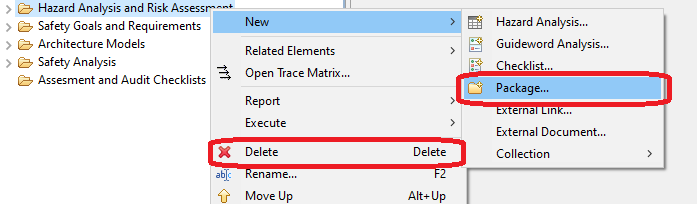
A selected package can be renamed either by choosing the "Rename..." context menu or by pressing F2. Other properties of a package beside the name can be modified in the related Properties View.
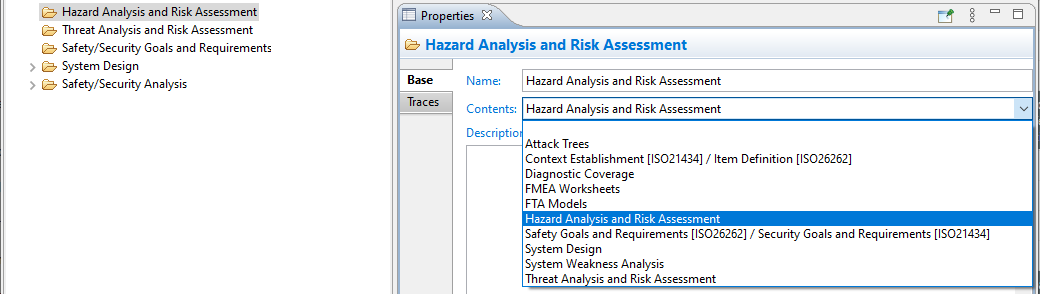
The Properties View allows to add or modify the description of this package. Additionally, it is possible to define the type of models that can be created within that package by selecting a content type in the drop down box. The set of available content types in the dropdown box depends on the domain profile of the related medini project. The content type has immediate impact on what is shown in the "New" context menu of the corresponding package. The following table shows this in more detail:
Table 17.1:
| Content Type | Available Models |
|---|---|
| Attack Trees | Attack Tree |
| Context Establishment | System/Function Model Element Library |
| Context Establishment [ISO21434] / Item Definition [ISO26262] | Item System/Function Model Element Library |
| Diagnostic Coverage | Diagnostic Coverage Worksheet Safety Mechanisms Configuration |
| FMEA Worksheets | FMEA Worksheet |
| FTA Models | FTA Model |
| Hazard Analysis and Risk Assessment | Hazard Analysis |
| Item Definition | Item System/Function Model Element Library |
| Safety Goals and Requirements | Requirements Model |
| Safety Goals and Requirements [ISO26262] / Security Goals and Requirements [ISO21434] | |
| Security Goals and Requirements | |
| System Design | System/Function Model Element Library |
| System Weakness Analysis | System Weakness Analysis |
| Threat Analysis and Risk Assessment | Threat Assessment |
The View Menu has options to make working in the Model Browser easier. Some are shortcuts, for example to take you directly to the Model Browser section of the Preferences dialog. The view menu is a three-dot menu found at the top of the Model Browser.
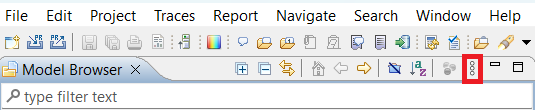
The view menu contains the following options:
Table 17.2:
| Icon | Name | Description |
|---|---|---|
 | Refresh | Refreshes the Model Browser view. |
| Select Elements... | Opens the Select Elements dialog for the package currently active. | |
 | Show Legend | Opens a window with a useful overview of all the icons used in the Model Browser. |
| Show Text Filter | Shows or hides the Text Filter text field. | |
| Preferences... | Opens the Model Browser section of the Preferences dialog. | |
 | Filters and Customization... | Lets you filter certain elements, such as closed projects or characteristic elements, out of the Model Browser for easier viewing. |
 | Link with Editor |
Toggles the Link with Editor button. When activated, the corresponding editor for a selected element, if open, is activated and the element highlighted. |
 | Focus on Active Task |
Filters out all elements that are not in the context of the active task from the Model Browser. |