medini analyze supports several ways to create analysis entries and fill the hazard analysis. Each entry ("row") is actually an event, situation, or scenario with references to other models. We use the terminology "entry" (instead of row), since entries can be viewed and edited in different editors. Note that the columns (i.e. attributes) of the entry depend on the safety domain.
To create entries in a table you have the following options:
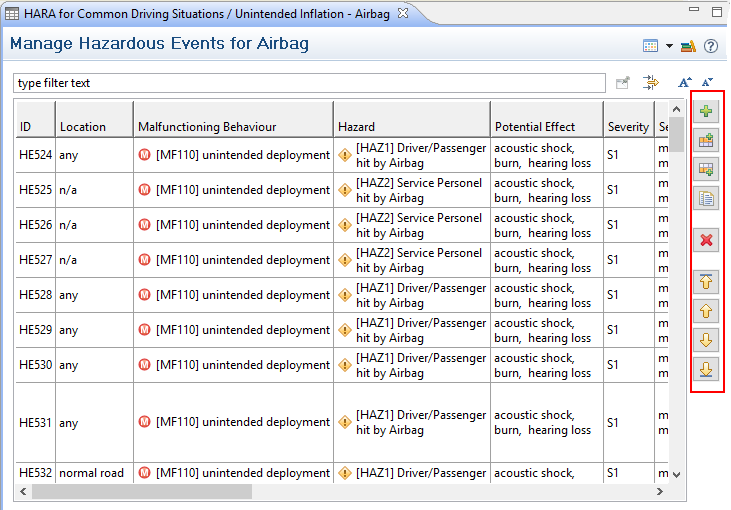
Add entries manually: Add new entry for a scenario/hazardous event to an existing hazard table by pressing the "Add" button at the right side of the table. After creation of a new row, all fields can be filled similar to any spreadsheet editor.
Use a guided wizard: You can use the context menu in the Model Browser on an existing hazard analysis to add entries. In this case, a creation wizard will open that guides you through the creation of one or multiple entries by building the cross-product of situation parameters (see Creation of pre-initialized hazard analyses for more details). You can choose from different sources like project specific situation parameters or operational situation catalogs.
Drag & Drop using Operational Siutations Catalogs: A convenient and consistent way to populate the analysis is by using operational situations from a catalog. The available operational situations defined in the different catalogs of a project are shown in the Operational Situation catalog view. If this view is currently not shown, you can open it by selecting Window->Show View ->Other and choosing Operational Situations Catalogs from the Analysis-folder or by clicking on the catalog icon in the top-right of the hazard table view. See Analysis based on Operational Situation Catalogs for details.
Using the Situation Matrix: In combination with an Operational Situation Catalog, the situation matrix provides a view and editor to list situations in relation to malfunctions. The matrix can be used to create or review an analysis. See Using the Situation Matrixfor further details.
Drag & Drop in the Model Browser: Entries can be freely moved to any other hazard table after they have been created. Simply select the entries you want to move in the Model Browser and move them by drag and drop into the hazard list where you want to manage them.
You can even drag a complete hazard analysis table and drop it onto another table. In that case all entries of the selected table will be merged into the target table. The original table will be empty after this operation.
Example
Below the Automotive HARA editor is shown. All manual editing functionality is located at the right side of the table, i.e. Add, Add before/after, duplicate, delete, and move up/down: