In order to ease the work with operational situation catalogs, medini analyze offers a special matrix view for hazard analysis (i.e. hazardous event tables) which is called "Situation Matrix". Within a Situation Matrix, operational situation entries are shown on the y-axis and malfunctions on the x-axis. If a combination of a operational situation and a malfunction is contained in the hazard analysis, this is visualized by a check mark. Furthermore, a new list entry can be inserted into the hazard analysis table for each such combination by setting the appropriate check mark.
In order to open the situation matrix, use the "Situation Matrix" button on the top right corner of an existing hazard analysis editor. As an alternative, you can use "Open With > Situation Matrix" in the Model Browser.
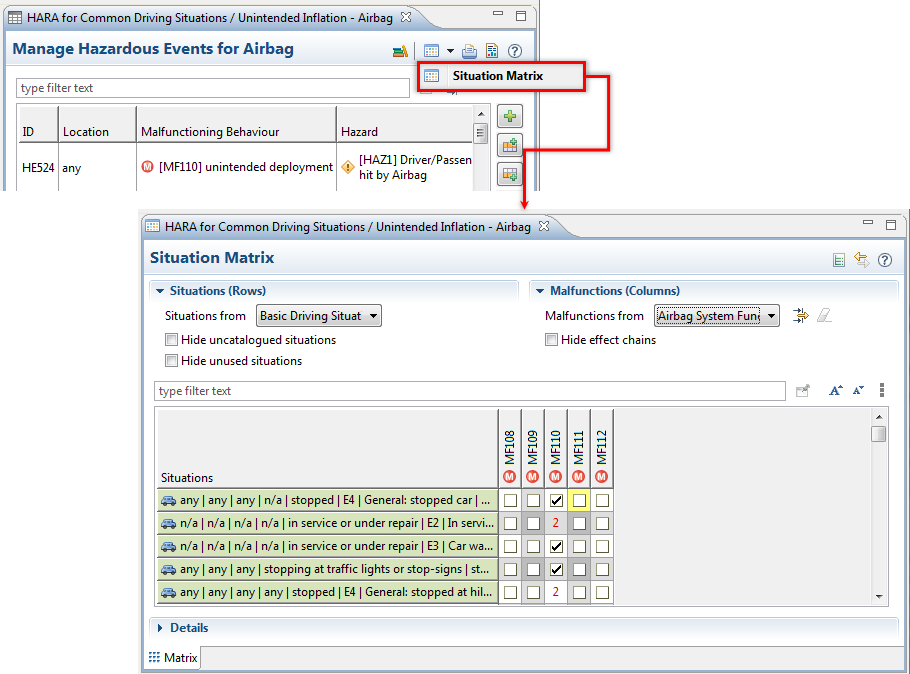
The situation matrix view has three sections:
the configuration area - "Configuration" - which allows to configure what is shown in the view,
the matrix itself and
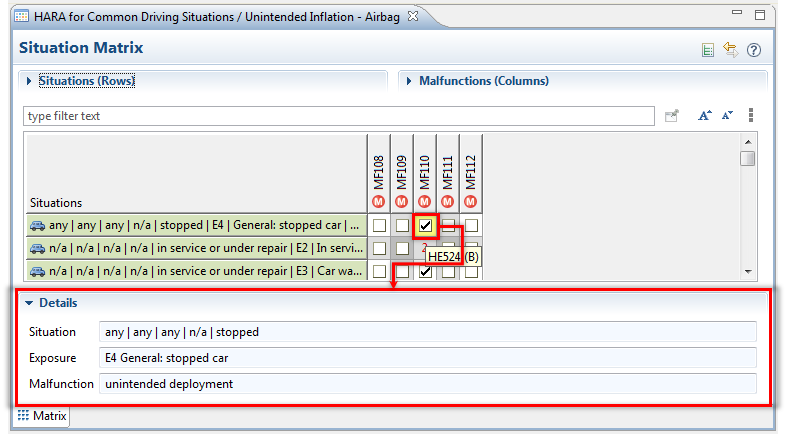
the area for the details - "Details" - which provides text fields showing details (Situation, Exposure and Malfunction) when hovering cells in the matrix view.
When the synchronize button in the right top corner of the situation matrix window is pressed, the hazard table view (if opened simultaneously) shows the actual selected combination of a situation and a malfunction, if this combination exists in the hazard table (i.e. if it is checked.)
In the configuration area, it is possible to select the situations which should be shown on the y-axis as well as the malfunctions which should be shown on the x-axis via drop down lists. Using the drop down lists let you select a operational situations catalog (or all catalogs) and a function model (or all function models). It is also possible to select no catalog or no function model here if the entries of the actual hazard table shall be shown only. To do so, the empty entry in the corresponding drop down list has to be selected.
With additional buttons just right of the drop down list it is possible to set or remove a filter on the malfunctions. In the upcoming dialog the functions or function models can be selected by checking them. If a function or function model is checked, the malfunctions defined for the function or for any function in the scope of a function model will appear in the x-axis of the matrix view. Pressing the rubber button next to the filter button will remove the filter setting.
There are further options in the form of checkboxes or menu entries which can be used to adjust the matrix view:
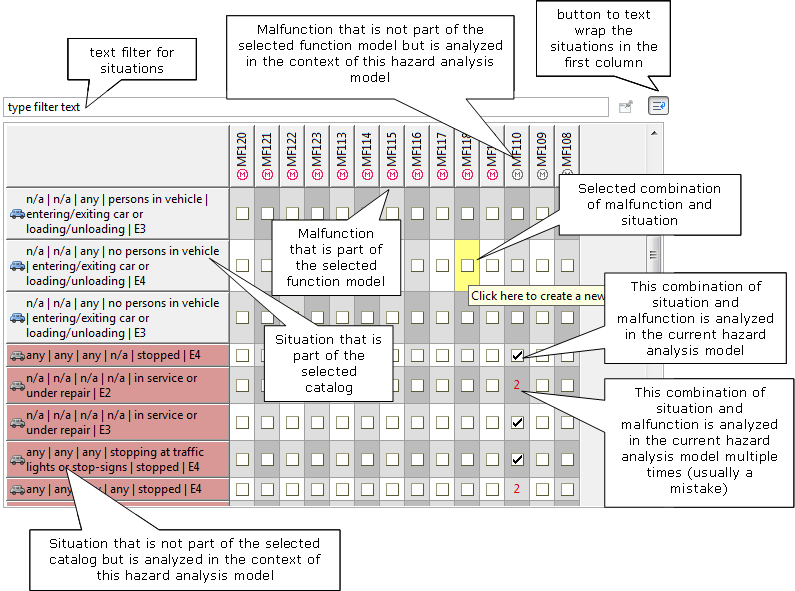
"Hide uncatalogued situations" - If this option is checked, situations that are not in the selected catalog, but have been included in the actual hazard table for which the matrix view is opened, will be hidden.
"Hide unused situations" - If checked, all situations which are not used get hidden. Not used means, they have not been analyzed in the context of any of the actual malfunctions which appear on the x-axis (i.e. no cell is checked in that row).
"Hide effect chains" - If checked, malfunctions that have effects are hidden. Use this option to further reduce the visible malfucntions to those, that are at the end of any cause-effect chain.
"Wrap Situations" - This menu entry can be used to trigger text auto-wrap in the first column. You can find this action in the "More" menu at the right of the filter toolbar.
"Smart Entry Fill" - If this option is enabled, the actual hazard list is searched for incomplete entries (e.g. entries with operational situation set but no malfunction assigned or entries with malfunction set but no operational situation). If such an "incomplete" entry exists, it is used instead of creating a new entry. This option allows alternative workflows, e.g. to pre-fill the hazard list with operational situations or malfunctions first and then assigning malfunctions or applying situations with the situation matrix. You can find this action in the "More" menu at the right of the filter toolbar.
The situation matrix view area is used to show the status of the actual hazard analysis in the context of the selected configuration of operational situations and malfunctions. The check marks indicate whether a certain combination of a situation and a malfunction is contained in the hazard analysis or not. By checking, it can be created, by unchecking it can be deleted. A check is done by a click in the cell.
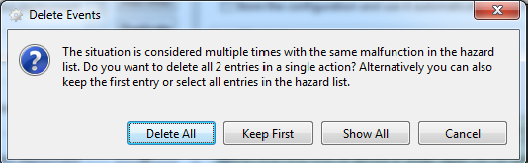
Note, that sometimes a combination of a situation and a malfunction may be contained in the hazard analysis more than once. This is indicated by showing a number. Usually, it makes no sense to have multiple entries for the same combination, so in most cases this could be considered as a mistake. In such a case, clicking in the cell will bring up a dialog with multiple options:
"Delete All" - this will delete all occurrences of the combination of the situation and the malfunction from the actual hazard analysis.
"Keep first" - this will delete all except the first occurrence of the combination of the situation and the malfunction from the actual hazard analysis. This can be used to correct the mistake of an erroneous multiple occurrence.
"Show all" - will highlight all the occurrences in the hazard analysis by switching to the hazardous events table view.
"Cancel" - this will close the dialog without any changes.
The following picture explains the information which is displayed in the situation matrix view.