


Use the following features in the Mechanical application to review the results of your contact analysis.
For more information on reviewing results, see Contact Results.
View Solution Outputs with Contact Results Trackers
You can add and evaluate contact results trackers after a solution is finished in addition to using to them to view contact results as they are computed. This allows you to check contact outputs at each solution time step.
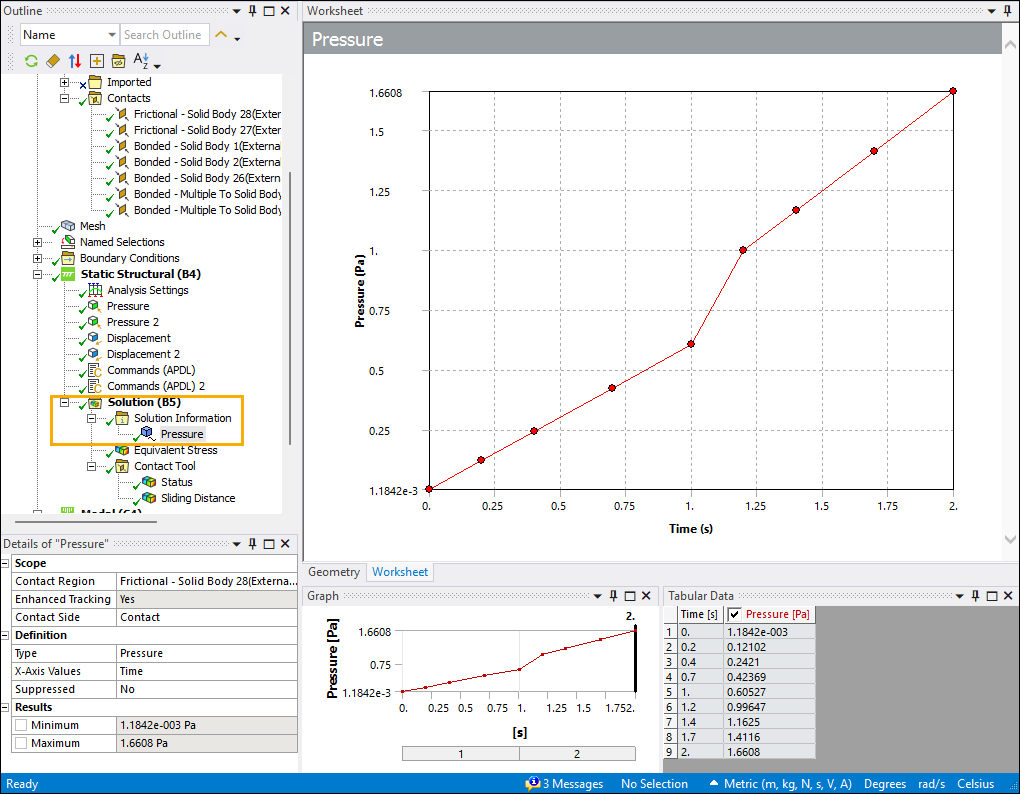
For example, the Pressure contact results tracker in the following figure (highlighted in yellow) was added to the Solution Information object after the solution was computed. The plots and tables on the right-hand side of the figure display pressure versus time at each timestep.
Check Contact Status and View Results with the Contact Tool
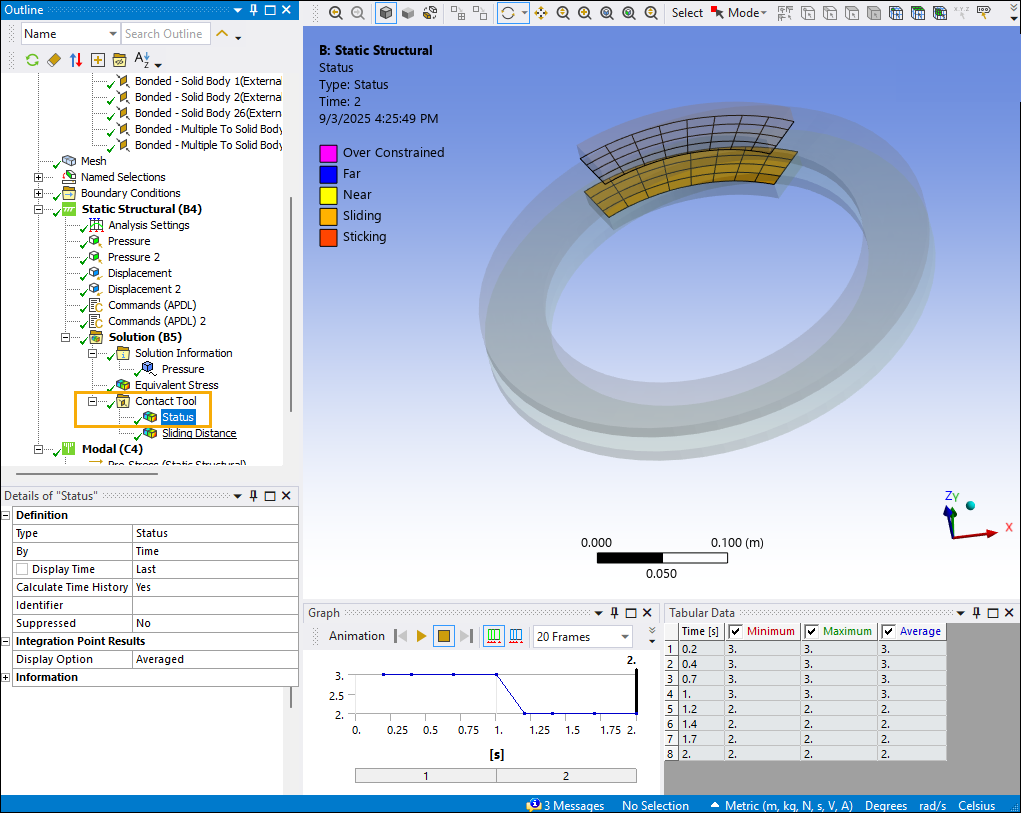
Use the Contact Tool to check the status of selected contact regions before and after solving. Contact status is shown with color codes, indicating closed and sticking, closed and sliding, open, or nearly open. In the following figure, the status of the contact region is Sliding.
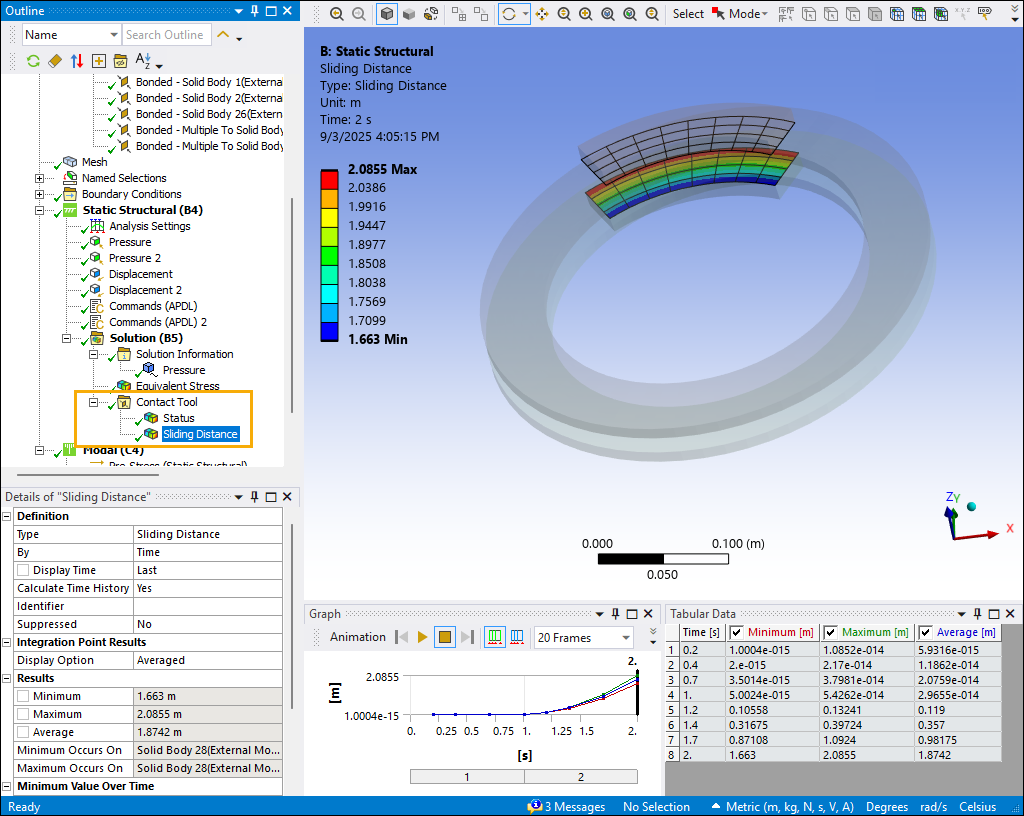
After solving, you can use the Contact Tool to plot contact results over time, including status, frictional stress, pressure, and sliding distance. Display static and animated plots for an individual contact region or for multiple regions. This lets you focus on contact regions whose results are of interest in your analysis. For example, the following Contact Tool plot shows the sliding distance for a contact region in a brake assembly. The minimum, maximum, and average sliding distance are shown in a contour plot, a table, and an animated plot of sliding distance versus time.
Things to Consider When Reviewing Contact Results
Keep the following in mind when you are analyzing contact results:
Displaying a contact pressure contour plot shows areas where pressures deviate from their expected values, which could indicate a problem with the mesh or contact set up.
Contact penetration measures how much one surface enters another. Ideally, this should be close to zero. Penalty-based contact models permit minor penetration to generate contact force, but excessive penetration relative to deformation or element size suggests that the contact is not behaving correctly.
Use animation for time-dependent analyses to see how contact status or other results vary over time.
Check that the contacts in your model are separating or sliding as you expect them to.
Check the solver output for convergence warnings. A poor mesh is a common reason for bad contact results. Refining the mesh can resolve these issues.