


When electromagnetic body forces are transferred to a structural environment, an Imported Body Force Density object can be inserted to represent the transfer. For steps to transfer data, see the Applying Imported Boundary Conditions section.
Note:
For a particular load step, an active Imported Body Force Density load will overwrite other Imported Body Force Density loads that exist higher (previously added) in the tree, on common geometry selections. For additional rules when multiple load objects of the same type exist on common geometry selections, see Activating and Deactivating Loads. If you are performing a Modal analysis, see the Modal Analysis section for more information.
For large-deflection analyses, the application applies this load to the initial size of the element, not the current size.
Go to a section topic:
Limitations
- Static and Transient Structural Analyses
The application does not support sending the Imported Body Force Density load to the solver as a table. For this imported load, the Tabular Loading property controls the creation of the data table. The values are then applied from the data table at each load step. However, the KBC command value (Key) specified for the analysis controls the ramping or stepping within a load step. Therefore, if the analysis time specified by the Imported Load definition matches the load step end time, then there is no difference in solution between the and the option (of Tabular Loading property) for the load step.
- Harmonic Response Mode Superposition (MSUP) Analyses
For a Harmonic Response MSUP analyses, the Element Based Volumetric Harmonic Force load is not supported:
As tabular data (frequency varying).
For analyses that include Multiple RPMs.
Modal Analysis Load Vector Properties
For a Modal analysis, the Details pane includes the Load Vector Controls category. This category includes the Load Vector Assignment property. Options include and . The category also includes the following properties:
Load Vector Number - Real: Enter a value greater than
0. Note that a value of1is reserved if the analysis includes base excitations or is a pre-stress Modal analysis where the Load Control property on the Pre-Stress object is set to , , or .Load Vector Number - Imaginary Enter a value greater than
0. Note that a value of1is reserved if the analysis includes base excitations or is a pre-stress Modal analysis where the Load Control property on the Pre-Stress object is set to , , or .
Important:
When using the setting, load vector number properties are read-only. The application assigns load vector numbers during the solution. Using the Load Application object, you can transfer and scale the generated load vectors to linked MSUP Harmonic Response systems.
If multiple loads/load components have the same load vector numbers, the application groups these loads/load components during the solution process to generate a single load vector that is the combined effect of all grouped loads.
Comparing Imported Body Force Density Total Forces (Source and Target)
When a body force density load is imported from External Data and scoped to solid bodies or elements, and each source element includes volume data, the Comment pane of the Imported Load Transfer Summary object displays a table comparing the total force components and magnitudes between the source and target mesh, as shown below.

To display this information, you must first specify in the Data Type column in the External Data Setup page, set a unit system, and enter "Volume1" in the Data Identifier field. The example below illustrates the settings.
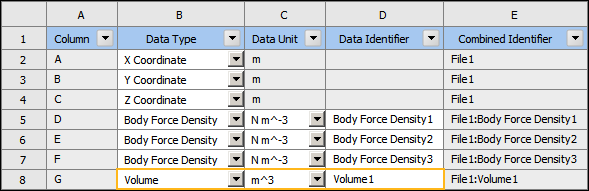
The application calculates each component of the total force of the source file by summing force components multiplied by the volume of each source data row.
Important:
This table does not display if you specify an Analytical Transformation to a coordinate in the upstream External Data system.
The unit in the External Data system is an Imperial (UK) Gallon and equals 4.5461e-3 cubic meter.