


Note: This is made available by installing the optiSLang AI package.
This node is located in the > folder in the Modules pane. This node can generate multiple file types based on the selected plugin:
optiSLang 3D Post-Processing (oSP3D) database .sdb files
The visualization toolkit (VTK) files like *.vtp, *.vtu or *.vti
The JavaScript Object Notation *.json files
ETK-nD Plugins
The ETK-nD plugins are customizable Python scripts located in the plugins folder inside of the ETKnD integration folder.
Each plugin script represents an SDB generation routine tailored for a particular dataset format to read and interpret. Three default plugins are installed with the integration:
2D Grid - This plugin requires very specific properties of its target files and interprets the given data in a specific way. It can be used as a reference for custom plugins. Plugin stores target files into .sdb files using optiSLang 3D Post-Processing (oSP3D).
Image - This plugin imports data in an image format and converts it into .sdb files using optiSLang 3D Post-Processing (oSP3D) or into the .vtu, .vtp, or .vti formats using VTK module. It can be used as a reference for custom plugins.
ANSYS Mechanical - This plugin loads LS-PrePost output *.k files and stores them into .sdb files using optiSLang 3D Post-Processing (oSP3D).
CSV as point cloud - This plugin loads higher dimensional data and stores into .sdb files using optiSLang 3D Post-Processing (oSP3D) or into the .vtu or .vtp formats using VTK module.
RST to JSON - This plugin can load Ansys Mechanical result files and convert them to the .json format. The whole results file or a subset can be converted using scoping functionality of the plugin.
RST to VTU/P - This plugin can load Ansys Mechanical results files and convert them to the *.vtu or .vtp format using VTK module. The whole results file or a subset can be converted using scoping functionality of the plugin.
The plugins internally use the Python API of oSP3D for the .sdb file generation. Additional information can be found in the oSP3D Script API Documentation located on the Ansys API Docs website.
To create a new custom plugin, you can add a new Python script to the plugins folder and implement the
get_nameandcreate_sdbmethods (see the default plugins for reference and interface description below). To implementcreate_sdb, consult the oSP3D Python API on the Ansys API Docs website.When selecting the custom plugin in the node, a few checks will automatically be performed to make sure the script is valid and compatible with the node. The result of this check is displayed at the bottom of the user interface.
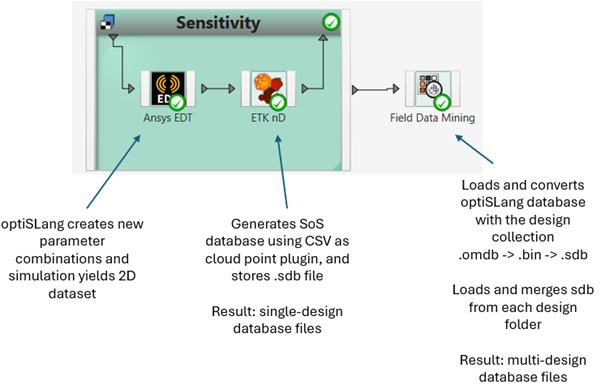
ETK-nD/Field Data Mining Workflow
With the help of the ETK-nD and Field Data Mining nodes, you can graphically program the SDB generation routine in a two-step process:
Create a single-design SDB/VTP/VTU in each design folder using the ETK-nD node.
Convert many single-design SDBs/VTPs/VTUs results files into a single merged SDB or Twin Builder format using the Field Data Mining node.
This section describes the first step. See Field Data Mining for additional information.
2D Grid Plugin
Higher-dimensional datasets are treated with optiSLang 3D Post-Processing (oSP3D). oSP3D databases (SDBs) are stored as .sdb files.
See the ETK-nD/Field Data Mining Workflow section for more information.
Setup
Place an ETK-nD node into the Parametric system.
Select a suitable reference file and adjust the absolute or relative path mode.
The node expects that a file with the same name (or the same name and relative path) exists in each design directory at the time of execution. The path of the file inside the design directory is forwarded to the SDB generation routine.
Select the "2D Grid" plugin from the Output generation plugin drop-down list.
Optionally, define a name for the result output file. By default, the node will produce the same name as the input file.
Settings
| Name | Installation Default | Description |
|---|---|---|
| Output generation plugin | 2D Grid | Shows the plugin that will generate the output. |
| Output filename | Specify the filename for the resulting file. Will default to the input filename if left blank. |
Image Plugin
This plugin is used for importing data in an image format. For exporting .sdb database, it utilizes optiSLang 3D Post-Processing (oSP3D) API. For exporting *.vtu, *.vtp or *.vti formats, it utilizes VTK module. Exported files contain image data as a 2D mesh.
Setup
Place an ETK-nD node into the Parametric system.
Select a suitable reference file and adjust the absolute or relative path mode.
The node expects that a file with the same name (or the same name and relative path) exists in each design directory at the time of execution. The path of the file inside the design directory is forwarded to the SDB generation routine.
Select the "Image" plugin from the Output generation plugin drop-down list.
Optionally, define a name for the result output file and exported formats. By default, the node will produce the same name as the input file and .sdb database only.
Settings
| Name | Installation Default | Description |
|---|---|---|
| Output generation plugin | Shows the plugin that will generate the output. | |
| Output filename | Specify the filename for the resulting file. Will default to the input filename if left blank. | |
| Export SDB | True | Specify whether .sdb database should be exported. |
| Export VTI | False | Specify whether .vti file should be exported. |
| Export VTP | False | Specify whether .vtp file should be exported. |
| Export VTU | False | Specify whether .vtu file should be exported. |
ANSYS Mechanical Plugin
How it Works
Loads LS-PrePost output *.k files and stores them into .sdb files using optiSLang 3D Post-Processing (oSP3D).
See the Using exported files in optiSLang tutorial for more information about exporting *.k and *.cdb file from ANSYS Mechanical.
Setup
Place an ETK-nD node into the Parametric system.
Select a suitable reference file and adjust the absolute or relative path mode.
The node expects that a file with the same name (or the same name and relative path) exists in each design directory at the time of execution. The path of the file inside the design directory is forwarded to the SDB generation routine.
Select the "ANSYS Mechanical" plugin from the Output generation plugin drop-down list.
Optionally, define a name for the result output file. By default, the node will produce the same name as the input file.
Settings
| Name | Installation Default | Description |
|---|---|---|
| Output generation plugin | Shows the plugin that will generate the output. | |
| Output filename | Specify the filename for the resulting file. Will default to the input filename if left blank. | |
| Static reference mesh | Specify the path to the static reference *.cdb mesh file. | |
| Another files in each design | 0 | Specify if another output *.k files should be merged into the reference file. By increasing the number, text fields are enabled for definition of the path to the file. |
Limitations
The ANSYS Mechanical Plugin currently does not support Reevaluation system and Nested systems.
CSV as point cloud plugin
How it Works
This plugin is used for importing and converting data into .csv format. For exporting .sdb database, it utilizes optiSLang 3D Post-Processing (oSP3D) API. For exporting *.vtu, *.vtp or *.vti formats, it utilizes VTK module. Exported files contain csv data as a point cloud.
See the ETK-nD/Field Data Mining Workflow section for more information.
Setup
Place an ETK-nD node into the Parametric system.
Select a suitable reference file and adjust the absolute or relative path mode.
The node expects that a file with the same name (or the same name and relative path) exists in each design directory at the time of execution. The path of the file inside the design directory is forwarded to the SDB generation routine.
Select the "CSV" plugin from the Output generation plugin drop-down list.
Optionally, define a name for the result output file. By default, the node will produce the same name as the input file.
Settings
| Name | Installation Default | Description |
|---|---|---|
| Output generation plugin | 2D Grid | Shows the plugin that will generate the output. |
| Output filename | Specify the filename for the resulting file. Will default to the input filename if left blank. | |
| Delimiters |
Specify delimiters in provided result file | |
| Begin reading from line | 1 |
Specify skipped lines |
| Column containing … coordinates |
Specify nodes XYZ coordinates columns (if provided) | |
| Column containing data values |
Specify XYZ results columns and resulting field names | |
| Field name |
Specify the field name. | |
| Use index values from file | True |
Set this option if numbering of the nodes is included and is supposed to be preserved |
| Column containing node indices | 1 | If Use index values from file is selected, specify the column that contains indices. |
| Export SDB | True | Specify whether .sdb database should be exported. |
| Export VTP | False | Specify whether .vtp file should be exported. |
| Export VTU | False | Specify whether .vtu file should be exported. |
RST to JSON Plugin
This plugin can load Ansys Mechanical results files and convert them to the *.json format. The whole results file or a subset can be converted using scoping functionality of the plugin.
Support for results files:
Static structural
Transient
Modal
Thermal steady
Thermal transient
Limited support: Harmonic
Setup
Place an ETK-nD node into the Parametric system.
Select a suitable reference file and adjust the absolute or relative path mode.
The node expects that a file with the same name (or the same name and relative path) exists in each design directory at the time of execution. The path of the file inside the design directory is forwarded to the SDB generation routine.
Select the "RST to JSON" plugin from the Output generation plugin drop-down list.
Optionally, define a name for the result output file. By default, the node will produce the same name as the input file.
Settings
| Name | Installation Default | Description |
|---|---|---|
| Output generation plugin | Shows the plugin that will generate the output. | |
| Output filename | Specify the filename for the resulting file. Will default to the input filename if left blank. | |
| Load RST |
Load data from result file path:
| |
| Scoping section |
Create a scoping:
Selected Entries field lists the created scopings |
RST to VTU/P Plugin
This plugin can load Ansys Mechanical results files and convert them to the *.vtu or .vtp format. The whole results file or a subset can be converted using scoping functionality of the plugin.
Support for results files:
Static structural
Transient
Modal
Thermal steady
Thermal transient
Limited support: Harmonic
Setup
Place an ETK-nD node into the Parametric system.
Select a suitable reference file and adjust the absolute or relative path mode.
The node expects that a file with the same name (or the same name and relative path) exists in each design directory at the time of execution. The path of the file inside the design directory is forwarded to the SDB generation routine.
Select the "RST to VTU/P" plugin from the Output generation plugin drop-down list.
Optionally, define a name for the result output file. By default, the node will produce the same name as the input file.
Settings
| Name | Installation Default | Description |
|---|---|---|
| Output generation plugin | 2D Grid | Shows the plugin that will generate the output. |
| Output filename | Specify the filename for the resulting file. Will default to the input filename if left blank. | |
| Export all results | Use Scoping. | |
| Export to VTU/VTP format | VTU |
VTU result is created always as an intermediate result. |
| Load RST |
Load data from result file path:
| |
| Scoping section |
Create a scoping:
Selected Entries field lists the created scopings |
Run Options
This node has general Run Options. The number of supported options is individual for each node.
Troubleshooting
| Issue | Solution |
|---|---|
| The node does not offer a plugin for my data format. | The installation only contains plugins that work with specific data formats. You can create custom plugins for your use-case; see ETKnD Plugins. |
| The default plugin does not extract the data I need. | The 2D Grid plugin extracts only a subset of data. You can adapt the corresponding code in the script or create a custom plugin. |
Run Options
This node has general Run Options. Supported options are:
Auto-save behavior
Maximum simultaneous executions
Maximum execution runtime
Retry execution
Known issues and limitations
VTU files created by "CSV as point cloud" plugin cannot be imported into oSP3D due to a bug in VTK package.
Versions and Requirements
The ETK-nD node requires optiSLang 2023 R1 or later.
The ETK-nD node requires optiSLang 3D Post-Processing (oSP3D) 2023 R1 or later.
When needed, optiSLang will load oSP3D of the same version.
Interface description
`.py` file requirements:
------------------------
- implement `get_name()` method returning plugin's name
- implement `create_sdb(*kwargs)` method


`.qml` file requirements:
-------------------------
- QML file is not required
- additional plugin settings (which are supposed to be passed to the plugin's Python method) can be specified in QML file
- the following methods must be used to store and retrieve plugin's settings (see docstrings below):
	- `getPluginBackendSettings(pluginName, valueName)`
	- `setPluginBackendSettings(pluginName, valueName, value)`
- another modification/access to backend settings is not permitted in order to keep data consistent for all plugins


/**
 * Get the plugin setting value from the backend settings object.
 *
 * Use this method for plugin development. This method ensures data consistency for all plugins.
 * @param  {string}  pluginName   The name of the plugin. Must be consistent with value returned
 *                                by get_name() method implemented in plugin Python code.
 * @param  {string}  valueName    Name of the setting.
 * @return {*}                    Value of the plugin setting.
 */
function getPluginBackendSettings(pluginName, valueName)


/**
 * Set the plugin setting value to the backend settings object.
 *
 * Use this method for plugin development. This method ensures data consistency for all plugins.
 * @param {string}  pluginName   The name of the plugin. Must be consistent with value returned
 *                               by get_name() method implemented in plugin Python code.
 * @param {string}  valueName    Name of the setting.
 * @param {*}       value        Value of the setting.
 */
function setPluginBackendSettings(pluginName, valueName, value)