


In Rocky, the output time refers to any point in the simulation when an output file has been saved. By selecting different output times or by playing them in succession, you can analyze values calculated at different times within your simulation.
What would you like to do?
See Also:
The Time toolbar (shown below) is the where you change what simulation output time (also referred to as time step) is currently being analyzed. What output time you select changes the values displayed in 3D Views, individual statistics, and animations, and determines the outcomes of settings like Particle Trajectories.

The Time toolbar enables you to select an individual output time based on the simulation time or output file, or play all available outputs sequentially in a loop. You can also limit the outputs shown on the Time toolbar to a certain range that you specify by using the Time Filter. This can be useful when using the Particles Time Selection User Process, defining Output variables, or when tagging Particles.
Note: Unless you have enabled the Auto Refresh option, the ouput values are updated during processing only when you choose to manually Refresh the results. (See also About Starting a Simulation.)
Previewing Motions Using the Time Toolbar
If you haven't yet processed your simulation, the slider on the Time toolbar will be highlighted yellow (as shown below) to indicate that it can be used for the Motion Preview window. (See also About Creating and Applying Motion Frames to Imported Geometries.)
Figure 5.201: Time Toolbar with slider highlighted in yellow to indicate its use during Motion Preview

When the slider is highlighted yellow, the toolbar represents only the motion-related preview of the expected output times, and does not reflect any other particle calculations that have been performed. A preview length equal to the Simulation Duration is provided (see also About Solver Parameters) with an upper limit of no more than 30,000 time steps.
After processing, the Time toolbar goes back to its original function, and the highlighting is removed.
Use the images and table below to help you understand how to use the Time toolbar and Time filter to change the current time step.

Table 1: Time Filter dialog options
Setting | Description | Range |
|---|---|---|
Enable time filter | When selected, allows you to define a time range by which to limit what outputs are displayed on the Time toolbar. | Turns on or off |
Initial time | Enables you to set the beginning value for the time range. | Any value |
Final time | Enables you to set the ending value for the time range. | Any value |
What would you like to do?
Learn more output time you want to display.
From the Time toolbar, use the Time list, slider, or other navigation buttons to select the output time you want to display.
Note: If you aren't seeing as many outputs as you expected, you might need to refresh your simulation results (see also About Starting a Simulation) or disable your Time Range (see also Limit Output Values by a Specific Time Range.)
Tip: To play a preview of your simulation, select a 3D View and then click the Play simulation button.
See Also:
From the Time toolbar, click the Timeset filter button.
From the Time Filter dialog, do all of the following:
Enable the Enable time filter check box.
Define the time range by entering the values you want in the Initial time and Final time boxes.
Click OK.
The output times available for display on the Time toolbar are now limited by the range you defined.
Tip: To remove the filter and show all available output times, from the Time Filter dialog, clear the Enable time filter checkbox, and then click OK.
See Also:
Rocky is a complex program that enables you to perform various types of analyses on your simulation data. The more complex the analysis request and the more requests you make at once, the longer it will take for Rocky to calculate and display them.
To help you keep track of these more complex or time-consuming requests, Rocky includes a Progress panel, which displays the status of the active processes you have requested.
What would you like to do?
Learn more About the Progress Panel
Learn more About Panels
The Progress panel enables you to monitor the status of your active requests for more complex calculations and/or display changes. Computationally intensive requests like generating an animation, or creating several graphs at once, can take additional time to process. The Progress panel enables you to see the status of these requests while still working on other tasks.
While the information on the Progress panel is display only, you can use the information provided to decide whether or not to take action on a task from the original request location. For example, if you notice that your animation is taking a long time to generate and you want to delay that task until a later point, you may cancel generating the animation by finding the animation window and closing it. The same is true for other request windows; you can stop the request by closing them.
Notes:
If the request you want to close is dependent upon another request, you will be unable to close it until the dependency is cleared.
Because there are already several ways for you to monitor the progress of your simulation (see also About Starting a Simulation), the Progress panel does not display this information.
Use the image and table below to help you understand how you can use the Progress panel to monitor the statuses of your analyses requests.
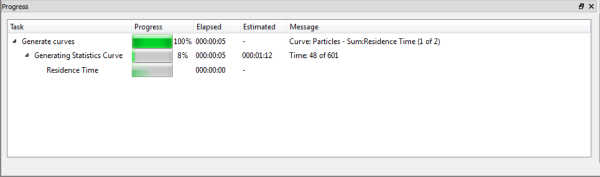
Table 1: Progress panel options
Column Title | Description |
|---|---|
Task | Name given by Rocky to the tasks and sub-tasks required to complete the request. |
Progress | Indicates both visually and by percentage how much of the task is complete. |
Elapsed | The amount of real time in hours minutes, and seconds since the task started processing. |
Estimated | Approximately how much more time in hours, minutes, and seconds, Rocky estimates the task needs to complete. |
Message | Additional information, including errors, pertaining to the task. |
What would you like to do?
Learn more About Panels
Close the window from which the process was originally requested. Note: If the processing window you want to close is dependent upon another request, you will be unable to close it until the dependency is cleared. Tip:Use the Progress panel to help you monitor the processing statuses of your various requests.
See Also: