


To get more help understanding the features and capabilities of Rocky, please consult the following resources.
Table 1: Product Documentation
Resource | Description | Location |
Rocky User Manual (this resource) | Provides feature descriptions, parameter definitions, and step-by-step instructions for accomplishing various setup, processing, and post-processing tasks using the Rocky program's User Interface (UI). It is tied to the Rocky product version and receives updates with new software releases. | From within the Ansys Rocky program, click Help, point to Manuals, and then click User Manual. |
|
Rocky SPH Technical Manual |
Provides a brief description of the Smoothed-Particle Hydrodynamics (SPH) method and details the specific models and calculations used within the Ansys Rocky program. |
From within the Ansys Rocky program, click Help, point to Manuals, and then click SPH Technical Manual. |
Rocky Technical Manual | Provides a brief description of the Discrete Element Method (DEM) and details the specific models and calculations used within the Ansys Rocky program. | From within the Ansys Rocky program, click Help, point to Manuals, and then click DEM Technical Manual. |
Rocky CFD Coupling Technical Manual | Provides best practices for using the Ansys 1- and 2-Way Fluent coupling methods within Rocky and explains some limitations of their usage. | From within the Ansys Rocky program, click Help, point to Manuals, and then click CFD Coupling Technical Manual. |
Rocky PrePost scripting Manual | Lists the PrePost scripting functionality that can be used to create and modify Python scripts for automating tasks in Rocky. | From within the Ansys Rocky program, click Help, point to Manuals, and then click PrePost Scripting Manual. |
Rocky Solver SDK Manual | Lists the Solver SDK functionality that can be used to create and modify custom external Modules. Also includes instructions for using the SDK and setting up your programming environment, and also provides sample code you can use as examples. | From within the Rocky program, click Help, point to Manuals, and then click Solver SDK Manual. |
Table 2: Training and Support
Resource | Description | Location |
Ansys Customer Portal | Access self-guided Rocky workshops and installation instructions; download example scripts, modules, and the Calibration Suite; submit a customer support request or check-up on existing requests; and more. | Visit the support.ansys.com/portal/site/AnsysCustomerPortal page of the Ansys Customer Portal, and then sign in as instructed. If you do not already have sign-in information for the customer portal, please contact your Rocky representative for assistance. |
Rocky Training | Sign-up for the next Rocky training session to get a better understanding of how Rocky can help you improve your designs, and get hands-on experience using the product. | Please contact your Rocky representative or Submit a Support Request and ask for the latest training schedule. |
What would you like to do?
When the Experimental (Beta) Features checkbox is enabled on the Options | Preferences dialog (see also About Setting Global Preferences), this allows you to use the Ansys Engineering Copilot.
Important: Note that beta features have not been fully tested and validated. Ansys, Inc. makes no commitment to resolve defects reported against these prototype features. However, your feedback will help us improve the overall quality of the product. We will not guarantee that the projects using this beta feature will run successfully when the feature is finally released so you may, therefore, need to modify the projects.
Ansys Engineering Copilot delivers content from Ansys content creators in response to your queries. Content sources that are searched include the Ansys Innovation Space, knowledge articles, forum posts, and AnsysGPT™.
Ansys Engineering Copilot opens a dock widget in Rocky software, where you can access several resources that will help you find answers to your questions and learn something new by engaging with the large global Ansys community. For more information, see the Ansys Engineering Copilot documentation.
How to access Ansys Engineering Copilot in the Rocky software
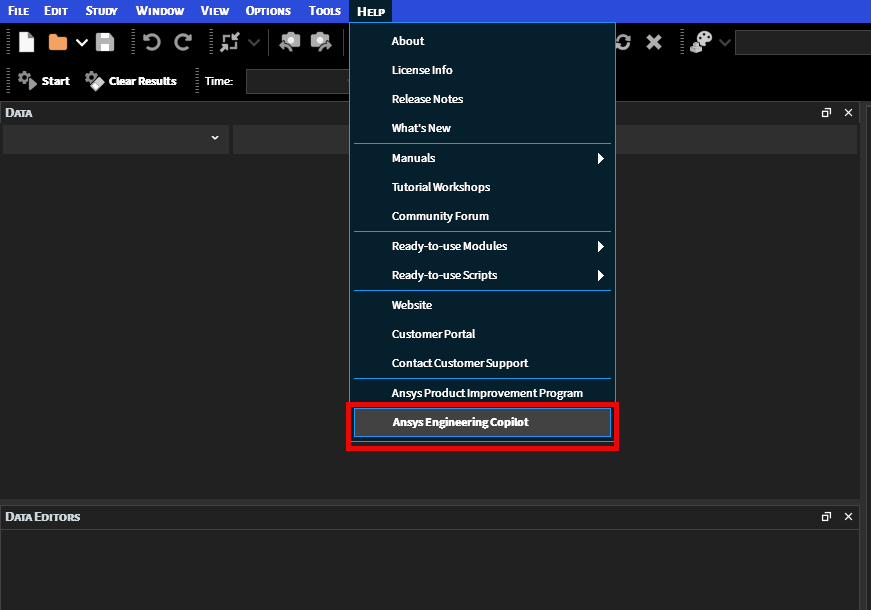
In the menu, click on Help > Ansys Engineering Copilot:
How to use
The first view of Ansys Engineering Copilot in a dock widget will look similar to the following:
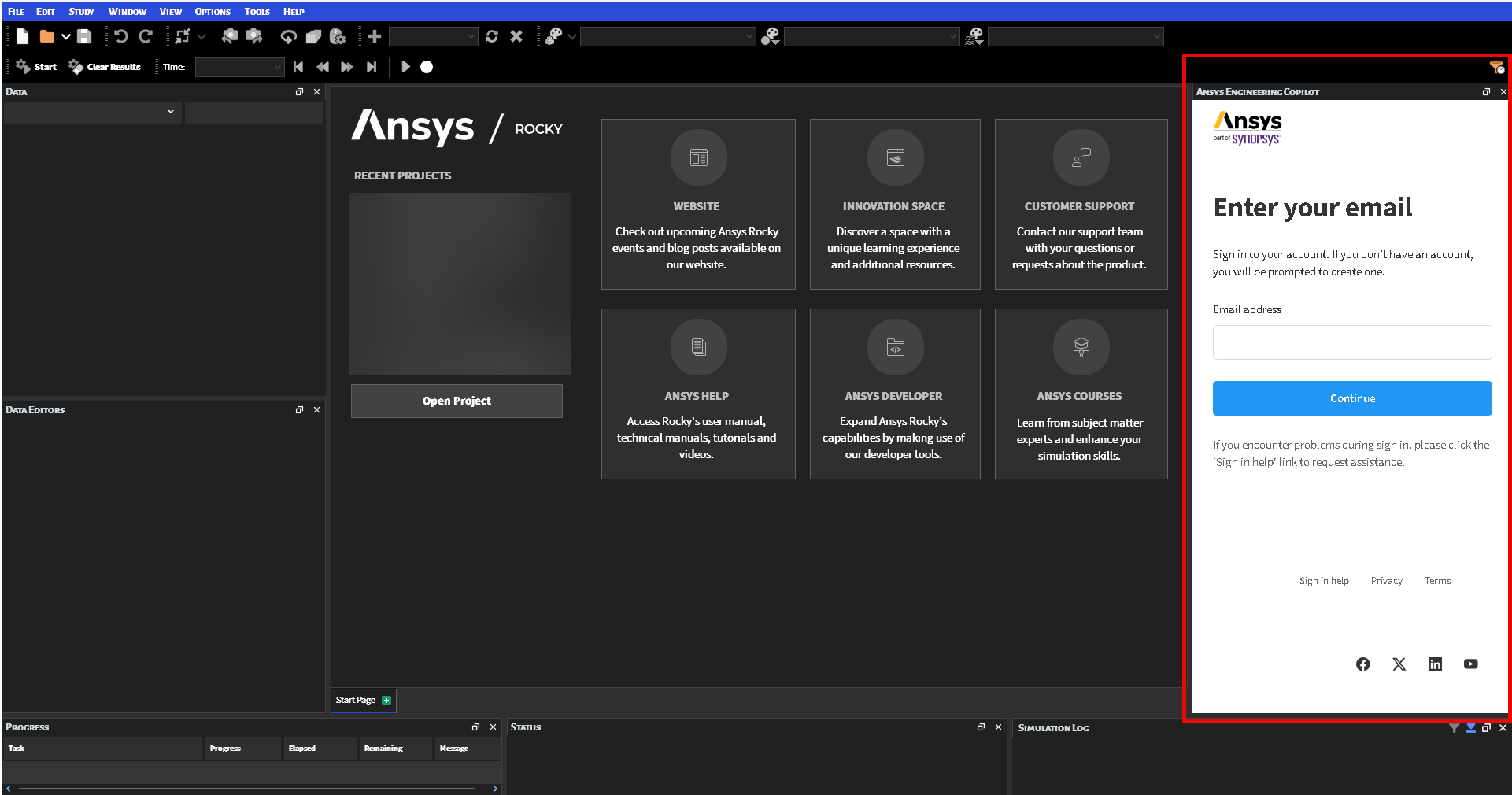
Enter your credentials to sign in.
Pages
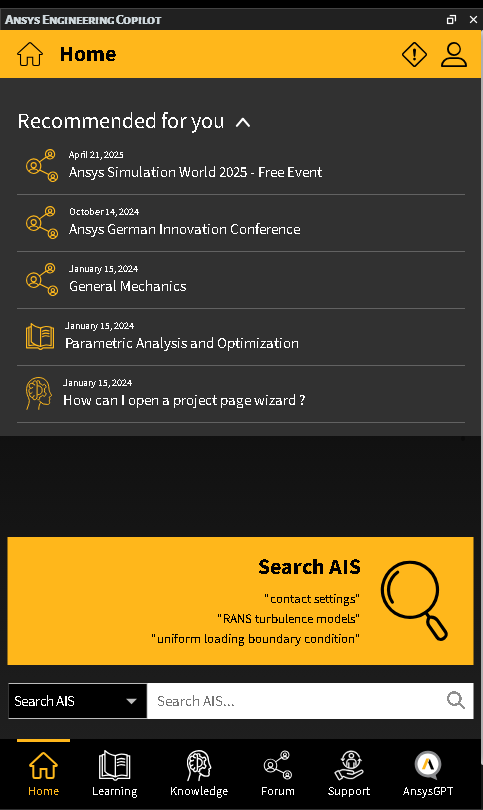
The Ansys Engineering Copilot dock widget contains the following pages:

Home
This page suggests links that may be of interest to you.
In the search field, enter a topic and click the Search button
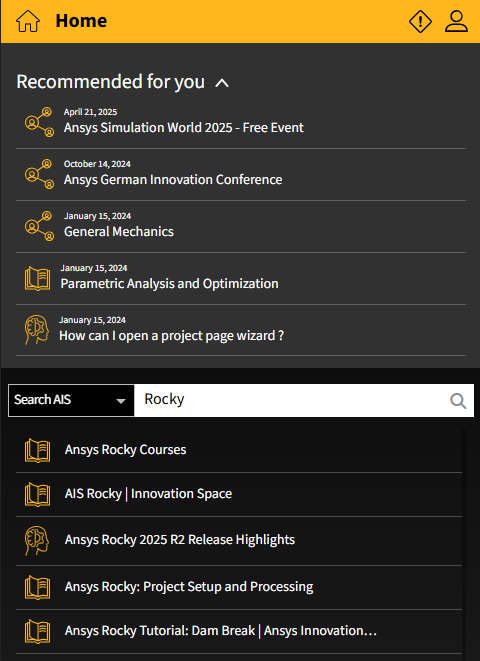 :
:Click any of the search results to open.
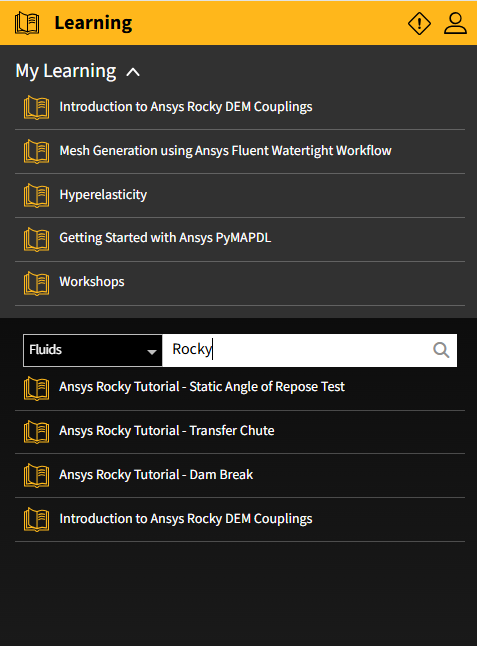
Learning
This page lists any courses that have been assigned to you.
Similar to the Home page, the Learning page also has a Search feature.
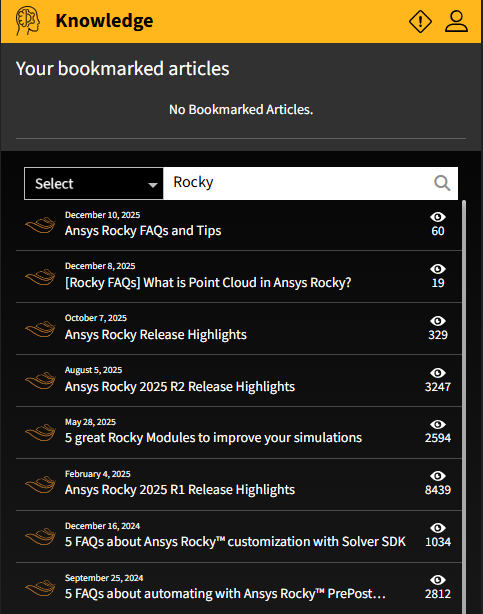
Knowledge
This page lists any pages you have bookmarked.
You can also search for a topic. Unlike the Search feature on the Home page, clicking a search result here will open the page in the current dock widget. You can navigate back to the Knowledge page through the menu or using the "back" arrow in the UI.
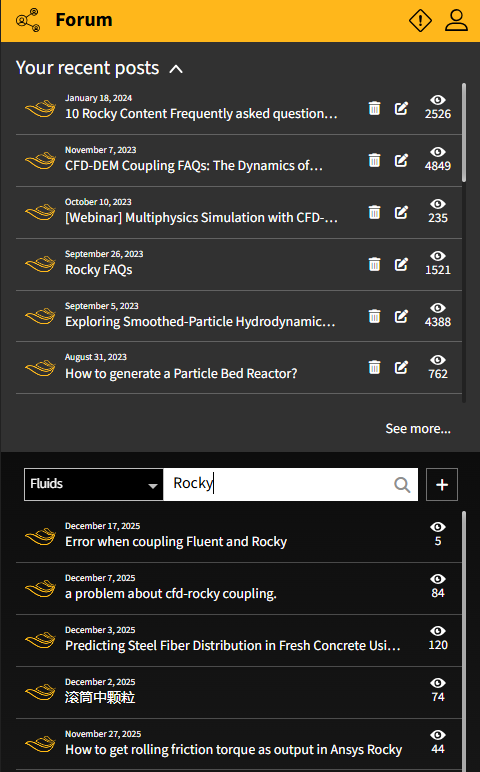
Forum
This page shows the recent forum pages you have visited. The Forum page also has a Search feature similar to that on the Knowledge page.
Support
This page shows support information about your account.
AnsysGPT™
This page shows results from AnsysGPT™.
The Rocky Support Team is available to help answer your questions about Rocky, provide assistance with licenses, report issues or mistakes in the software or documentation, help you troubleshoot issues with the software, and more.
To contact the Rocky Support Team, please access the Ansys Customer Portal.
Note: If you do not already have sign-in information for the customer portal, please contact your Rocky representative for assistance.
This method should result in an automatic email being sent to your account, including the ticket number for your tracking purposes. A member of support will typically respond to your request within 1 business day. Once you receive the response, you may either continue to correspond to support through email, or through the customer portal.
Tip: It can help provide context if you include an illustrative screenshot or even a copy of the simulation project your question is regarding. (See also Include a Simulation Project in a Support Request.)
See Also:
When submitting a support request, it can help expedite the process if you provide a copy of the simulation project to which your request pertains. In this way, the support team can gain additional context as to your unique situation, and can provide answers appropriately.
Note: If your project has already been processed and contains time steps, the associated files will likely be too large to send to support. It is therefore important to first save a copy (without results) of the project before you send it. See below for details.
To include a copy of your simulation project in a support request:
In Rocky, open the project you want to include with your support request.
Do one of the following:
If the project has already been processed (has time steps), follow the instructions to Save a Copy of Only the Simulation Settings; Not the Simulation Results.
If the project has not yet been processed (has no time steps), continue to step 3.
With your unprocessed project (no results) open, do one of the following:
To have Rocky automatically prepare an archive folder with all the files support needs, follow the instructions to Archive a Simulation Project.
To manually prepare your own folder with all the files support needs, Zip or 7zip the Rocky project (with no results), its associated project folder, and any custom particle .stl files you used in the project setup. Tip:The project folder will have the same prefix as the project file. For Example: If your project file is called "my_project.rocky", then you should zip both the "my_project.rocky" file and the "my_project.rocky.files" folder that is next to it.
Attach the .rocky_archive, Zip or 7zip folder to the ticket when submitting your support request. (See also Submit a Support Request.)
See Also:
Archiving a simulation project saves all the associated setup information, post-processing analyses, and results (time steps) for your project-including any scripts you have saved to the Project scripts tab of the PrePost Script panel. (See also About Creating and Using PrePost Scripts.)
For simulations that have already been processed, this can result in a very large file; therefore, the user has the possibility of archiving the project without the results. This will result in a much smaller file that can be more easily shared. (See also Include a Simulation Project in a Support Request.)
Note: Depending upon the geometries and other setup criteria, archiving only the simulation setup portion of your Rocky project may still result in a large archive file, but should still be smaller than archiving the entire processed simulation.
To archive a simulation project:
From the File menu, click Archive project;
From the Archive Options select one between the options Archive project with Simulation Results or Archive project WITHOUT Simulation Results;
From the Archive project dialog, choose the drive or folder of the location to which you want to save the file, verify the File name, and then click Save;
From the Project saved message, click Yes to open the directory. The .rocky_archive file that you just saved is shown.
See Also:
If you discover an issue or run into an unexpected error while using the Rocky software, please report it to Customer Support by Submitting a Support Request.
In your request, please include the following information:
A short description of the behavior you are reporting.
Step-by-step instructions for reproducing the behavior.
Detail regarding the behavior you expected to see followed by the actual results you experienced.
See Also:
From the Rocky Help menu, click License Info.
From the License Management dialog, look to the right of License Type. If your license is valid and set up correctly, you should see Ansys listed (Figure 1).

See Also: