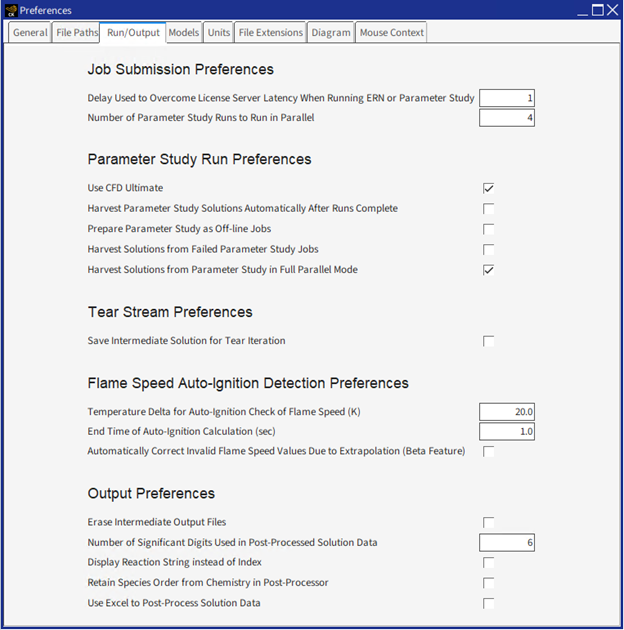
Figure 2.56: Preferences > Run/Output Settings shows the Run/Output tab of the Preferences panel. This tab allows you to set preferences for:
Job Submission
Parameter Study
Tear Stream
Flame Speed Auto-Ignition Detection
Output Preferences
Table 2.13: Run/Output Preference Settings
| Preference | Description |
| Number of Parameter Study Runs to Run in Parallel | Sets the number of Parameter Study runs to be run in parallel. It will be limited by the number of licenses and processors available on your machine. |
| Number of Threads Used for All Non-Parallel Runs | Controls the number of threads used per run for all Ansys Chemkin runs except parallel parameter study runs. |
| Number of Threads Used per Parallel Parameter Study Run | Controls the number of threads used per parameter study run when runs are done in parallel. |
| Erase Intermediate Output Files | Erase all intermediate output files generated in a series. |
| Save Intermediate Solution for Tear Iteration | When checked, tear iteration will save intermediate solution files. |
| Temperature Delta for Auto-Ignition Check of Flame Speed (K) | The temperature delta used in the auto-ignition calculation to check the validity of flame speed. |
| End Time of Auto-Ignition Calculation (sec) | The end time of the auto-ignition calculation used to check the validity of flame speed. |
| Automatically Correct Invalid Flame Speed Values Due to Extrapolation | The Chemkin post-processor uses extrapolation scheme to auto-populate missing flame speed entries due to auto-ignition or flame-speed failure while it is generating new flame-speed table. |
| Use CFD Ultimate | When checked, running from the user interface will check out the CFD Ultimate from licensing rather than attempt to use anshpc. Offline batch scripts created while this setting is checked will also trigger the use of the CFD Ultimate feature when run. |
| Harvest Parameter Study Solutions Automatically After Runs Complete | When checked, the user interface will harvest the solutions of the parameter study automatically after all the runs have completed. |
| Harvest Solutions from Failed Parameter Study Jobs | When checked, the harvester will harvest partial solutions from failed parameter study jobs. |
| Harvest Solutions from Parameter Study in Full Parallel Mode | When checked, the harvester will harvest solutions from parameter study in full parallel mode. Otherwise the harvester will use serial mode in certain stages of the operation to avoid potential system or I/O issues. The serial mode is much slower but it is a more stable option when you have encountered system or I/O issues using the full parallel mode. |
| Display Reaction String instead of Index | When checked, the Chemkin post-processor will display reaction string instead of reaction index in reaction-specific variables such as rate-of-production. |
| Number of Significant Digits Used in Post-Processed Solution Data | The XML solution of the reactor models uses 12 significant digits to save solution data. By default, the post-processor will use 6 significant digits to write the solution data when it is generating comma-delimited csv files. This option can be used to specify how many significant digits the post-processor should use. |
| Delay Used to Overcome License Server Latency When Running ERN or Parameter Study |
There could be some latency in the response of license server due to network activities. The delay is specified as number of seconds. |
| Retain Species Order from Chemistry in Post-Processor | By default, when the Chemkin Post-Processor lists species solution variables in the Select Post-Processing Variables panel, the species will be listed in alphabetical to make searching easier. This means that if you have listed species in a pre-defined order in the chemistry input file, that order will not be honored in this panel. If you check this option, the panel will honor that species order. |
| Use Excel to Post-Process Solution Data | When checked, Microsoft® Excel® will be used to post-process the solution data instead of the Chemkin Post-Processor. |