You need steps only if you want to guide the analysis settings or boundary conditions at specific time points. You can introduce multiple steps at time points where you want to change the analysis settings (such as the time step size) or when you want to activate or deactivate a load at specific points in time. For example, you can delete a specified displacement at a point along the time history.
Multi-step Constant, Tabular Data, and Function Loads
When you use constant, tabular data, and function loads or supports in a multi-step analysis, the Tabular Data and Graph windows appear. You can enter the load history (time vs. load tabular data) in the tabular data grid. The procedures for applying tabular and function loads are described in Specifying Boundary Condition Magnitude.
If you have multiple steps in your analysis, the end times of each of these steps will always appear in the load history table. However you need not necessarily enter data for these time points. These time points are always displayed so that you can activate or deactivate the load over each of the steps. Similarly the value at time = 0 is also always displayed.
If you do not enter data at a time point, the application computes its value as follows:
The value is linearly interpolated value if the load is a tabular load or multi-step constant load. An "=" sign is appended to such interpolated data so you can differentiate between the data that you entered and the data calculated by the program.
The application computes the exact value from the function that defines the load.
You can also import load histories from or export load histories to any pre-existing libraries. Another option is to apply loads as functions of time. In this case you will enter the equation of how the load varies with respect to time.
Using Constants for Multi-Step Loads
The following figure shows a Constant pressure load in a multi-step analysis. A ramped pressure value is applied to load step 1. The pressure at subsequent steps is interpolated as constant, as shown in the tabular data pane.

Using Tabular Data for Multi-Step Loads
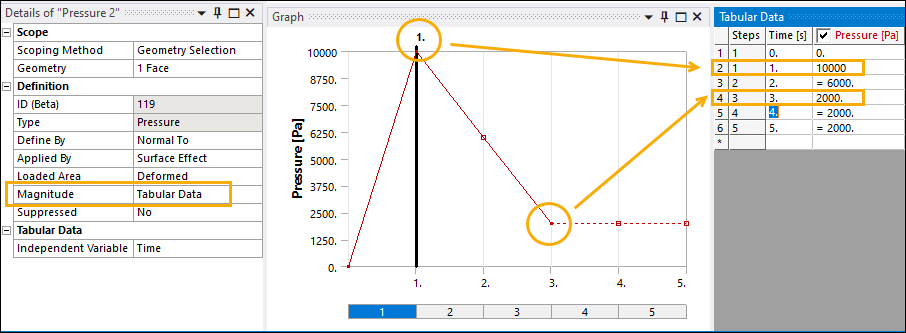
Selecting Tabular Data as the magnitude allows you to enter a value in the data table at each analysis step, as shown in the following figure. You can modify these step values as needed. The table displays the interpolated load values between each data point
If you change the magnitude of a Constant load at an analysis step, the magnitude type automatically switches to Tabular Data.
Using Functions for Multi-Step Loads
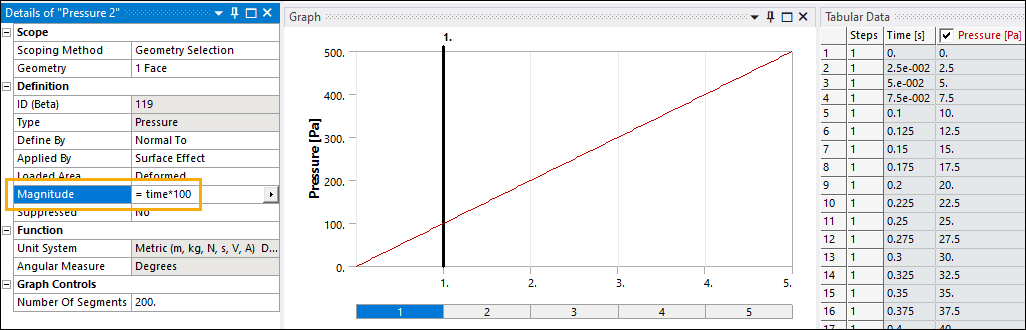
Selecting Function as the magnitude displays a read-only table of computed values for the function at each step. You can activate or deactivate the functional load at a step.
Multi-Step Table Loads
You can use multi-variable tables to specify loads in multi-step analyses. By default, a table load is applied to all steps in the analysis.
You can optionally activate or deactivate a table load at each analysis step. The Load Step Activation pane is displayed when you select a load with a table for the magnitude. Each load step has a row in the table. A check mark indicates that a load step is active.
Activating or Deactivating Load Steps for a Single Table Load
To activate or deactivate a table load at a single Load Step, click the check box for that step.
To activate or deactivate a table load at all load steps, click the check box next to Active.
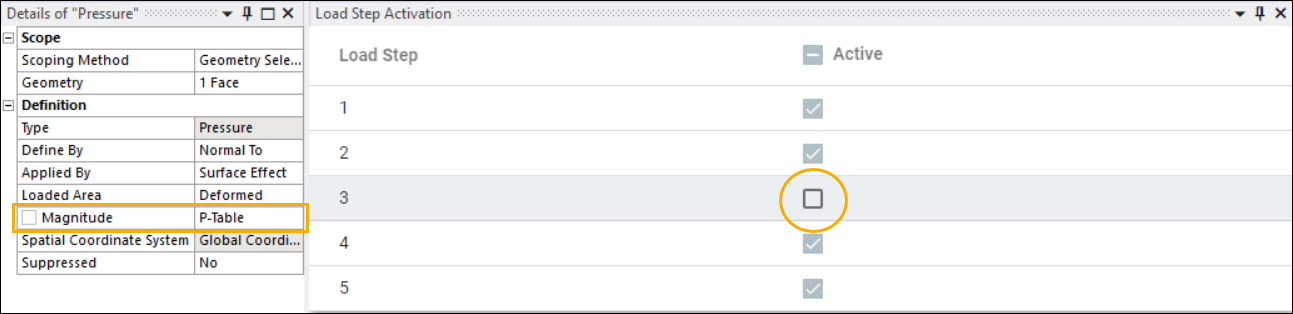
In the following example, P-Table is deactivated at Load Step 3 in a five-step analysis.
Activating or Deactivating Load Steps for Multiple Table Loads
To deactivate or activate ltable loads for multiple boundary conditions:
Select the desired table-defined loads. The Load Step Activation pane aggregates the step information for the selected loads. It lists the selected boundary conditions and summarizes their load step activation status.
A check mark indicates load steps that are active across all of the selected boundary conditions. A minus sign indicates load steps that are inactive for at least one of the selected boundary conditions. Unchecked load steps are inactive across all of the selected boundary conditions.
Follow the directions under Activating or Deactivating Load Steps for a Single Table Load to activate or deactivate load steps across the selected boundary conditions.
In the following example, P-Table specifies the magnitude of the Pressure boundary condition and P-Table-2 specifies the magnitude of the Pressure 2 boundary condition. The selected boundary conditions (Pressure and Pressure 2) are listed on the Load Step Activation pane. The column under Active summarizes their status at each load step. Both table loads are active at Load Steps 1, 2, and 5. One table load is active at Load Step 3. Neither table load is active at Load Step 4.

Displaying the Load Step Activation Pane
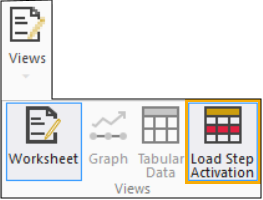
To toggle the display of the Load Step Activation pane, click the Views icon in the ribbon, then click the Load Step Activation icon in the Views menu.