


This section introduces the procedures and options available when a cycling simulation is interrupted during a design point calculation in Fluent Aero.
This section explains how to handle scenarios where a cycling simulation for a design point is interrupted. It provides guidance on the available options, such as running the next cycle, saving results, or resuming the calculation, and outlines the effects of each choice on the simulation state and data management.
If → → is enabled, and after interrupting a cycling calculation, the – command appears under the menu in the Solve panel.

Run Next – Cycle
After interrupting a design point cycling calculation, → becomes available in the Solve panel. This option can be used to proceed to the calculation of the next cycle of the current design point. However, before calculating the next cycle, the interrupted cycle needs to be completed and saved so that the next cycle begins calculating correctly. Therefore, to interrupt a cycle and proceed to a next cycle,the following sequence of commands is suggested. → → → .
Before clicking → , the following changes of settings are allowed and are applied to all other design point’s simulations, starting from the next cycle:
All Adaption panel’s settings.
All Files panel’s settings, except the Write Per Cycle option is skipped.
All Solve panel’s settings. The specified Maximum/Total Number of Cycle is always respected, and the number can not be less than the current interrupted cycle’s index.
Note: → is a released feature. See Mesh Adaptation with PUMA in Fluent Aero’s Parametric Workflow in the Fluent Workspaces User's Guide and Interrupting a Design Point’s Cycling Simulation in the Fluent Workspaces User's Guide for more details.
The following image and text below provides a visual example of all the available workflows related to → after interrupting a cycling simulation during the 3rd cycle (originally set up with 5 cycles and 100 iterations per cycle).
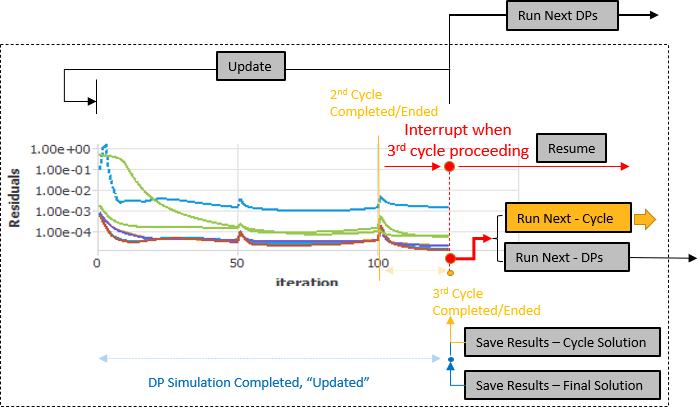
Starting from the image above, where you have interrupted the calculation during the 3rd cycle, it is possible to proceed with the next cycle using the following commands in the Solve panel.
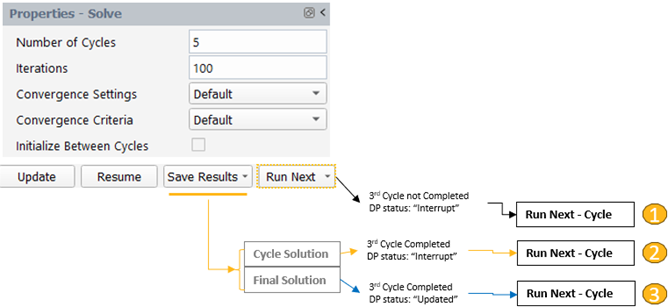
→
If you only press → without saving the previous cycle solution, a warning message will appear and suggesting to saving the current interrupted cycle first.
→ →
Pressing → will save the current solution as the cycle solution. The results are updated/written to design point’s solution files. If Write Per Cycle is enabled, the design point’s solution files will be copied to the cycle solution files as well. The current 3rd cycle will be marked as ended/completed. After clicking , the next cycle will start calculating.
→ followed by →
Pressing → will save the current solution as the final cycle solution. The results are updated/written to design point’s solution files. If Write Per Cycle is enabled, the design point’s solution files will be copied to the cycle solution files as well. The current 3rd cycle will be marked as ended/completed. The design point’s maximum/total NumberOfCycle in CP-0 is set to number of 3 to indicate that no more cycles are needed to carry on calculation. The status of current design point is set to Updated. If you then select Run Next Cycle, a warning message will then appear and suggesting to Run Next – DPs instead since no more cycles are left.
When the calculation is complete and if you are satisfied with the results of an intermediate cycle solution, you can set this cycle solution as the final design point solution. To do this, right-click the cycle's .cas.h5 or .dat.h5 file and select . Fluent Aero will then delete all subsequent cycles, load the selected cycle solution, and update the residual plots, graphs and tables with the results of the selected cycle.
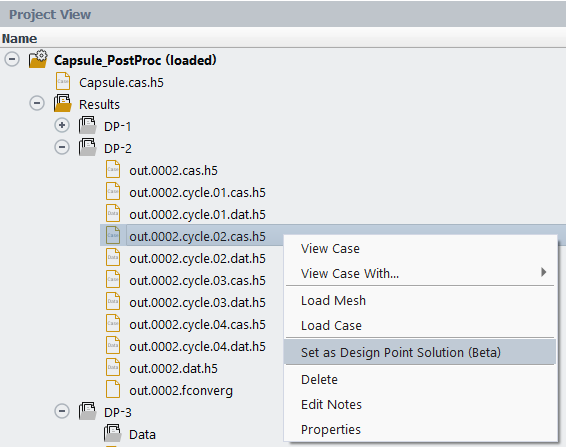
Since Fluent Aero will update the graph and table results using the selected cycle solution, it is important to ensure that the simulation conditions used to calculate the selected cycle match the conditions of the Design Point that will be replaced. Additionally, after using this command, the Table-Summary and Table-Coefficients will have empty values for the convergence metrics of the aerodynamic coefficients, and the Conv Criteria Met? cell inside Table-Summary for that design point may become irrelevant.