The element topology property data form is a generation and editing tool for Aqwa elements. All elements within a loaded model can be viewed and edited from within this form. You may also create a new element data set (no pre-loaded model required).
Note: Each structure must have its own element topology data set.
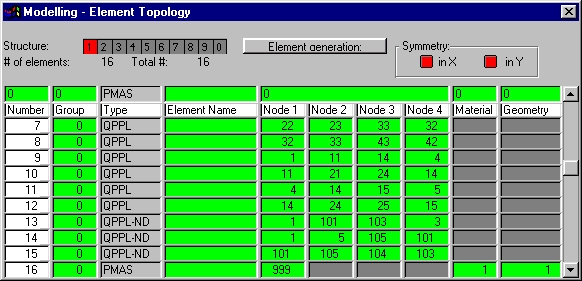
The form allows you to edit element topology property data for multiple structures using either the element generation button and/or by directly editing the element data within the element group table.
Four panels appear on the form:
Element Summary and Structure Selection - structure number, etc.
Element Topology Table - direct editing of element property data
Element Generation - generation of element topology properties
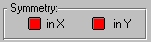
Symmetry - select X/Y symmetry
Note: Refer to the Aqwa Reference Manual for limits on the maximum permissible numbers of diffracting and total elements.
This panel displays the selected structure, the total number of elements for the selected structure and the total number of elements in the system.

The element details for the selected structure in this panel will be displayed in the Element Table.
The element details for the structure selected in the Structure Selection panel will be displayed here. Information in this panel may be altered directly by clicking in a defined text field and editing the data. To add new element use the Element Generation button.
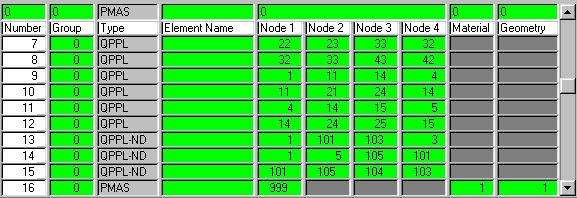
You can use the button to generate new elements, duplicate elements, delete elements and sort elements.
Clicking the button on the element topology data form will display the Element Generation dialog box.

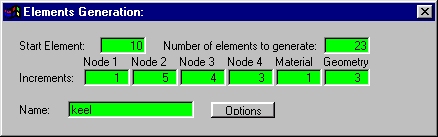
All actions for this panel will be reflected in the elements group table. Each generation of elements will be performed on the currently selected structure.
Generation of elements is controlled by selecting the desired action from the button.
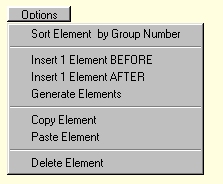
The following options are available:
Sort Element by Group Number
Insert 1 Elements BEFORE - will create an elements before the selected element.
Insert 1 Elements AFTER - will create an element after the selected element.
Generate Elements - will create a set of elements as defined in the dialog box.
Copy Element - will copy the selected element
Paste Element - will paste an element from the copy buffer
Delete Element - will delete the selected element