


A Magnetic object allows co-simulation between Motion and Maxwell. By defining the groups of bodies that require magnetostatic analysis in a Magnetic object and specifying the coordinate systems for each group, a configured Maxwell model can be automatically generated.
Each time a simulation is run, the Motion solver updates the coordinate systems of each group of bodies in the Maxwell model and receives force values from the Maxwell solver.
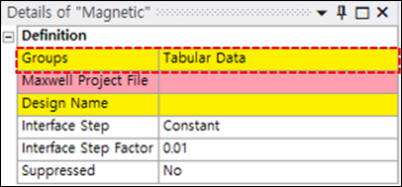
Groups: Using this dialog, you can group selected bodies to participate in the Maxwell analysis and specify the coordinate system for the group as shown in the figure below.
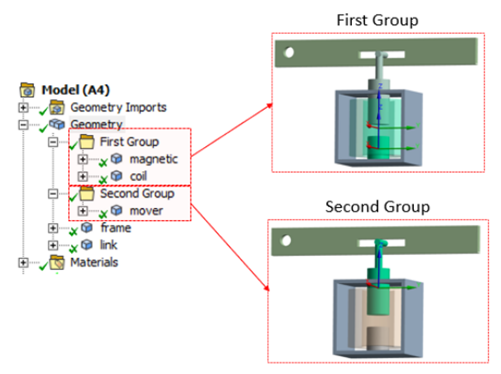
You should group bodies into folders for magnetic modeling. You can then designate these folders as body groups to participate in the Motion-Maxwell magentostatic analysis, specify the material, reference coordinate system, and magnetization direction for each group, and then create a new Maxwell project or open an existing one.
Note: The Siffness Behavior of all bodies belonging to the group must be .
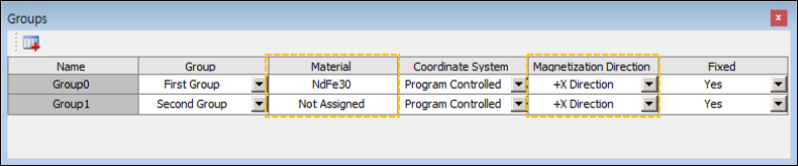
Group: Refers to one of the folder items under the Geometry category in the tree.
Material: Defines the material to be assigned to
each group when creating a Maxwell project. You should manually enter the name of the
material. The default value is NdFe30.
Coordinate System: The center position of the group. If is set, the center of mass of all bodies in the group is used. Otherwise, you can select a specific Coordinate System object.
Magnetization Direction: Defines the direction of magnetization. If this property is set in Motion, the magnetization direction is automatically set for each group when creating a Maxwell project.
Fixed: You can specify whether or not fixed joints are created internally between the bodies in the group.
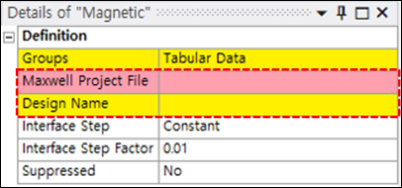
Maxwell Project File: The file path where the Maxwell project file is located. This path is set automatically via the or buttons.
Design Name: The target design name in the Maxwell project file. Maxwell can contain multiple designs and users can choose one of them.
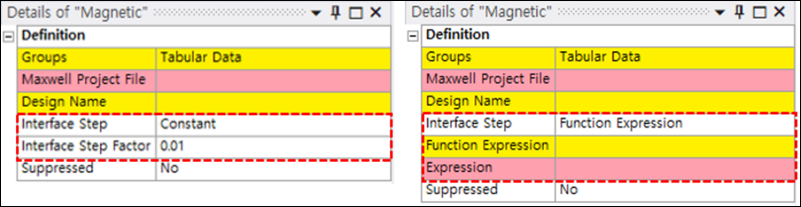
Interface Step: This can be set to either or . By setting the interface step, you can control how frequently to call the Maxwell solver.
Interface Step Factor: If you select the option for Interface Step, the interface step factor can be defined. The results of each step are communicated at regular time intervals.
Function Expression: To use a variable communication time, you can select the option. This provides flexibility when performing the magnetostatic analysis.
The Magnetic object supports an Auto Stop feature that automatically stops the solution by considering the state of the system. The solution can be stopped based on measurement of either force or position. If there is little variation of magnetic force or position for each body for three consecutive iterations, the Motion solver recognizes this and stops automatically.
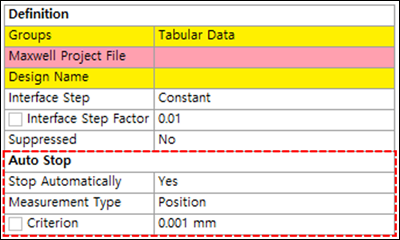
Stop Automatically: Selects whether nor not to use the Auto Stop feature. Activate this function by selecting . The default setting is .
Measurement Type: Sets the condition for Auto Stop to either or .
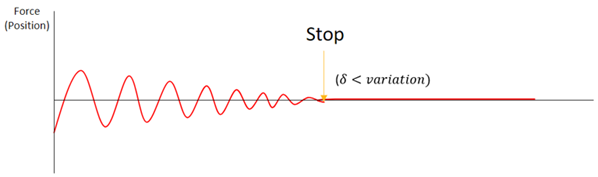
Criterion: Sets a numerical variation limit for the or . If Auto Stop is enabled, the solution will be stopped if the variation drops below this value (see below).
A Magnetic object has two action events that can generate or open a Maxwell project.
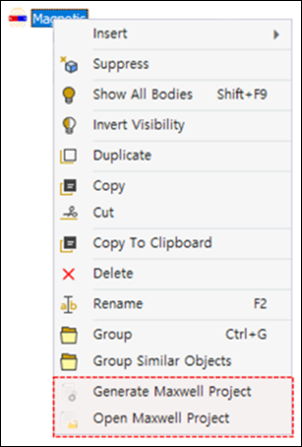
: If you select this option, a new Maxwell project is created based on the information in Groups.
Note: The option to generate a new Maxwell project is not available in Motion 2025 R1.
: If you select this option, an existing Maxwell project can be used. In this case make sure that the Maxwell project and the Motion model are synchronized.
For more information, see Magnetic.