


Various components of the Aqwa Graphical Supervisor require a wave/wind spectrum to be defined. The following topics describe the input format used in the wave/wind spectra dialog box and the options available.
Refer to the Aqwa Reference Manual for more details on wind and wave spectrum definition.
The Wave Spectra dialog box appears as follows:
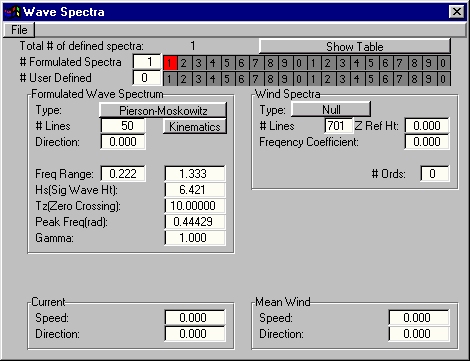
The components of the Wave Spectra dialog box are:
Total # defined spectra - displays the number of presently defined spectra
# Formulated Spectra - edit/display formulated spectra
# User Defined - edit/display user defined spectra
Show table - displays summary of defined spectra
Formulated wave spectrum - input panel for wave spectra
Current - define wave current
Wind Spectra - input panel for wind spectra
Mean Wind - define wind speed direction

This panel displays the total number of defined wave spectra, which is the sum of Number of Formulated spectra + User defined spectra.

The formulated spectra panel displays the number of defined formulated spectra. In the image above, there is one formulated spectrum (displayed in the text box), and it is highlighted for editing (red box containing the number 1).
To add a new formulated spectra increment the number in the text box by one (you may enter a maximum of 20 formulated spectra). Each defined formulated spectrum will be highlighted in white in the numbered panel beside the text box. To select a spectrum for editing simply click on the number you wish to edit. The selected spectrum will be highlighted in red. For example, the following diagram shows 15 defined formulated spectra with number 12 selected.

You may edit the selected spectrum by altering the values displayed in the formulated wave spectrum panel.
To add and edit User Defined spectra use the # User Defined Spectra panel. The maximum permissible total number of spectra (formulated and user defined) is 20.

The user-defined spectra panel displays the number of user defined spectra. The image above shows that there are no user defined spectra in the current example.
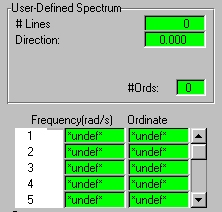
To add a new user defined spectrum, increment the number in the text box by one (you may enter a maximum of 20 total spectra). Each user defined spectrum will be highlighted in white in the numbered panel beside the text box. To select a user defined spectrum for editing, simply click on the number you wish to edit. The selected user defined spectrum will be highlighted in red. For example, the following image shows 15 user defined spectra with number 12 selected.

You may edit the selected user defined spectrum by altering the values displayed in the user defined wave spectrum panel.
To add and edit formulated spectra use the # Formulated Spectra panel.

Selecting the button will display a summary table of all the defined wave spectra as in the following image:

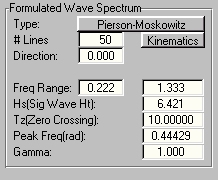
The formulated wave spectra may be edited from this panel.
The following wave spectrum formulations are available through AqwaGS:
Pierson - Moskowitz
JONSWAP
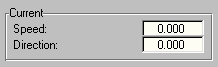
The current for each defined wave spectrum (entered in the Wave Spectra dialog box) is entered in this panel. You may define current speed and direction.
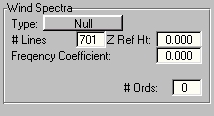
The wind spectra may be edited from this panel. To select a wind spectrum for editing, select the required number from the relevant wave spectrum in the Wave Spectra dialog box.
The following wind spectrum formulations are available through AqwaGS:
Ochi & Shin
A.P.I.
User defined.
NPD
If the wind spectrum is user defined, then an additional edit panel will appear.

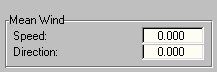
The mean wind for each defined wave spectrum (entered in the Wave Spectra dialog box) is entered in this panel. You may define wind speed and direction.