


In one large database, the program stores all input data (model dimensions, material properties, load data, etc.) and results data (displacements, stresses, temperatures, etc.) in an organized fashion. The main advantage of the database is that you can list, display, modify, or delete any specific data item quickly and easily.
No matter which processor you are in, you are working with the same database. This gives you basic access to the model and loads portions of the database from anywhere in the program. "Basic access" means the ability to select, list, or display an item.
The following database topics are available:
To define items, or to delete items from the database, you must be in the appropriate processor. For example, you can define nodes, elements, and other geometry only in PREP7, the general preprocessor. You can specify and apply loads in either the PREP7 or the SOLUTION processor. However, you can select geometry items, list them, or display them from anywhere in the program, including the Begin level.
Because the database contains all your input data, you should frequently save copies of it to a file. To do this, pick or issue the SAVE command. Either choice writes the database to the file Jobname.db. If you use the SAVE command, you have the option to save:
the model data only
the model and solution data
the model, solution and preprocessing data
To specify a different file name, pick or use the appropriate fields on the SAVE command. Any save operation first writes a backup of the current database file (if the database already exists) to Jobname.dbb. If a Jobname.dbb file already exists, the new backup file overwrites it. For a static or transient structural analysis, the file Jobname.rdb (a copy of the database) will be automatically saved at the first substep of the first load step.
To restore data from the database file, pick or issue the RESUME command. This reads the file Jobname.db. To specify a different file name, pick or use the appropriate fields on the RESUME command.
You can save or resume the database from anywhere in the program, including the Begin level. A resume operation replaces the data currently in memory with the data in the named database file. Using the save and resume operations together is useful when you want to "test" a function or command. When you do a multiframe restart, ANTYPE,,REST automatically resumes the .rdb file for the current job.
During an analysis, you may want to modify or delete commands entered since your last SAVE or RESUME. You can access the session editor by issuing the UNDO command, or by choosing . The session editor display is shown below.
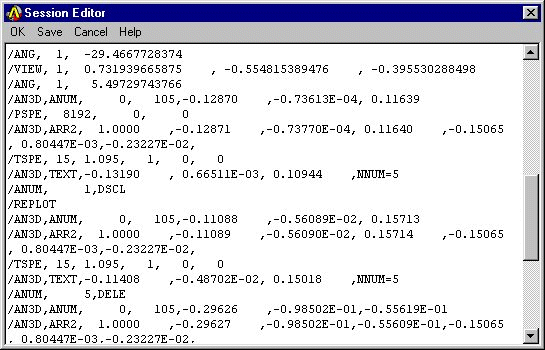
Use this dialog for displaying and editing the string of operations performed since your last SAVE or RESUME command. You can modify command parameters, delete whole sections of text, and even save a portion of the command string to a separate file.
You can access the following file operations from the session editor dialog:
: Enters the series of operations displayed in the window below. You will use this option to input the command string after you have modified it.
: Saves the command string displayed in the window below to a separate file. The program names the file Jobnam000.cmds, with each subsequent save operation incrementing the filename by one digit. You can use the /INPUT command to reenter the saved file.
: Dismisses this window and returns to your analysis.
: Displays the command reference for the UNDO command.
The Session Editor is available in interactive (GUI) mode only. If no SAVE or RESUME command has been issued during your analysis, all commands from your current session will be executed, including your start.ans file, if present.
While building a model, sometimes you may want to clear out the database contents and start over. To do so, choose or issue the /CLEAR command. Either method clears (zeros out) the database stored in memory. Clearing the database has the same effect as leaving and reentering the program, but does not require you to exit.