


To access the Engineering Data Material View, click the Materials object in the Outline pane. The following window is displayed.
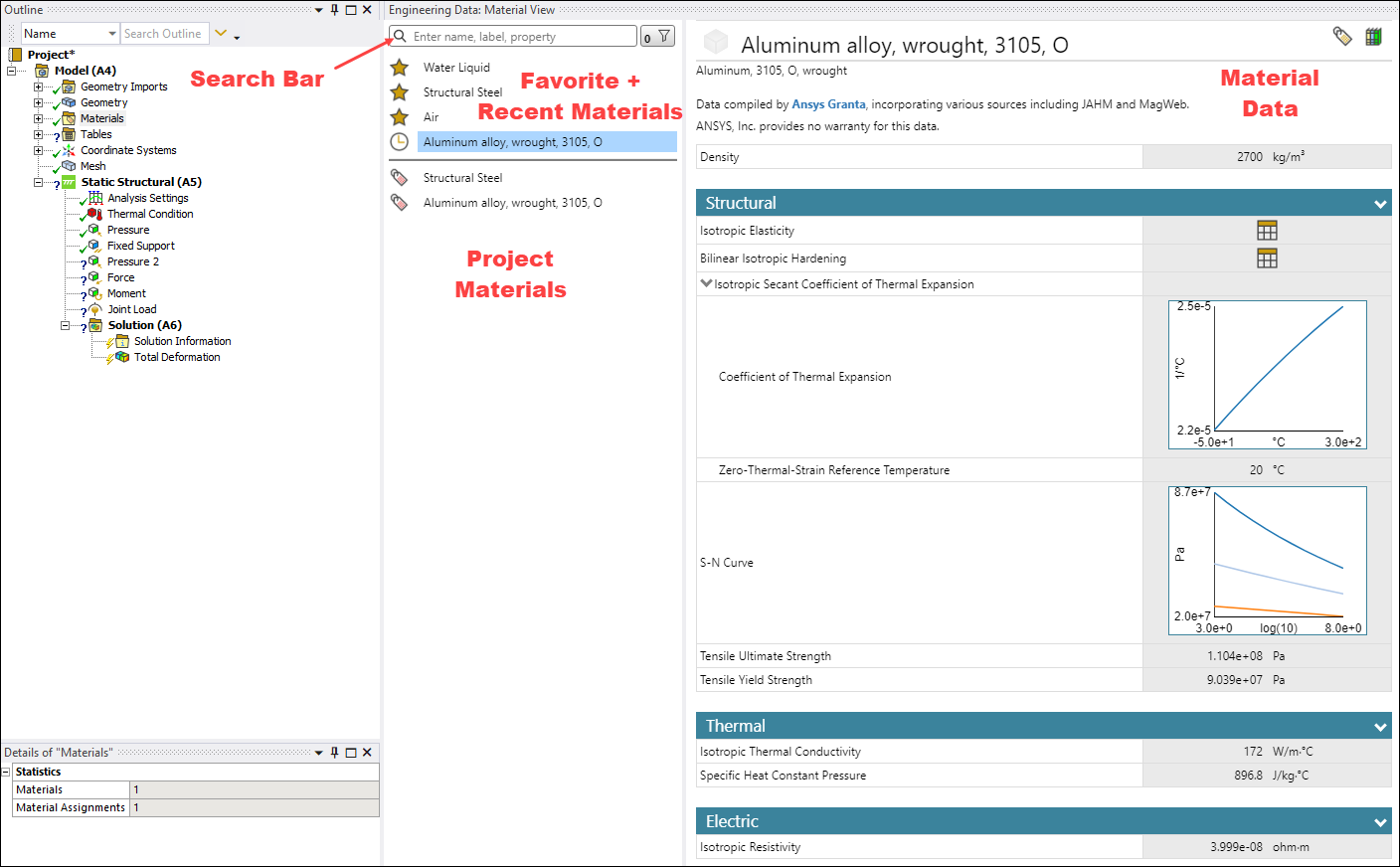
The Engineering Data Material View has the following layout:
Favorite + Recent Materials are materials that were identified as a favorite or were recently used. This provides quick access for adding commonly-used materials to the project. These materials are displayed in every Mechanical session.
Favorite Materials are identified with a star icon
 . To select or
deselect a material as a favorite, click the icon for that material.
. To select or
deselect a material as a favorite, click the icon for that material.Materials that were recently added to a project are identified with a clock icon
 . The five materials
that were added most recently are displayed across Mechanical sessions.
. The five materials
that were added most recently are displayed across Mechanical sessions.
The Search Bar lets you search for materials in the Ansys material libraries and add them to your project. For detailed descriptions of the different types of material searches, see Searching and Filtering Materials.
Project Materials lists the materials that are included in the current project. These materials are identified with a tag icon
 .
.Material Data shows detailed information about the selected material as described in Viewing Material Data. It can also show comparisons between multiple materials as described in Comparing Materials.