


Files missing or deleted from the project are shown in red text and are marked with a deleted icon.
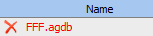
You can either repair the missing files by adding them back into the project from another location, or you can remove them from the Files list.
To repair or remove deleted files:
In the Files list, select a cell on the line containing the deleted file or press Ctrl and click on multiple cells to select multiple files.
To repair the deleted files:
Right-click the selection and select from the context menu.
Browse to the location where a copy of the files are stored.
Click
The deleted files are copied into their original directory, and the name of the files are shown in black text.
To remove the deleted files from the list, right-click the selection and select from the context menu.