


Shrinkwrap Examples
Using the Select Tight-Fit Faces or Facets Tool Guide
Use the Select Tight-Fit Faces or Facets  tool guide to control
shrinkwrap facets in selected areas.
tool guide to control
shrinkwrap facets in selected areas.
The following simple example shows how the tool guide works.
|
Click the Select Tight-Fit Faces or
Facets tool guide and double-click the
top face. This face will be tightly fit in the
shrinkwrap.
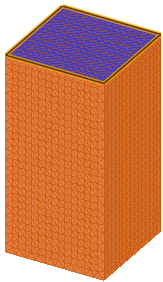
|
Notice that the facets fit tightly on the selected
face. It is important to note that the controlling
effect falls off as a function of distance from the
selected area.
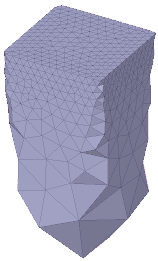
|
Using a Secondary Facet Size
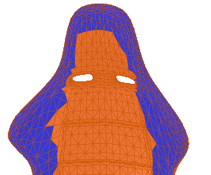
Secondary size is more useful for refining the shrinkwrap to preserve the initial shape. An example is shown below.
| This faceted model has a distinct profile shape. | 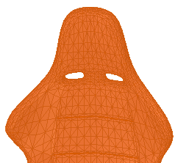 |
| Using the default size and no Secondary size specified, Shrinkwrap produces a very rough approximation of the profile. | 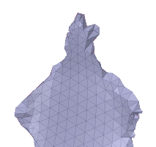 |
|
 |
| Click Complete and see that the secondary size follows the profile. | 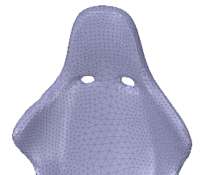 |
Using Shrinkwrap for Curvature Dependent Faceting
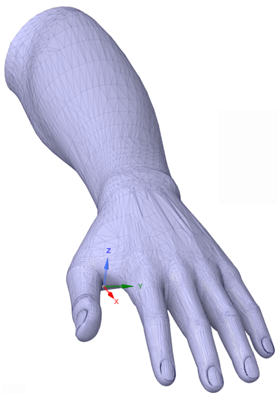
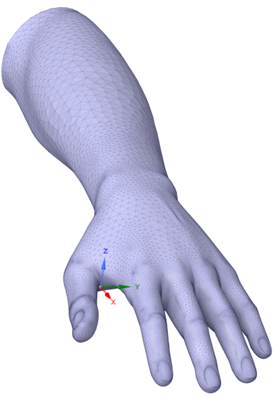
Use the Shrinkwrap options to make the triangles conform more to the shape with different sized triangles based on curvature.
Original faceting.
 |
Faceting after shrinkwrap using Max
size and Curvature
angle. Larger triangles can be seen on the
forearm and smaller triangles by the nails where
curvature is greater.
|