


The first step in establishing communication between the client and HPC resource is to determine whether or not your organization's IT environment or policy requires that you use SSH or a custom mechanism for communication.
If SSH or Custom Communication is Not Required
SSH or custom communication is not required if the RSM client and the cluster submit host are running on the same platform (for example, if jobs will be submitted from a Windows client to a Windows submit host). When client and submit host platforms differ, it is not recommended that you use SSH or a custom mechanism for client-to-HPC communication unless your IT policy requires it.
When SSH or custom communication is not used, RSM will use a built-in communication mechanism to directly submit jobs to an HPC resource, and monitor HPC jobs. To set up direct communication, you will need to open ports and adjust firewall settings on the HPC submit host to allow communication from the RSM client.
If you do not need to use SSH or a custom mechanism for client-to-HPC communication, refer to Configuring Direct Client-to-HPC Communication.
If SSH or Custom Communication is Required
If jobs will be submitted from a Windows client to a Linux cluster, you have the option of using SSH or a custom mechanism for client-to-HPC communication. You might choose this method if your IT policy prohibits or discourages you from opening ports and adjusting firewall settings to allow communication from the RSM client.
If SSH or a custom mechanism is required for client-to-HPC communication, refer to the following topics:
If your IT policy does not require SSH or a custom mechanism to be used for client-to-HPC communication, you can configure direct communication by doing the following:
When defining a configuration in RSM, select Able to directly submit and monitor HPC jobs on the HPC Resource tab:
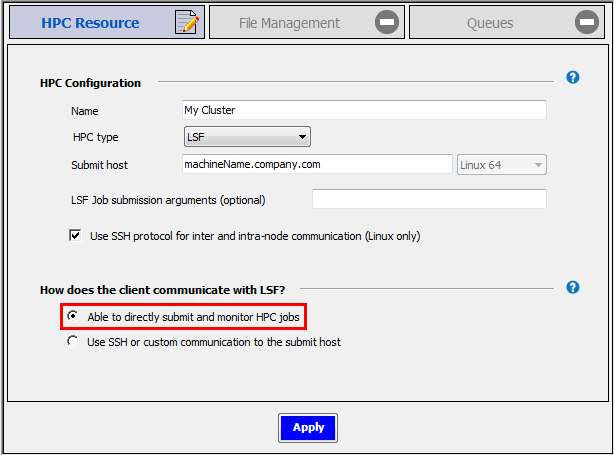
This option specifies that the RSM client can use the RSM internal communication mechanism to directly submit jobs to the cluster, and monitor cluster jobs.
For more information about creating RSM configurations, refer to Configuring Remote Solve Manager (RSM) to Submit Jobs to an HPC Resource.
Open ports and adjust firewall settings on the cluster submit host to allow communication from the RSM client.
When the cluster submit host is a remote machine, the RSM launcher service launches a user proxy process on the submit host which performs operations such as job submission and monitoring on the user's behalf. The RSM launcher service will use one port, while each user proxy process will use a separate port chosen by RSM. Ports for user proxy processes are chosen from a port range if one has been specified in the RSM application settings (see Specifying a Port Range for User Proxy Processes in the RSM User's Guide). Otherwise, RSM will randomly select a port that is free.
If your IT policy requires that SSH or a custom mechanism be used for client-to-HPC communication, configuration will include the following steps:
Configure SSH or a custom mechanism to allow access from a Windows machine.
If you are using SSH, see Configuring PuTTY SSH. During this process you will set up an account to be used for client-to-HPC communication. You will specify this account name in your RSM configuration.
When defining a configuration in RSM, select Use SSH or custom communication to the submit host on the HPC Resource tab:
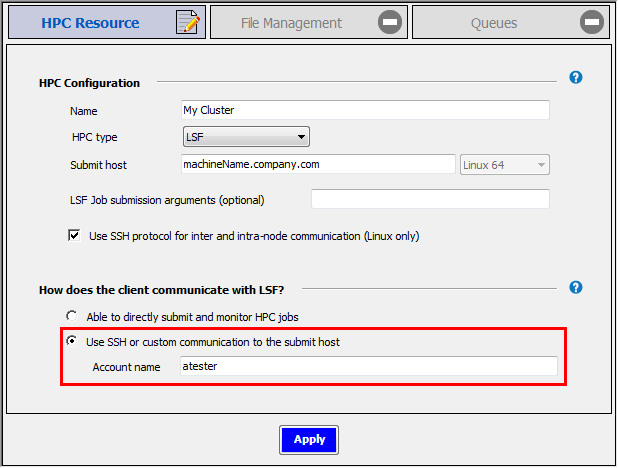
Note: This option is only available when the submit host is a Linux machine and the RSM client is a Windows machine.
This specifies that an external communication mechanism (for example, SSH) will be used to communicate with the cluster submit host instead of RSM's internal communication mechanism. Use this option if you do not want to open ports and adjust firewall settings to allow communication from the RSM client, in adherence with your organization's IT policy.
In the Account name field, specify the account name (from step 1) that the Windows RSM client will use to access the remote Linux submit host.
For more information about creating configurations, refer to Configuring Remote Solve Manager (RSM) to Submit Jobs to an HPC Resource.