


To configure RSM to integrate with the cluster, you will perform the following steps:
Perform the following steps to create a configuration for the custom cluster:
On the client machine, launch the RSM Configuration application.
Click
 to add a new configuration.
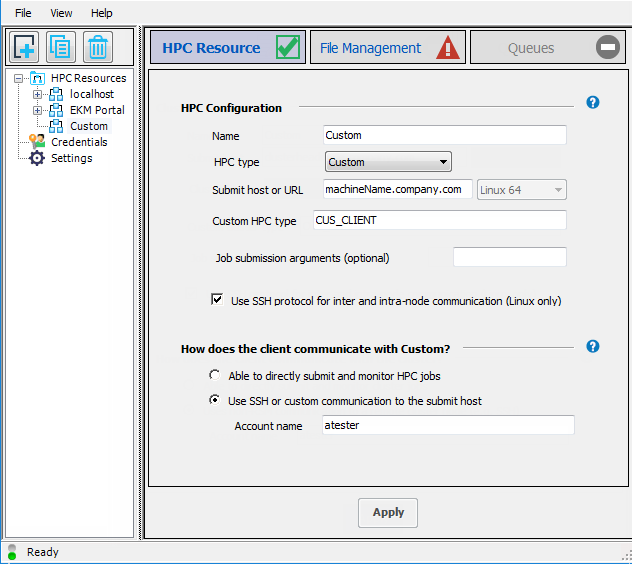
On the HPC Resource tab, in the Name field, give the new configuration a meaningful name, such as
Custom.From the HPC type dropdown, select .
In the Submit host or URL field, enter the full domain name of the cluster submit host (for example,
machineName.company.com), then select Linux 64 in the adjacent dropdown.In the Custom HPC type field, enter
CUS_CLIENT(or your custom keyword).If you do not have RSH enabled on the cluster, then check Use SSH protocol for inter and intra-node communication (Linux only). This means that the remote scripts will use SSH to contact other machines in the cluster.
A “custom client integration” means that you are running in SSH mode. Therefore, select Use SSH or custom communication to the submit host, and specify the Account name that the Windows RSM client will use to access the remote Linux submit host.
Click .
Select the File Management tab.
In the Client-to-HPC File Management section, select one of the file transfer methods described below.
Note: Even though SSH is being used for client-to-cluster communication, there are different options available for transferring files to the cluster, not all of which use SSH. RSM handles file transfers independently of job submission.
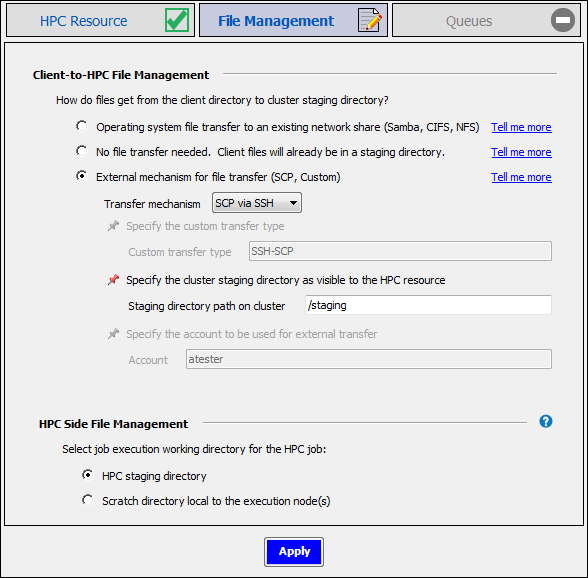
- External mechanism for file transfer (SCP, Custom)
Use this option when the cluster staging directory is in a remote location that is not visible to client machines, and you want to use SSH or a custom mechanism for file transfers.
If you are using a Custom mechanism, enter
CUS_CLIENT(or your custom keyword) in the Custom transfer type field: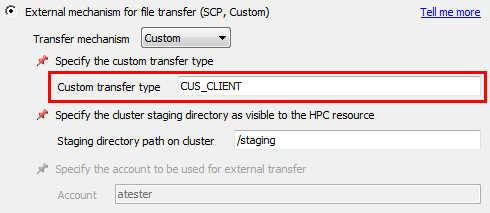
In the Staging directory path on cluster field, specify the path to the central cluster staging directory as the cluster sees it (for example,
/stagingon a Linux machine). This should be a directory that the cluster execution nodes share and all have mounted so that every execution node can access the input files once they are moved there.For more information, see SCP or Custom File Transfer in Setting Up Client-to-HPC Communication and File Transfers.
- Operating system file transfer to existing network share (Samba, CIFS, NFS)
Use this option when the cluster staging directory is a shared location that client machines can access.
For more information, see OS File Transfer to a Network Share in Setting Up Client-to-HPC Communication and File Transfers.
- No file transfer needed. Client files will already be in a staging directory.
Use this option if the client files are already located in a shared file system that is visible to all cluster nodes.
You will be prompted to specify the Staging directory path on cluster.
For more information, see No File Transfer in Setting Up Client-to-HPC Communication and File Transfers.
In the HPC Side File Management section, specify the working directory in the cluster where job (or solver) commands will start running. For information about the available options, click the help icon in the HPC Side File Management section, or refer to Creating a Configuration in RSM in Configuring Remote Solve Manager (RSM) to Submit Jobs to an HPC Resource.
By default, job files will be deleted from the cluster staging directory after the job has run. Choosing Keep job files in staging directory when job is complete may be useful for troubleshooting failed jobs. However, retained job files will consume disk space, and require manual removal.
Click .
Select the Queues tab.
Click
 to import the cluster queues that are defined on the cluster submit
host.
to import the cluster queues that are defined on the cluster submit
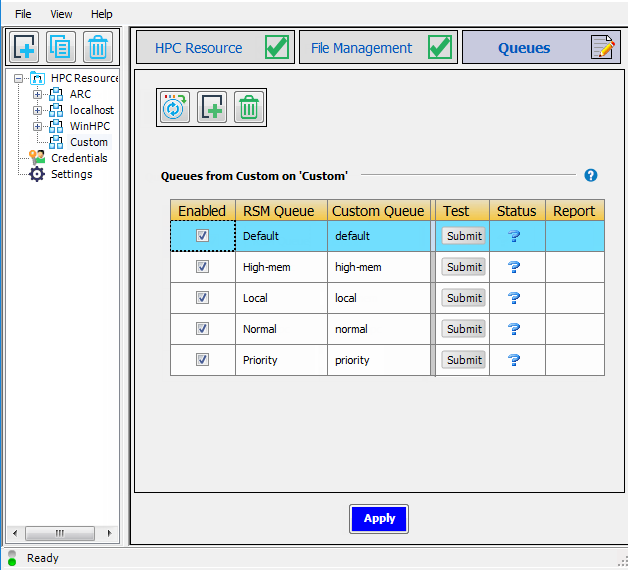
host.By default, the RSM Queue name, which is what users will see when submitting jobs to the cluster, matches the cluster queue name.
To edit an RSM Queue name, double-click the name and type the new name. For example, in the sample queue list below, you could change the name of the
Priorityqueue to High Priority to make the purpose of that queue more clear to users. Note that each RSM queue name must be unique.For each RSM Queue, specify whether or not the queue will be available to users by checking or unchecking the Enabled check box for that queue.
If you have not done so already, click to complete the configuration.
To ensure that RSM can submit jobs to the cluster, submit a test to an RSM queue by
clicking  in the queue's Test column.
If the test is successful, you will see a check mark ( ) in the Status column once the job is done.
If the test fails ( ):
):
Check to see if any firewalls are turned on and blocking the connection between the two machines.
Make sure you can reach the machine(s) via the network.
Attempt to use plink.exe from the command prompt and connect to the remote machine this way.
Ensure that PuTTy is installed correctly.
Ensure path to plink is in your path environment variable.
Ensure that the KEYPATH variable has been set up for passwordless SSH.
Run the following from the command prompt (quotes around %KEYPATH% are required):
plink -i "%KEYPATH%" unixlogin@unixmachinename pwd
The command should not prompt you to cache the key and should return the
pwdcommand output from remote machine.If plink prompts you to store the key in cache, select .
If plink prompts you to trust the key, select .
Repeat the command in the previous step to ensure that it no longer prompts you to cache keys.