


Ansys Icepak allows you to merge an existing project into your current project. Both the existing project and the current project are defined with respect to a global (x, y, z) coordinate system. When the two projects have been merged, they will coexist in this global coordinate system. In many cases, this can result in objects from one project being overlaid on objects from another project. The Merge project panel includes options to perform geometric transformations on the existing project before it is merged into the current project.
To merge two projects, you can use the Merge project panel (Figure 5.1: The Merge project Panel (Preview Tab)). To open the Merge project panel, select Merge project in the File menu.
File  Merge project
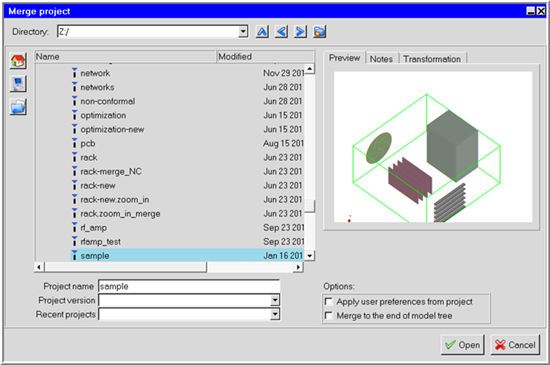
Select the existing file to be merged with the current file. See File Selection Dialog Boxes for details on selecting a file.
Click the Transformation tab.
(Optional) Enable the appropriate Geometric transformation options. See Geometric Transformations for details.
In the Group for merged objects text entry box, enter a group name for all the objects in the existing project you are merging. The default name is merge.n, where n is a sequential integer starting with zero. Once a project has been merged, further Copy or Move transformations can be applied to this group using the Group control panel (see Grouping Objects for more details about groups). If the Group for merged objects field is left blank, a group will not be created.
If you want to apply the settings you specified under Options in the Preferences panel (see Defining a Project) for the current project to the project that is being merged, turn on the Apply user preferences from project option.
If you want to merge the two projects such that the new objects are listed at the end of the model tree, select Merge to the end of model tree option.
Click Open to merge the two projects (or click Cancel to close the panel without merging the projects).
Note that when a project is selected in the directory list, information about the title, available versions, and notes saved with the project is displayed under the Information tab of the Merge project panel.
You can also use the Merge project panel to create a new directory (see File Selection Dialog Boxes).