


You can create abbreviations either through the *ABBR command or through the or menu items. Using one of the menu items is preferable for two reasons:
Clicking OK automatically updates the toolbar (using the *ABBR command requires that you use the menu item to make your new abbreviation appear on the toolbar).
You can easily edit the abbreviation if required.
The syntax for the *ABBR command and related dialogs is
*ABBR, Abbr, String
-
Abbr The abbreviation name that will appear on the toolbar button. The name can contain up to eight characters.
- String
The String argument is the name of the macro or command that Abbr represents. If String is the name of a macro, the macro must be within the macro search path. For more information about using macros, see APDL as a Macro Language. If
Stringreferences a Mechanical APDL picking menu or dialog box (using UIDL), then specify "Fnc_string." For example, in the abbreviation definitions for "QUIT" and "POWRGRPH" shown above, "Fnc_/QUIT" and "Fnc_/GRAPHICS" are unique UIDL function names which identify the Mechanical APDL picking menu or dialog box associated with the QUIT and POWRGRPH abbreviations respectively. For more information about accessing UIDL functions, see Calling Dialog Boxes From a Macro.Stringcan contain up to 60 characters but cannot include any of the following:
The default Mechanical APDL toolbar has the following abbreviations predefined:
*ABBR, SAVE_DB, SAVE
*ABBR, RESUM_DB, RESUME
*ABBR, QUIT, Fnc_/EXIT
*ABBR, POWRGRPH, Fnc_/GRAPHICS
For example, to add a button to the toolbar that calls the macro file mymacro.mac, you would enter the values shown in the following figure in the dialog box.
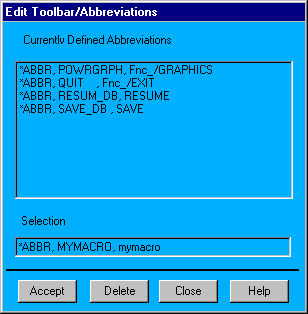
The new button is appended to the button bar as shown in the following figure.

Toolbar buttons are not persistent from one Mechanical APDL session to the next; however, they are saved and maintained in the database so that any "resume" of the session will still contain these abbreviations. To save your custom button definitions, you must explicitly save them to a file through the menu item (ABBSAV command) and restore them for each session using the menu item (ABBRES command). You can do this programmatically in a macro.
The format of the abbreviations file is the APDL commands that are used to create the abbreviations. Thus, if you wish to edit a large set of buttons or change their order, you may find using a text editor to be the most convenient method. For example, the following is the file that results from saving the default toolbar buttons.
/NOPR
*ABB,SAVE_DB ,SAVE
*ABB,RESUM_DB,RESUME
*ABB,QUIT    ,Fnc_/EXIT
*ABB,POWRGRPH,Fnc_/GRAPHICS
/GO
The *ABB commands (the abbreviated form of *ABBR) define the buttons. The /NOPR at the top turns off echoing to the log file while the /GO at the bottom turns log file echoing on.