You can use the SectionPlanes object, which is a collection of individual section planes,
to add a section plane on your model to view the interior of the geometry, mesh, or
results or to view the shape of the cross section. The
SectionPlanes collection can have any number of section
planes, but no more than six section planes can be active at once.
To access the collection associated with the Section Planes window, you use this command:
Graphics.SectionPlanes
The items in the collection use the SectionPlane object. The
following methods and properties can be used to manipulate the collection:
| Command | Description |
|---|---|
SectionPlanes.Add(SectionPlane) | Add a new section plane to the collection. |
SectionPlanes.Remove(SectionPlane) | Remove a new section plane from the collection. |
SectionPlanes.RemoveAt(0) | Remove a section plane at a given index. |
SectionPlanes.Clear() | Clear all the section planes from the collection. |
section_plane = SectionPlanes[0] | Get a section plane at an index. |
Along with methods and properties to manipulate the collection, the
SectionPlanes object has two global properties that apply to
all section planes. These global properties are shown in the
Graphics window:
| Command | Description |
|---|---|
SectionPlanes.Capping | Capping style of the section plane. |
SectionPlanes.ShowWholeElement | Element visibility of the section plane. |
Each individual section plane in the collection contains these properties:
| Command | Description |
|---|---|
Graphics.SectionPlanes[0].Center | Center point of the section plane. |
Graphics.SectionPlanes[0].Type | Type of the section plane. |
Graphics.SectionPlanes[0].Name | Name of the section plane. |
Graphics.SectionPlanes[0].Active | Active state of the section plane. |
Graphics.SectionPlanes[0].Direction | Normal direction of the section plane |
Example 1
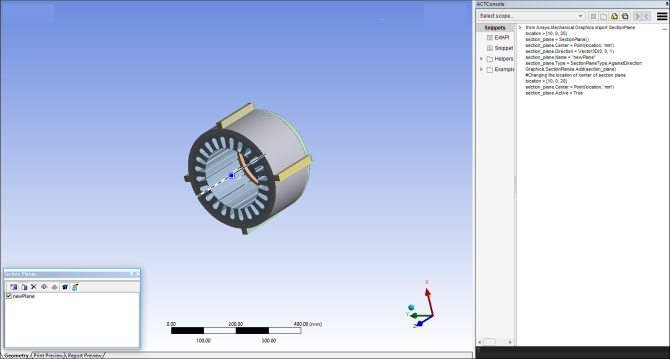
This code creates a section plane and then both adds and changes the location:
from Ansys.Mechanical.Graphics import SectionPlane
location = [100, 150, 255]
sectionPlane = SectionPlane()
sectionPlane.Center = Point(location, 'mm')
sectionPlane.Direction = Vector3D(0, 0, 1)
sectionPlane.Name = "newPlane"
sectionPlane.Type = SectionPlaneType.AgainstDirection
Graphics.SectionPlanes.Add(sectionPlane)
location = [100, 150, 200]
sectionPlane.Center = Point(location, 'mm')
Example 2
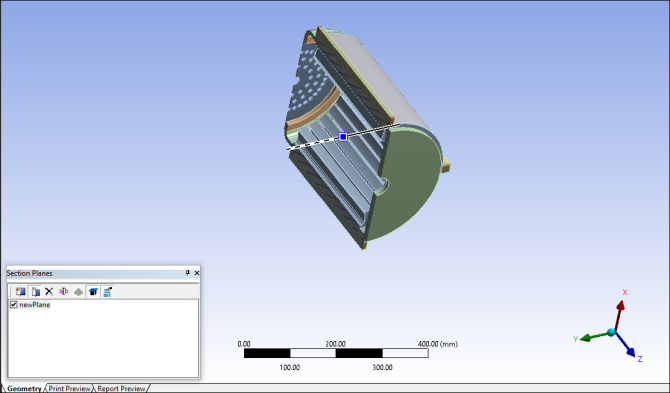
This code modifies the direction of the section plane:
sectionPlane.Direction = Vector3D(0, 1, 0)
Example 3
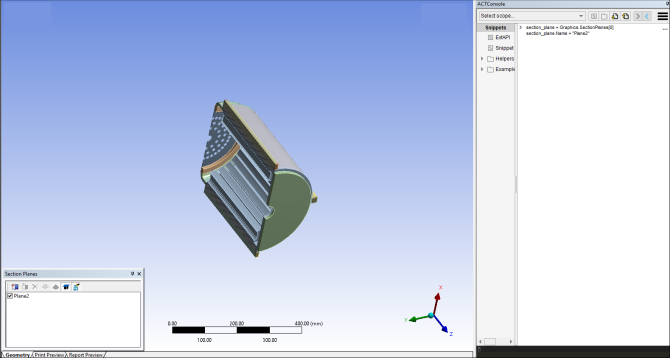
This code gets the existing section plane and changes its name:
sectionPlane = Graphics.SectionPlanes[1]
sectionPlane.Name = "Plane2"
Example 4
As indicated earlier, while a SectionPlanes collection can have
any number of SectionPlane objects, no more than six
SectionPlane objects can be active at once. Assume that your
collection holds six SectionPlane objects, which are all in an
active state. If you try to add a new SectionPlane object with
the property Active set to True, the
SectionPlane object is added to the collection. However, the
property Active is automatically set to
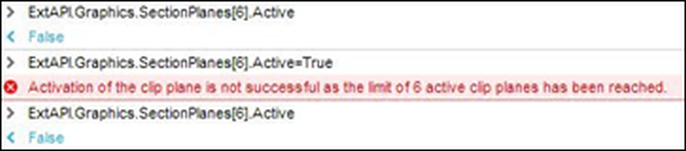
False and an error message is shown:
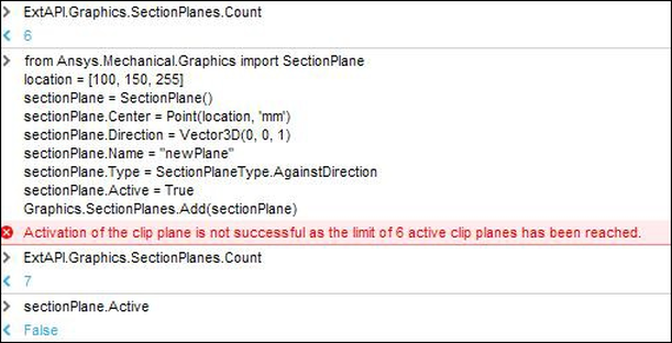
While the collection now holds seven SectionPlane objects, only
6 are active. If you tried to activate the seventh SectionPlane
object by setting its property Active to
True, the property is automatically set back to
False and an error message again displays that the limit of 6
active planes has been reached: