


Arrange Layout and Display of Views
You can arrange the layout and display of views in Scade One by floating, docking, reordering, and pinning views. You can also configure view tabs to change their layout.
Floating Views
You can place a view or a group of views anywhere on your desktop as an independent, floating window. There are two methods you can use to float a view: dragging it by its tab (for a single view) or using a right-click menu.
To float a view using drag and drop:
- Drag the tab of the view you want to float to move it out of its current location.
- Drop it anywhere on your desktop.
To float a view using the right-click menu:
-
Right-click on the tab of the view you want to float to open a menu.
-
Choose Float to float that view only or Float All to float all the views of the current group.
Docking Views
You can dock a floated view or a group of views contained in a floating window, and merge it into another group, or stack it in a side-by-side or top-to-bottom layout. You can also move a docked view to another group.
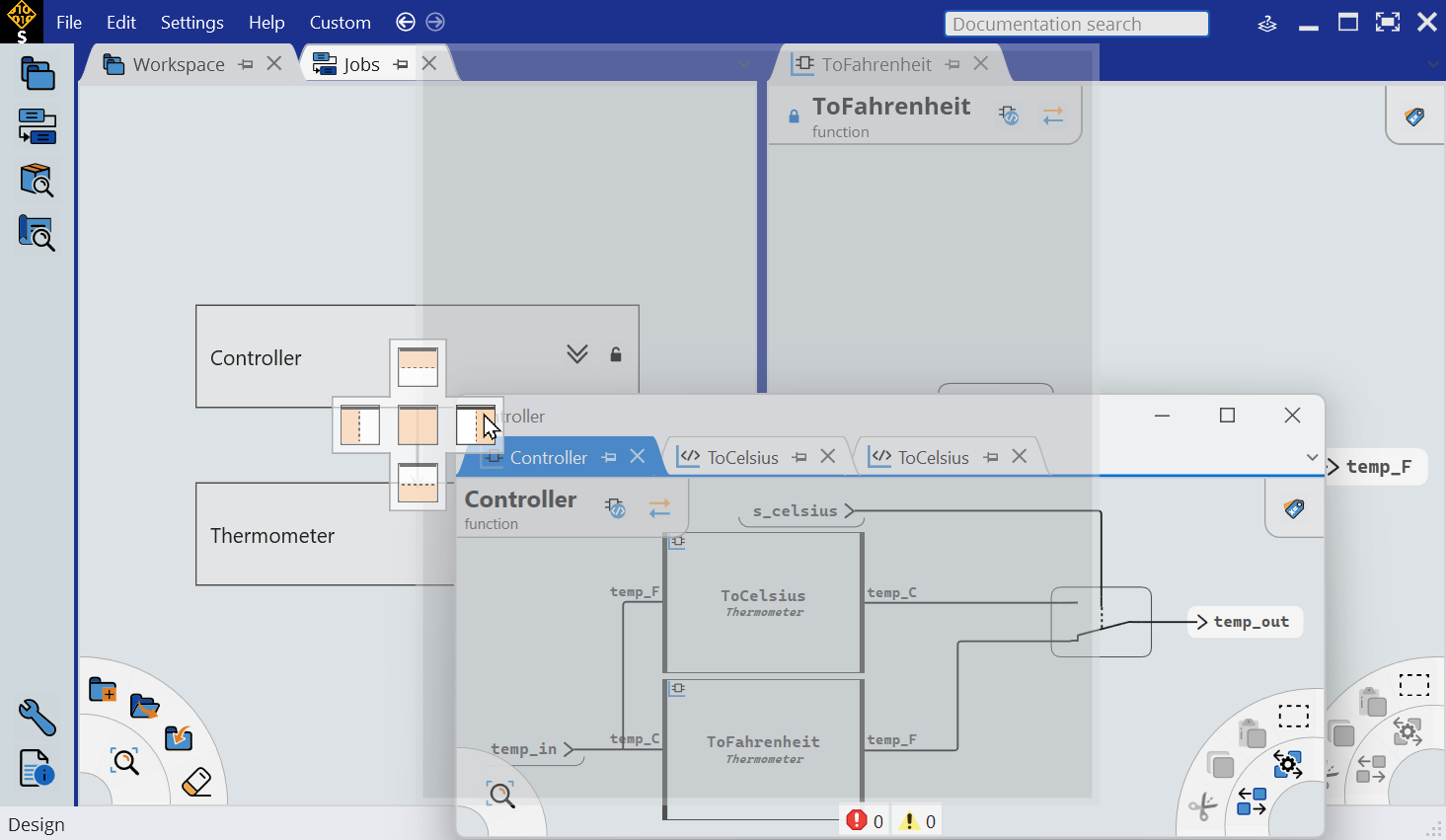
There are several methods you can use to dock views: dragging a view by its tab, dragging a floating window by its title bar, or using a right-click menu.
To dock a view or a floating window using drag and drop:
-
Drag the tab of the view you want to dock (to pull it out of its current group) or drag the window you want to dock by its title bar.
-
Do one of the following:
- Hover the mouse pointer over another view and place the mouse
pointer over the icon that represents the position you want to
use.
Icon Command Description 
Left Docks the view to the left side position of the view being hovered over. 
Top Docks the view to the top side position of the view being hovered over. 
Right Docks the view to the right side position of the view being hovered over. 
Bottom Docks the view to the bottom side position of the view being hovered over. 
Tabbed Docks the view within the view being hovered over. - Hover the mouse pointer directly over a tab group.
- Hover the mouse pointer over another view and place the mouse
pointer over the icon that represents the position you want to
use.
-
Release the mouse button to dock the floated view(s).
-
(Optional) To change the position of a tab in a group, simply drag the tab horizontally, to the left or right.
-
Right-click on the tab of the view you want to dock to open a menu.
-
Choose one of the following:
- New Horizontal/Vertical Tab Group to move the view into a new group created below/right to the current group.
- Move to Previous/Next Tab Group to move the view into the previous/next group in the current window.
- Move to Main Document Group to move the view into a new group in the main application window.