You can add one or more selection lines that can be used for ranking materials, or
just for display purposes.
-
Click
 Index and Display Lines.
-
Enter a Slope value to specify the gradient of the line.
For a vertical index line, click Vertical.
-
Specify what you want the line to do:
- Select Maximize the index to select only those
materials that optimally maximize performance: materials above/on the right
of the line are selected.
- Select Minimize the index to select only those
materials that minimize the index: materials below/to the left of the line
are selected.
- To add a display line that does not perform any selection, select
Show line for display only.
-
Click OK.
-
Click the chart where you want to place the line.
Tip: Lines can be dragged to change their position.
-
Repeat steps 1 through 5 for additional index or display lines. The records
that fail the selection will be plotted in gray. Record labels of failed records
will also turn gray.
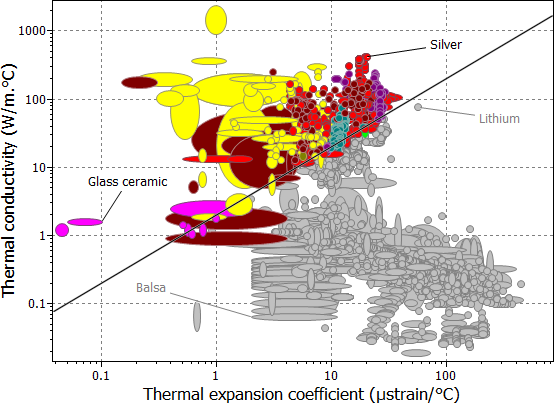
This index line selects materials that maximize the thermal stability
performance index (λ/α).
- Optional:
To change the position of an index line, select it, right-click, and choose
Properties:
| Option | Description |
|---|
| Slope |
Updates the gradient of the line. |
| Vertical |
Makes the Index Line vertical. |
| Objective |
Index lines can have three objective types:
- Maximize the index - select only those materials that optimally
maximize performance: materials above or on the right of the line
are selected.
- Minimize the index - select only those materials that minimize the
index: materials below or to the left of the line are selected.
- Show line for display only - no selection is applied.
|
| Line Passes through point |
Select the x- and y-value of the point through which the line should
pass. |
- Optional:
To change the appearance of an index line, select it, right-click, and choose
Format Line.
You can specify the line style, color, and width.


