


Adding an arrow
Add an arrow annotation to a chart, for display only. Move or change the appearance of an arrow annotation, including making an arrow curved or changing the end styles.
To add a straight arrow to a chart:
-
Click
 Arrow on the chart stage toolbar.
The cursor will change to
Arrow on the chart stage toolbar.
The cursor will change to
- Optional:
Move or change the appearance of an arrow annotation, including making an arrow
curved or changing the end styles:
Option Description Moving an arrow To move a current arrow, position the cursor over the arrow, and click and drag the arrow to its new location.
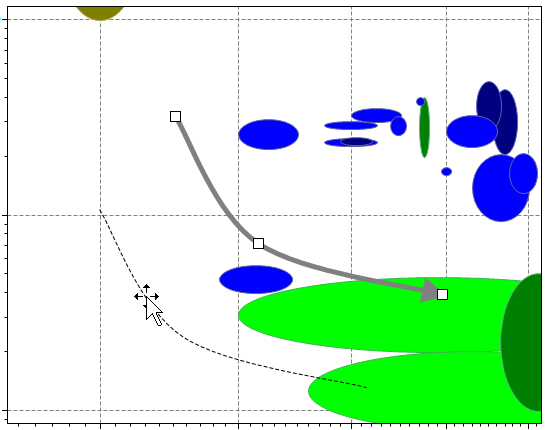
Editing arrow end styles To edit an arrow end style:
- Right-click the arrow, and click Format line.
- Change the settings for Start Arrow and End Arrow using the menus.
Changing arrow appearance To change an arrow's appearance:
- Right-click the arrow, and click Format line.
- Specify the end style, line style, color, and width.
- Click Apply to see the result in the chart.
- To use these line format settings for all new arrows, click Set as Default.
- Click OK to save your changes and close the Arrow Properties dialog.
Adding new point to arrow After adding an arrow to a chart, you can change the arrow shape to create a curved arrow by adding new points:
- Right-click an arrow at the position where you want to create a new point.
- Click Add Point.
The cursor will change to
 when it is on the arrow.
Moving existing point on arrow To move an existing point on an arrow:
Click an arrow to select it.
When an arrow is selected, the points appear as white squares.
Move the cursor over an existing point on the arrow.
The cursor will change to
 when it is on a
point.
when it is on a
point.Click and drag the point to the new position.
The new arrow shape is shown as a dotted line.
Deleting a point from arrow To delete a point from an arrow:
Click an arrow to select it.
When an arrow is selected, the points appear as white squares.
Right-click the point you want to delete, and click Delete Point, or hold Ctrl and click a point.
The cursor will change to
 when it is over a
point.
when it is over a
point.