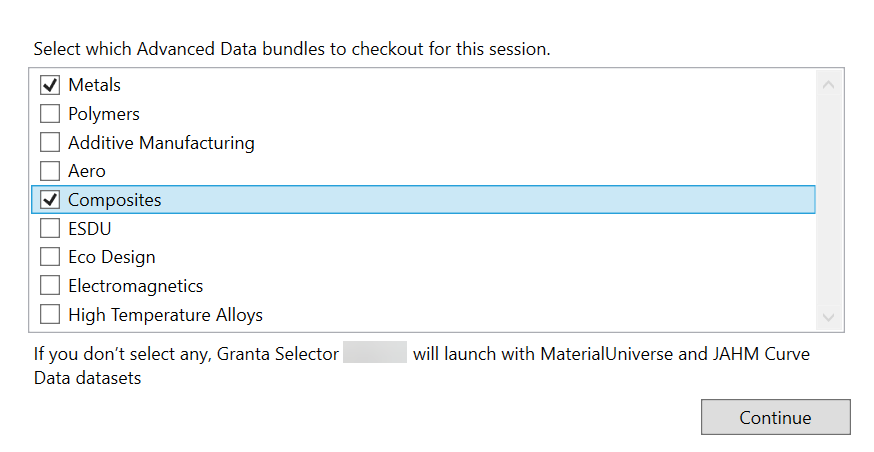
If you have access to any Advanced Materials data bundles or add-ons, you are given
the option to check out a subset of the available licenses when you start Granta Selector.
If no Advanced Materials bundles are licensed, the software will automatically contact the
license server and check out the Basic Materials license.
-
Start Granta Selector. The License Check-out dialog is
displayed.
-
Deselect bundles you won't use during this session (all bundles are selected by
default).
-
Click Continue.
To return to this dialog and change which licenses you have checked out, you
must exit and restart Granta Selector.
Note:
Opening a project file which was created with data bundles you do not
currently have checked out will not be flagged by Granta Selector. Parts
of the newly-opened project which use data you have not checked out may
be missing entirely.