Viewing Tabular data
When you open a datasheet that includes Tabular Attributes, some or all of the data in those Attributes may be hidden by default. This is configured via Layout and/or Attribute settings, and controlled by your Granta MI administrator.
You can view any hidden data by clicking the Show table or Show full table link, or by switching to the Full datasheet view (on the datasheet View menu, click Full datasheet).
Click Save to CSV to download a copy of the data in comma-separated format, or Copy To Clipboard to copy the data to the clipboard in tab-separated format.
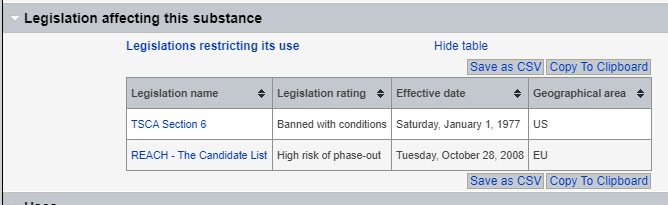
All data is visible by default
If a Tabular Attribute is configured to show the full table, you will see all of the data by default when you open the datasheet. For example:
All data is hidden by default
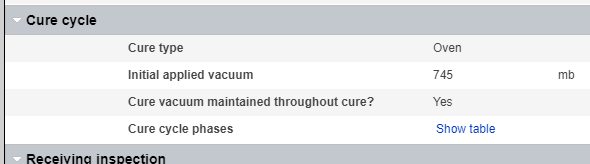
If a Tabular Attribute is configured to hide the data by default, you won't see any of the data when you open the datasheet. In this case, you must click Show table to see the data (or switch to the Full datasheet view). For example:
Tabular data summary is shown
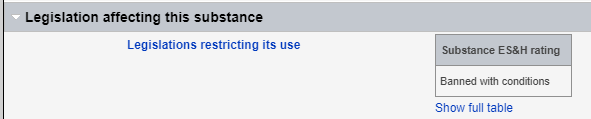
If a Tabular Attribute is configured to show a summary of the data, you will see this instead of the complete data on opening the datasheet. You can view the full data by clicking Show full table.
The summary data may be displayed inline or in table format.
Summary data shown inline:
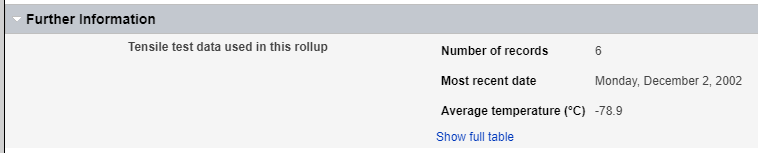
Summary data shown as a table: