
Adding an Ansys Mechanical Component
Follow this procedure to create a new Ansys Mechanical component:
- Follow the steps outlined in the Ansys Mechanical help to generate an .spm file in SML format for the Workbench/APDL static structural model with the desired degrees of freedom, type (conservative or non-conservative), and references (single or individual). The system also generates an image file for the component. Run spmwrite to generate an .spm file and an image file.
- Select Twin Builder > Subcircuit > Add Mechanical Component. The MechanicalData Link Data dialog box appears.
- Locate and select the appropriate .spm
file to create a new component in Twin Builder.
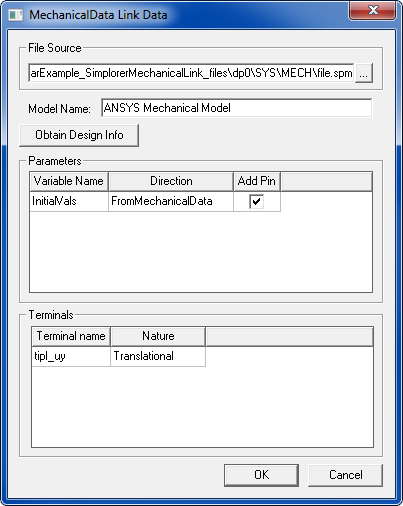
The .spm file compiles and parameters and terminals information displays. Toggle pin display with the Add Pin check box column in the Parameters grid.
- Optionally, change the Model Name.
- Click OK to create a component, symbol (with image from the 3D model), and a model, and add them to the project.
- Position the new component on the schematic and make the appropriate connections between it and existing schematic components.
- Run Twin Builder Transient, AC, and/or DC analyses as desired.