Specifying Initial Mesh Settings in 2D Extractor
From the Initial Mesh Settings window, 2D Extractor allows you to manually change surface approximation and model resolution settings for all objects.
If you apply separate surface approximation mesh operations to specific objects, the object settings take precedence over the general setting.
To specify initial mesh settings:
- Access the Initial Mesh Settings window one of two ways:
- Select 2D Extractor > Mesh > Initial Mesh Settings...
- In the Project Manager, right-click Mesh, and select Initial Mesh Settings.
- From the Simulation tab of the ribbon, click Mesh Settings.
- Curved Surface Meshing options include:
- Use Slider – Drag the slider to select from the range of Course Resolution (with a Small Mesh Count) to Fine Resolution (with a Large Mesh Count. Here, "Mesh Count" refers to the number of elements comprising the mesh.
- Manual Settings – Allows you to manually specify Surface Deviation, Normal Deviation, and Aspect Ratio.
- Surface Deviation – the distance between the true surfaces of the selected faces and the meshed faces.
- Normal Deviation – the angular distance between the normal of the true surface and the corresponding mesh surface.
- Aspect Ratio – determines the shape of the triangles. The higher the value, the thinner the triangles. Values close to 1 will result in well-formed, wide triangles.
- If desired, select Save as Default to keep your settings.
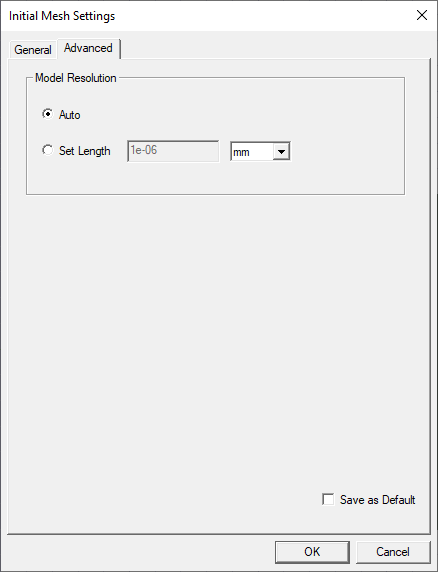
- If desired, use the Advanced tab to specify a Set Length for Model Resolution. This is for experienced users who have a good understanding of how particular values will affect their models. In general, the Auto setting provides good results.
- Click OK to apply your choices.
The settings will be applied to the initial mesh generated.
The Initial Mesh Settings window appears, with the General tab selected.
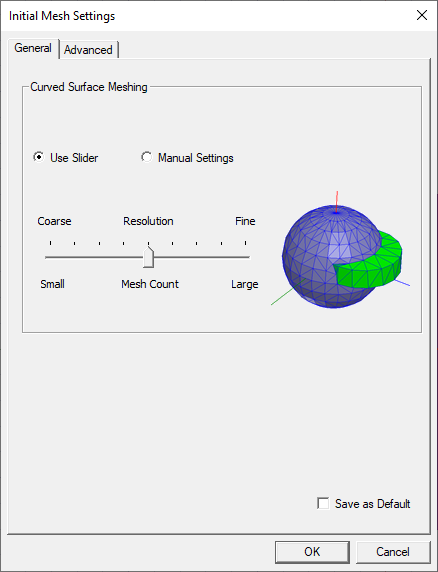
The graphic on the right updates to illustrate your selection. See: Modifying Surface Approximation Settings.
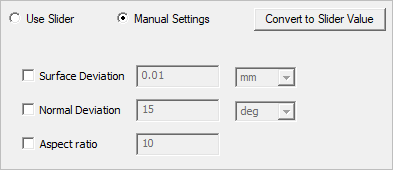
Use the check boxes to enable the fields and specify values:
Clicking Convert to Slider Value converts the manually entered values to an equivalent slider setting and returns the panel to the slider view.