Field Overlay and Animation
In structural analyses, field overlays provide a visual indication of the assigned temperatures, equivalent stress or strain results, displacement results, and, in the case of layout components, various material properties. Each of these sets of values can be overlaid on selected objects or faces. Displacements can be overlaid as a vector plot or as color contours of the magnitude. All field overlays are displayed over deformed geometry, based on the shape after thermal expansion or contraction. By default, the deformation is scaled (typically greatly exaggerated) for easy visibility.
The available predefined structural field overlay results are listed and described under Field Overlay in the Results (Structural) topic. Examples of 2D plots, Stacked plots, and Data Tables follow:
To Produce a Field Overlay Plot and Animate it:
- Select the Faces or Objects on which you want to overlay structural results.
- Access the Create Field Plot dialog box using one of the following three methods:
- Using the menu bar, click Mechanical > Fields > Plot Fields > desired result.
- Right-click Field Overlays in the Project Manager and choose Plot Fields > desired result from the shortcut menu.
- Right-click in the Modeler window and choose Plot Fields > desired result.
- If you selected Named Expression in the previous step, click the desired named expression in the Selecting calculated expression dialog box that appears. Then, click OK.
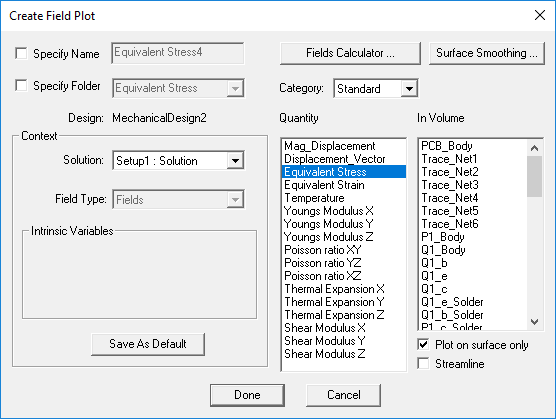
- In the Create Field Plot dialog box that appears, select the desired setup from the Solution drop-down menu (if you solved more than one analysis setup).
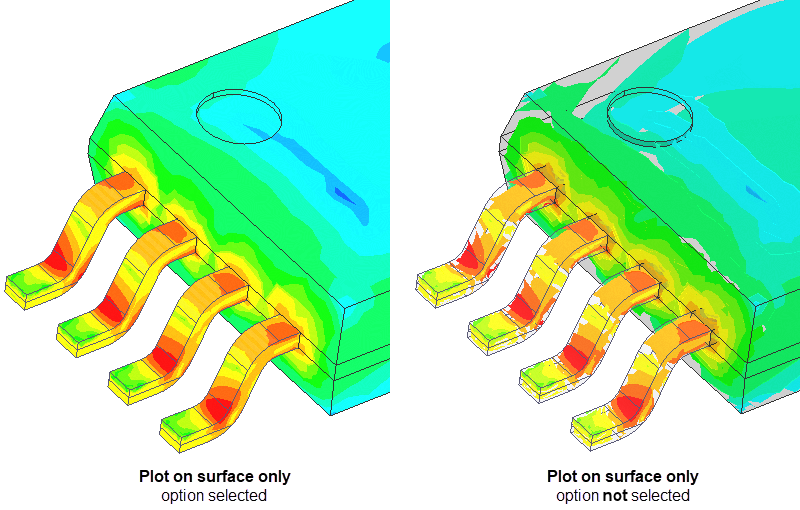
- Optionally, if solid objects were selected for the overlay (as opposed to faces), you can clear the Plot on surface only option to view results within the interior of the solid objects.
- Click Done.
- Optionally, double-click the plot legend to access and modify the plot properties (scale, color map, and so on).
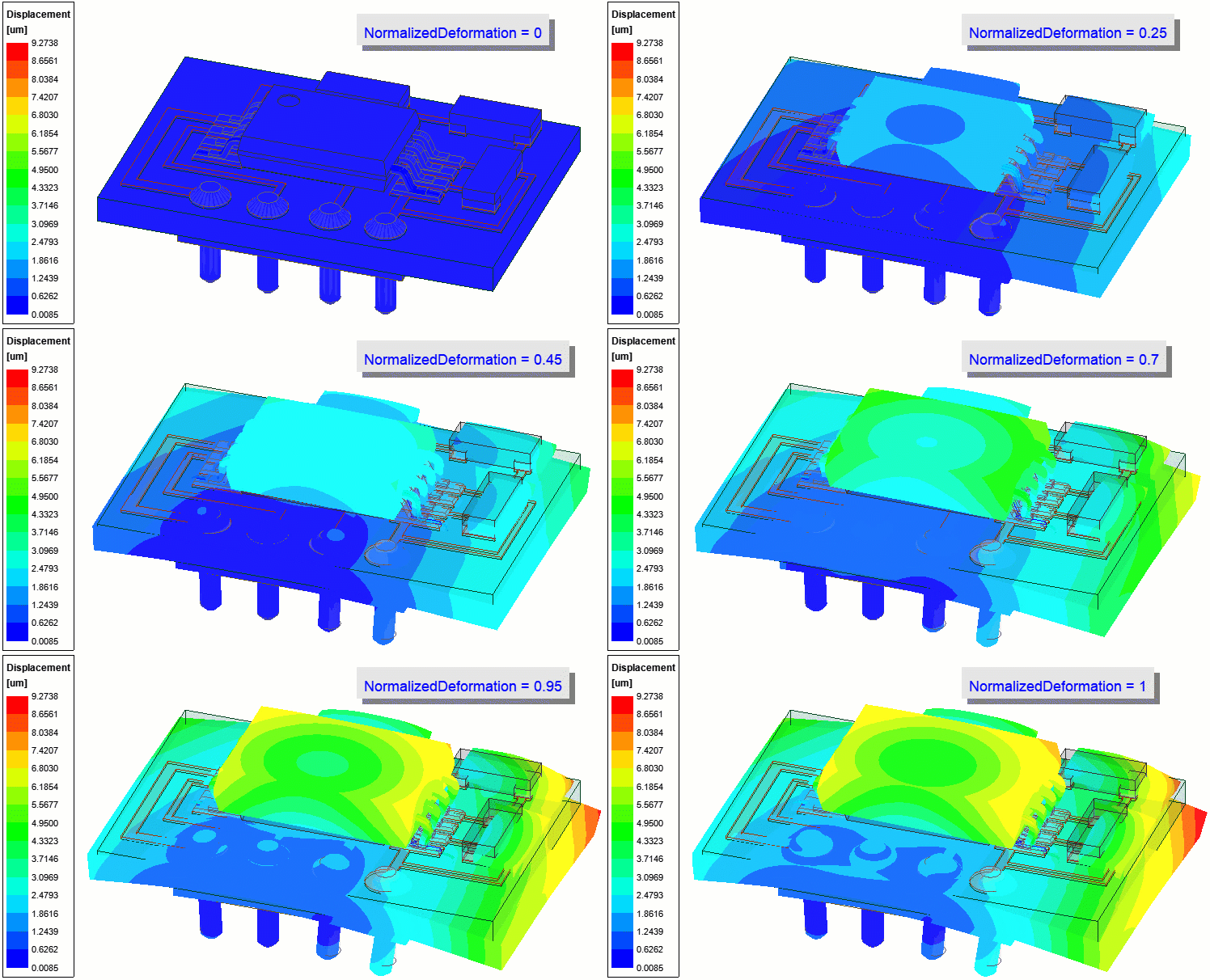
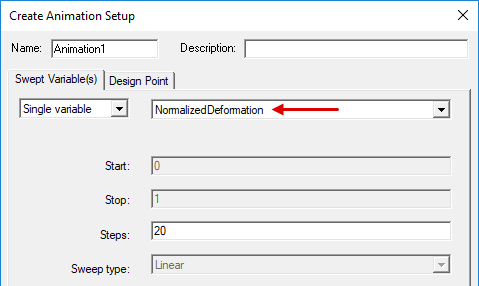
- You can animate structural overlays using the NormalizedDeformation option for the swept variable. The color contours and deformed shape in the animation vary linearly from zero to the calculated results. Also, if your solution has multiple sets of field results (such as when you run a parametric analysis to vary a design parameter), you can animate your structural field results to show the way the solution changes for each variant.
- Under Field Overlays in the Project Manager, right-click your field overlay and choose Animate from the shortcut menu.
- Optionally, change the Name and/or type a Description for the animation setup.
- Using the two drop-down menus in the Swept Variable(s) tab, choose the setup or variable you want to use as the basis of the animation.
- If you want to linearly animate the results for a normalized deformation multiplier of 0 through 1, choose Single Variable and the NormalizedDeformation option.
- If you want to base the animation on a single design variable, choose Single Variable and the variable name.
- If you want to base the animation on a parametric setup, choose Parametric Setup and the parametric setup name.
- Select the variations you want to include in the animation.
- Click OK.
- Use the animation controls to stop, restart, reverse, increase/decrease the speed, or to go to a particular animation frame.
When this option is selected, the results are rendered on the model surfaces only. If you clear this option, the results are rendered for the full model volume, but they are rendered as IsoValSurfaces. Rather than the full volume of the model being rendered in varying colors, IsoValSurfaces connect points of the same resultant value and are rendered for each scale division specified in the plot settings (15 values by default). This plot style enables you to see the results on the interior of solids without creating clipping planes. The following equivalent stress images compare the two plot styles:
The following field plot setup example overlays the equivalent stresses on the surfaces of selected objects:
The overlay and result legend appear on the model in the Modeler window.
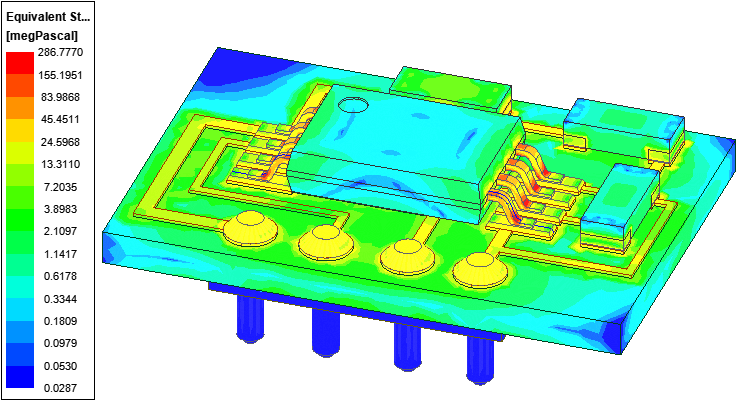
The following image is an Equivalent_Stress overlay. The legend's units (megPascal) have been customized, the scale set to logarithmic, and the Scale Deformation option cleared to show the undeformed shape:
The Create Animation Setup dialog box appears.
For example:
The following example shows a linear animation setup using the NormalizedDeformation option and 20 Steps:
The Animation dialog box appears, and the overlaid results are animated after the frames are computed.
An animation of the Mag_Displacement results, based on the preceding NormalizedDeformation setup example, is shown below. The displacement overlay attributes have been changed as follows: The deformation scale has been set to 150 times the actual deformed shape, and micrometers (um) has been selected as the legend units.