
Tools Menu
The Tools menu contains operations that are common to all design types:
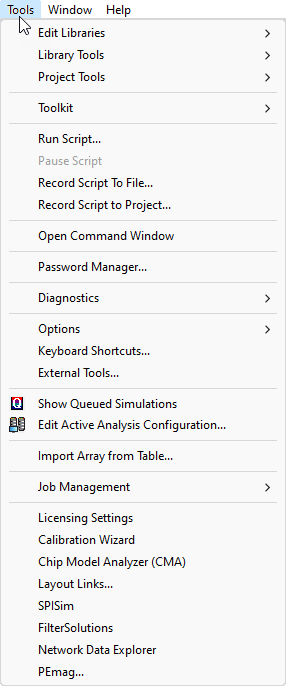
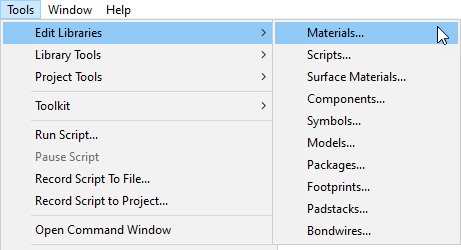
- Click Tools > Edit Libraries to view commands allowing access to the libraries available for the various Ansys Electronic Desktop solves, such as Materials, Scripts, and Components, Symbols and Models for Simplorer, Icepak, and Circuit.
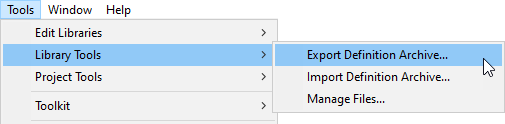
- Click Tools > Library Tools to view tools for importing or exporting definition archives for UserLib and Syslib and to manage files relevant for various solver libraries.
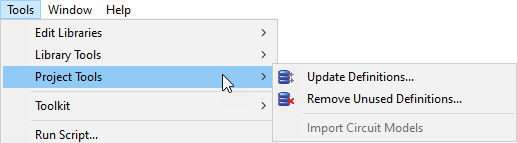
- Click Tools > Project Tools to manage definition libraries relevant to various solvers.
- Click Tools > Toolkit to install PyAEDT or update product menus to show any added Python-based toolkits.
- Click Tools > Runscript... to run scripts that you have recorded. A Pause command is available. You can also Record Script to File... or Record Script to Project.... See the Scripting Help for more information.
- Click Tools > Open Command Window... to open an IronPython command window. See the Scripting Help for more information.
- Click Tools > Password Manager... to open the Password Manager window to control access to resources.
- Click Tools > Diagnostics to access the following diagnostics commands:
- Click Debug Logging to enable debug logging via an environment variable.
- Click Stop Debug Logging to end debug logging. This option is only available while debug logging is active.
- Click Dump Registry Files to make a copy of all user, administrator, and default-settings configuration files, placing them in the folder you select.
- Click Tools > Options to set General Options and HPC options.
- Click Tools > Keboard Shortcuts... to manage your keyboard shortcut behavior.
- Click Tools > External Tools... to manage menu access to external tools.
- Click Tools > Show Queued Simulations to view a dialog listing simulations in a queue and providing tools to manage the queue.
- Click Tools > Edit Active Analysis Configuration to view a dialog that lets you view and manage the current configuration.
- Click Tools > Import Array from Table to import an array definition from a .csv file.
- Click Tools > Job Management... to select a scheduler, and to submit and monitor remote simulations.
- Click Tools > License Settings to launch the Licensing Settings tool.
- Additional Tools listed include Calibration Wizard, and Network Analyzer, and other tools used to help you with Ansys Electronics Desktop projects and solvers.

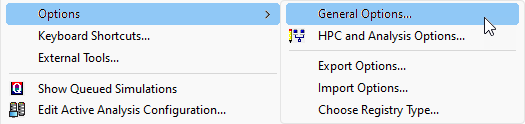
Other available commands in this fly-out menu are Export Options, Import Options, and Choose Registry Type. See Understanding Registry Tools for more information on these three commands.