
Adding External Tools to the Tools Menu
To add an executable to the Tools menu:
- Click Tools > External Tools.
- This displays the Customize User Tools Menu dialog box.
- To add a custom Tools menu entry, click Add.
- Click OK to add the External Tools menu
to
If a User Tools menu item has been defined, its contents are displayed. Command buttons let you Add new commands and Delete selected commands, and Move Up and Move Down commands. You can specify the command line arguments to the program and the directory from which it will run.
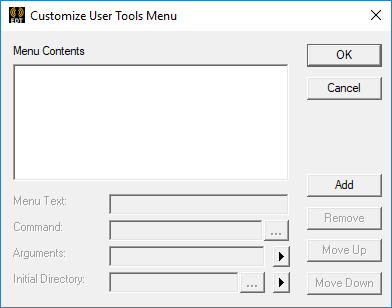
This enables the following fields:
Menu Text field – displays [new tool] as text you will replace with the text you want to appear in the User Tools menu.
Command field – displays the external executable. An ellipsis button [...] lets you navigate to the file location.
Arguments field – accepts command arguments from the > button menu selections for File Path, File Directory, File Name, File Extension, Project Directory, or Temp Directory.
Initial Directory – specifies the initial directory for the command to operate. The ellipsis button {...] displays a dialog that lets you navigate folders in your desktop, or across the network.
You can also add scripts to the Tools menu. Assuming you have a script to generate custom reports called report.vbs, use the cscript.exe program to execute your script.
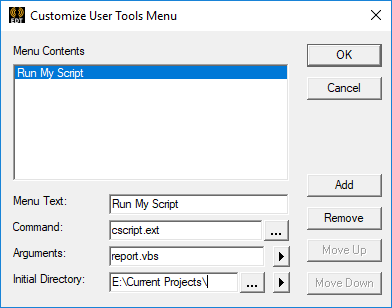
This example shows the cscript.exe program added to the Tools menu as Run My Script. The command line argument to the csscript.exe program is report.vbs. You can also name the directory in which it will be run.