
To edit the location of a symbol pin, open the Edit Symbol Pins window by doing one of the following:
- In the Symbol Editor Symbol menu, select Edit Pins.
- In the component instance shortcut menu, select Edit Symbol Pins.
The window has three tabs: Bus Pin Editor, Pin Location Editor, and Pin List. Bus Pin Editor and Pin Location Editor appear only for symbols that are drawn as a rectangle with pins.
Bus Pin Editor
The Bus Pin Editor tab allows you to create, edit, and delete bus pins from regular pins. The pin names are the terminal names associated with the component model and cannot be changed, but the bus pin names can be anything the user wants.
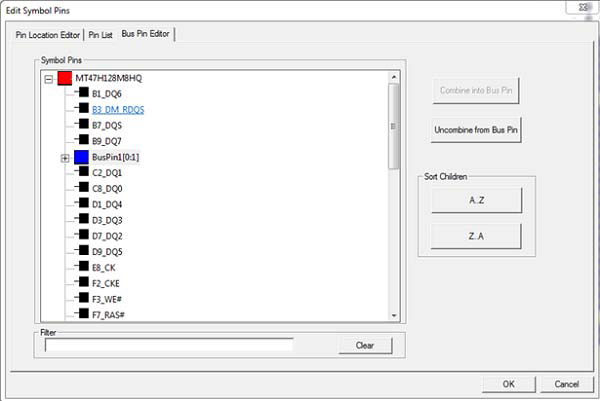
- To create a new bus pin
- Select the pins needed for the bus pin and click Combine in to Bus Pin. Both regular pins and bus pins can be combined to create the new bus pin.
- Pins can be selected with Ctrl + Click or Shift + click.
- Pins can be dragged and dropped onto an existing bus pin.
- To remove pins from a bus pin
- Select the whole bus pin or individual pins inside the bus pin and click Uncombine from Bus Pin.
- Pins can be dragged out of the bus pin to the root level to remove on the bus pin.
- Re-ordering Pins
- The pins inside a bus pin can be reordered by dragging them to the appropriate location. The order is important since the first pin with index 0 connects to bus[0] when a bus is connected, and so on.
- When either the root node (red symbol) is selected OR a bus pin is selected, Sort features become available. Click the buttons to order the pins and bus-pins immediately under the selected node by name in either alphanumeric or reverse-alphanumeric order.
- Searching the Tree
- The tree can be filtered by the pin name by typing in the filter box.
- The filter text supports wildcard search (e.g., "P*1" should search for everything that begins with a "P" and ends with a "1").
- Search works for both the root level and leaf level of pins (e.g., if a search matches the pin name under a bus pin, the bus pin is displayed in the search result).
Pin Location Editor
The Pin Location Editor allows you to change the locations of the symbol pins to the left or right side according to the settings chosen in the window.
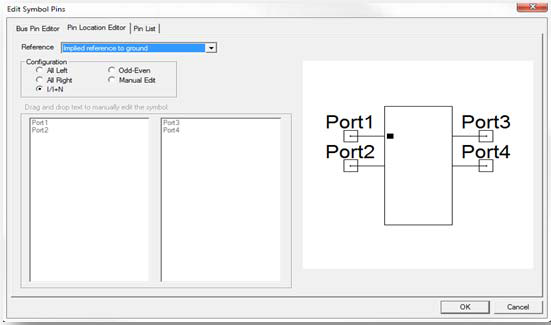
Selecting a new option on the Reference drop-down menu changes the symbol displayed to show or hide additional reference pins. The Reference list is not shown in the window if the symbol does not support reference pins. The options are:
- Implied reference to ground: the global ground is the reference port for each N port connection. Its voltage is always 0V.
- Common reference port: an additional reference pin is added that is a common reference for the definition of port voltages. This reference can have any voltage and corresponds to the net for that extra pin.
- Add individual hidden reference pin per port: an additional reference pin is added for each port. These reference pins are hidden, set to 0V by default, and can each have their own reference voltage. You can connect each reference pin to its own net. Select this option if you do not want to see the reference pins.
- Add individual reference pin per port: an additional reference pin is added for each port. Every reference pin can have its own reference voltage and be connected to its own net.
See Reference Nodes on S-Parameter Elements in the S-parameter Technical Notes for how the Circuit solver handles reference node configurations.
Clicke of the five PinDirection options to change the symbol shown to a fixed configuration.
- All Left puts all pins on the left side
- All Right puts all pins on the right side
- I/I+N puts the first half of the pins in order on the left side and the remaining pins on the right side
- Odd-Even puts every other pin on the left side and the remaining pins on the right side
- Manual Edit enables the two list boxes in the bottom left quadrant. When those boxes are enabled, the user can drag pins from one box to the other to switch sides and drag pins within a box to switch the pin order.
Pin List
The Pin List window displays and sets values for the properties of symbol pins.
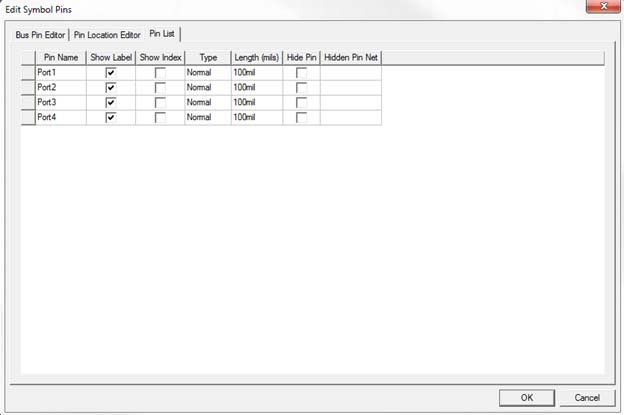
The available pin properties include:
- Name – This editable cell displays and sets the pin name. To specify or change the name of a pin, click in the Name cell for that pin, type the name, then press Enter or click in another cell.
- ShowLabel – This check box controls visibility of the pin name in the schematic editor. For a new pin, it is unchecked by default.
- ShowIndex – This check box controls visibility of the pin number in the schematic editor. For a new pin, it is unchecked by default.
- Type – This drop-down menu sets the pin type, the options for which include Normal (the default), ANSI In, ANSI Out, and Zero Length. To change a pin's type, click in its Type cell, then click the appropriate option.
- Length – This editable cell sets the length of the pin stem (the graphical line associated with the pin port symbol). By default, new pins have a pin stem length of 10. To change the length of a pin, click in its Length cell, type a new value, then press Enter or click in another cell.
- HidePin – This check box controls whether or not a pin is visible in the schematic editor. For new pins, it is unchecked by default.
- HiddenPinNet – This cell, editable when Hide Pin is checked, specifies the net (the circuit node) to which a pin is connected if it is hidden. To specify a net, click in the Hidden Pin Net cell, type a net name, then press Enter or click in another cell.
Changing Pin Properties
To change a pin property, either:
- Click the cell that displays the pin property value that you want to change and modify the property value appropriate to its type as described above.
- To commit the new value and continue editing pin properties, click another property value.
Committing Changes
Clicking OK in the window commits changes to the component symbol made in all three tabs.