
To edit a property of a symbol pin, open the symbol editor’s Pin List window by doing either of the following:
- In the Symbol menu, select Pin List.
- From the Symbol toolbar, click the Pin
list icon
 .
.
The Pin List window displays and sets values for the properties of symbol pins.
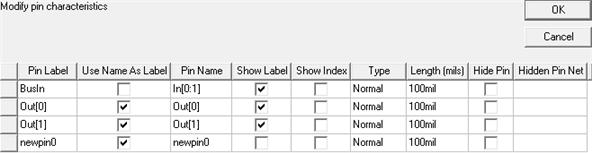
Pin properties include:
- Pin Label – provides a field to add a
user-defined label for the chosen pin on a component symbol without having
to change the actual Pin Name associated
with the chosen pin. Pin labels for pins in a component should be unique.
To specify or change the label of a pin, click in the Pin Label cell for that pin, type the name, and do either of the following:
- Press Enter.
- Click in another cell.
The Pin Label can be displayed for the chosen pin by unchecking Use Name As Label.
- Use Name As Label – controls whether the Pin Name or Pin Label is displayed for the chosen pin when Show Label is enabled. For a new pin, Use Name As Label is checked by default.
- Pin Name – sets the actual pin name. To
specify or change the name of a pin, click in the Pin Name cell
for that pin, type the name, and do either of the following:
- Press Enter.
- Click in another cell.
- Show Label – controls visibility of the either the Pin Name or Pin Label text for the pin (as determined by Use Name As Label). For a new pin, it is unchecked by default.
- Show Index – controls visibility of the pin number in the schematic editor. For a new pin, it is unchecked by default.
- Type – drop-down menu sets the pin type. Options include Normal (the default), ANSI In, ANSI Out, and Zero Length. To change a pin’s type, click in its Type cell, then click the appropriate option.
- Length (mils) – sets the length of the
pin stem (the graphical line associated with the pin port symbol). By
default, new pins have a pin stem length of 100 mils. To change the length
of a pin, click in its Length cell, type a new value, and do either
of the following:
- Press Enter.
- Click in another cell.
- Hide Pin – controls whether or not a pin is visible in the schematic editor. For new pins, it is unchecked by default.
- Hidden Pin Net – editable when Hide
Pin is checked, specifies the net (circuit node) to which a pin is connected if it is hidden. To specify a net, click in the Hidden
Pin Net cell, type a net name, then do either of the following:
- Press Enter.
- Click in another cell.