
Algebraic Mode
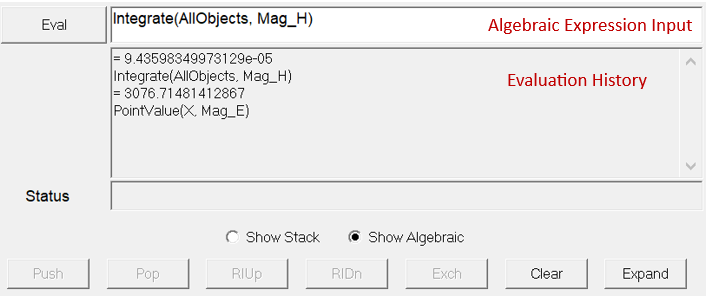
With the Show Algebraic option, users can create custom field quantities using algebraic expressions. Users can enter equations directly in the Data field, which is now editable. The text entered is in black when it parses and red when it does not. The Stack Command buttons can also be used to define an algebraic expression; the input text will be inserted at the current insert point in the Data field.
A sample algebraic expression is shown below:
An algebraic expression can be saved in the Named Expressions list. If Show Algebraic is selected, all the named expressions will be listed in algebraic format. If Show Stack is selected, the named expressions will be listed in stack format.
An algebraic expression is either a namedExpression, a constant, a name, an operator, two expressions separated by binaryOperator, or an expression enclosed in parentheses.
An operator is an opName followed by arguments.
An argument is either empty parentheses, an expression enclosed by parentheses, or two expressions separated by a comma and enclosed by parentheses.
A binaryOperator is one of the following literals: ‘+’, ‘-’, ‘*’, ‘/’, '%', '^'
A name is either a project, design, or intrinsic variable (scalar or vector), or a geometry.
A constant can be one of the following:
- scalar literal; for example, “1.5e-10”
- complex number; for example, "3.5-1.0i" or “<(3.5, -1.0)>”
- 3D vector; for example, "<1.0, 2.0, 3.0>"
- complex 3D vector; for example, "<1.0-2.0i, 2.0-3.0i, 3.0-4.0i>" or
"<(1.0, -2.0), (2.0, -3.0) ,(3.0, -4.0)>”
The grammar for an algebraic expression is summarized below:
expression : namedExpression
| constant
| name
| operator
| expression binaryOperator expression
| '(' expression ')'
operator : opName arguments
binaryOperator : + | - | * | / | % | ^
arguments : '(' <empty> ')'
| '(' expression ')'
| '(' expression ',' expression ')'
Note the following:
%is used for the vector dot product; for example,Integrate(AllObjects, Real(E%H))*supports vectors on both sides as the operand and the cross-product. For example,Integrate(AllObjects, Mag(E*H))can be used instead ofIntegrate(AllObjects, Mag(Cross(E,H)).
Names
The following named constants and material properties are supported as input in the Fields Calculator:
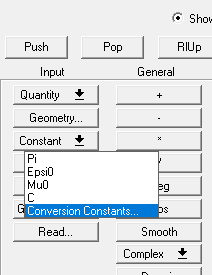
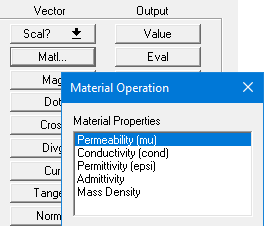
Note that Mass Density corresponds to keyword “MassDensity”.
If there is a conflict between standard quantity names, user-defined named expressions, and user-defined variables, the default name conflict resolution order is
- Standard quantities such as E and Mag_E
- User-defined named expression
- User-defined variables
Words not immediately followed by an open parenthesis will be treated as a quantity or variable. Therefore, a user-defined variable named Real not followed by open parenthesis will be recognized as a variable instead of the operator.
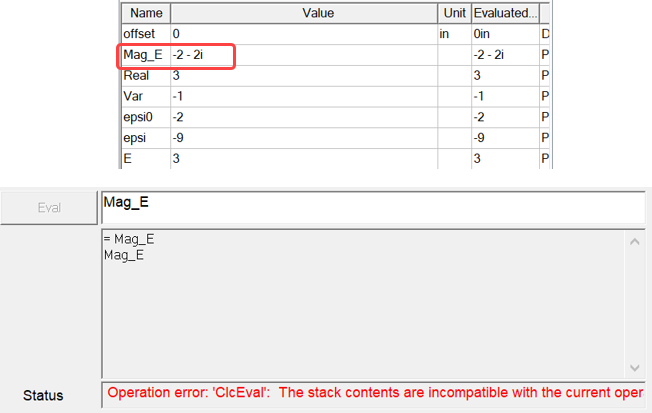
The Var or Expr operator can be used to override the default name conflict resolution. For example, a user-defined design variable named Mag_E would normally not be recognized. Instead, the standard quantity Mag_E will be assumed, and evaluation will fail:
With the Var operator, the user-defined variable can be parsed correctly and evaluated for the user -defined value:
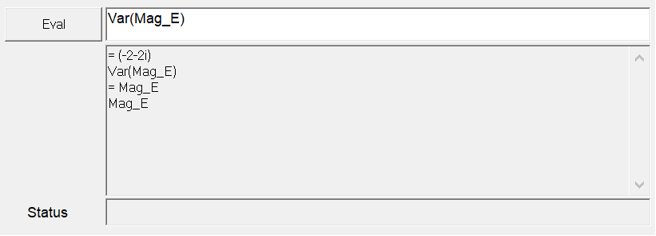
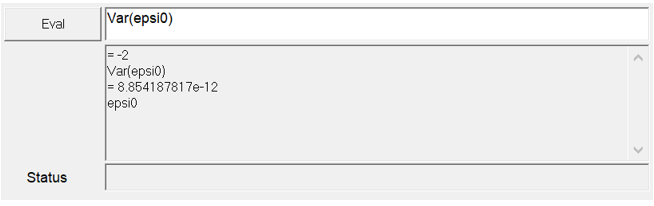
Here is another example that demonstrates how a user-defined variable can conflict with a standard named constant, such as epsi0, the vacuum permittivity, and how to use the Var operator to resolve the conflict:
Geometry
If an operator requires a geometry input, the geometry argument can be either first or second in the argument list, or in some cases, both. The operator automatically infers the geometry of the argument; no explicit specifiers are required. For example, PointValue(GeomX, ExpressionY) will assume GeomX is a point.
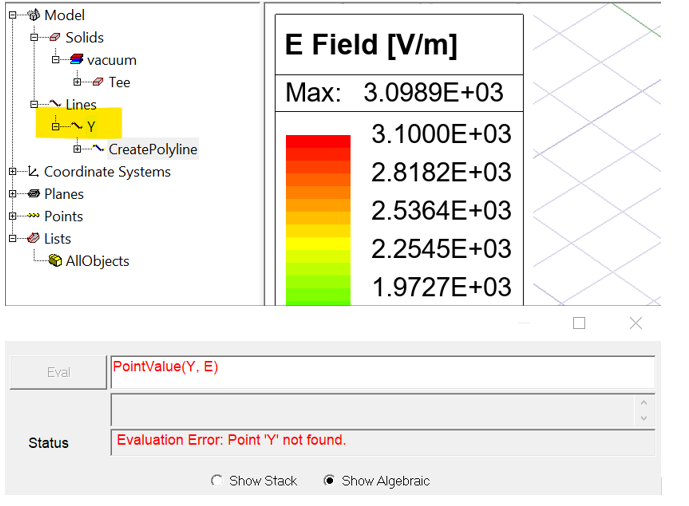
If the user specifies an operator, but uses the wrong type of geometry in the argument list, the Calculator will return an error. In the following example, the PointValue operator has a line in its argument list, so the Calculator generates an error:
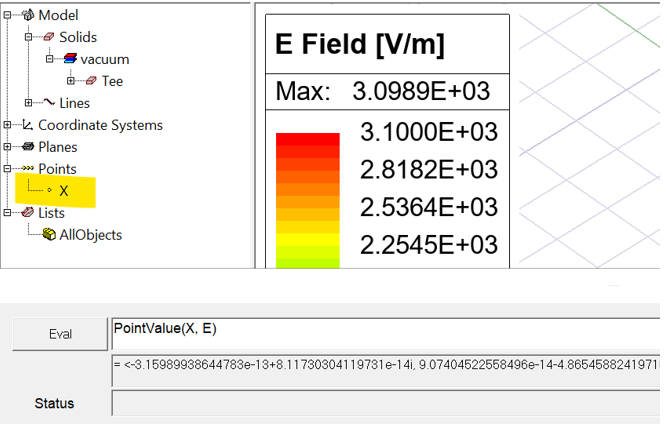
The following example shows the output when the geometry argument are specified correctly:
The following operators assume the geometry operand to be of the Volume type:
IntegrateMeanStdMinMaxMinPosMaxPos