
User Options and the UpdateRegistry Tool
Functionality featured in the example(s) in this section applies to multiple design types.
When you change an option's value using the Ansys Electronics Desktop UI, the new value is stored in the currently active user options registry. You can use the UpdateRegistry tool to add, modify, or remove settings. However, you cannot use the Desktop UI to remove settings from the registry. You must use the UpdateRegistry tool to do that.
If you have not already created a user options configuration file (either host-specific or host-independent), before launching the Ansys Electronics Desktop application for the first time, all settings will come from the host-specific default options configuration file or the installation default options configuration file. In a host-specific user options configuration file, any settings applicable to a different host from the current one will not be carried over to the new host. This behavior may be inconvenient if the user has preferred option settings that differ from the default settings, which apply to all users, especially if the user runs the application on a number of different hosts. In this case, the user may choose to use a host-independent registry and set the option values in this type of options file. See Understanding Registry Tools for more information. Host-independent option values can be used on all new hosts, overriding any values set by the administrator to apply to all users. Changes made in the UI can affect the user's host-specific or host-independent registry, depending on the currently specified registry type.
If a current registry does not exist, the program detects earlier major and minor versions of same application on the same host. If such a registry exists (and does not involve -help, -batchoptionhelp, IsBatchMode(), -regserver, -unregserver, running a script, or non graphical mode), a prompt displays the earlier versions you can select, from which the registry will be migrated.
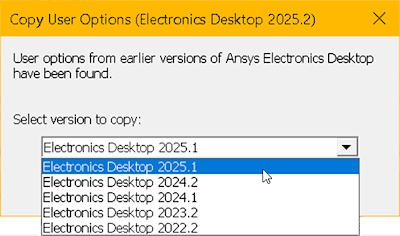
Copy over registry entries (both Windows and Ansys .xml files).
Example: Removing a Host-Dependent User Option Setting
For this example, user jsmith always uses host jshost to run Ansys Electronics Desktop. At some point, jsmith set the Autosave interval in General Options > Project Options tab to 1000 edits, and this value was written to the jsmith's host-dependent user options config file for host jshost. Now, jsmith wants to remove this setting and return to the default value of 10. User jsmith may run the following command on host jshost to remove the Desktop/Settings/ProjectOptions/AutoSaveInterval option value from this config file:
UpdateRegistry -Delete -ProductName ElectronicsDesktop2025.2
-RegistryKey Desktop/Settings/ProjectOptions/AutoSaveInterval
-RegistryLevel user_machine
Example: Getting a Value from a Specific Configuration File
In the previous example, the user jsmith may decide to check the Desktop/Settings/ProjectOptions/DiskLimitForAbort setting in the host-independent user configuration file before making any changes to this setting. The following command may be used to quickly view this setting before making the change:
UpdateRegistry -Get -ProductName ElectronicsDesktop2025.2 -RegistryKey Desktop/Settings/ProjectOptions/DiskLimitForAbort -RegistryLevel user
Example: Getting a Value Using Precedence Rules
In may cases, the user is more interested in the value of a setting that will be applicable when running the product than in the setting in a single configuration file. If the -Get option is used with no -RegistryLevel specified, then the value reported is the value found in the highest precedence configuration file. If the user jsmith is interested in the highest precedence value for the Desktop/Settings/ProjectOptions/DiskLimitForAbort setting, then the following command may be used to report this information:
UpdateRegistry -Get -ProductName ElectronicsDesktop2025.2 -RegistryKey Desktop/Settings/ProjectOptions/DiskLimitForAbort
Example: Adding a Host-Independent User Option Setting
Consider the case in which there is no value set for the Desktop/Settings/ProjectOptions/DiskLimitForAbort setting for all users for Ansys Electronics Desktop. The default is then 0 MB. User jsmith uses a variety of hosts and wants to be warned whenever disk space drops to 250 MB on any host. User jsmith may use the following command to set the Desktop/Settings/ProjectOptions/DiskLimitForAbort option value to 250 MB for all hosts:
UpdateRegistry -set -ProductName ElectronicsDesktop2025.2
-RegistryKey Desktop/Settings/ProjectOptions/DiskLimitForAbort
-RegistryValue 250 -RegistryLevel user
Example: Setting a RegistryKey not defined in ElectronicsDesktopRegistrySyntax.xml
"C:\Program Files\ANSYS Inc\v252\AnsysEM">UpdateRegistry -Set -ProductName ElectronicsDesktop2025.2 -RegistryKey "3D Editors/Preferences/Geometry3D/q" -RegistryValue "m"
registry key is not defined in this product
Register value <3D Editors/Preferences/Geometry3D/q> is created with value <m>
Example: Change a Newly Set Registry Key
"C:\Program Files\ANSYS Inc\v252\AnsysEM\">UpdateRegistry -Set -ProductName ElectronicsDesktop2025.2 -RegistryKey "3D Editors/Preferences/Geometry3D/q" -RegistryValue "n"
Register value <3D Editors/Preferences/Geometry3D/q> is set to <n>
If you attempt to set a registry key to the wrong data type, a message like the following appears.
Cannot set the registry value to different data type
The work around is delete it, then create it again
error on to set registry value at <3D Editors/Preferences/Geometry3D/q>