
Defining Zones
Follow these steps to outline and define the new zone(s) using the Rigid-Flex Workflow.
The Rigid-Flex Workflow is only available after a design has been imported or created, and Multizone is selected as the stackup's Type. Refer to the previous subsections of the Multizone Stackups and Rigid-Flex Bends.
Zones can be defined at the Layout Editor, but the Rigid-Flex Editor window provides a dedicated environment for managing rigid-flex zones and bends, and includes a specialized message window that displays warnings and setup-related messages not shown in the standard Message window. These additional messages can help identify potential configuration issues early in the design process, making the Editor a more robust option for preparing complex rigid-flex models.
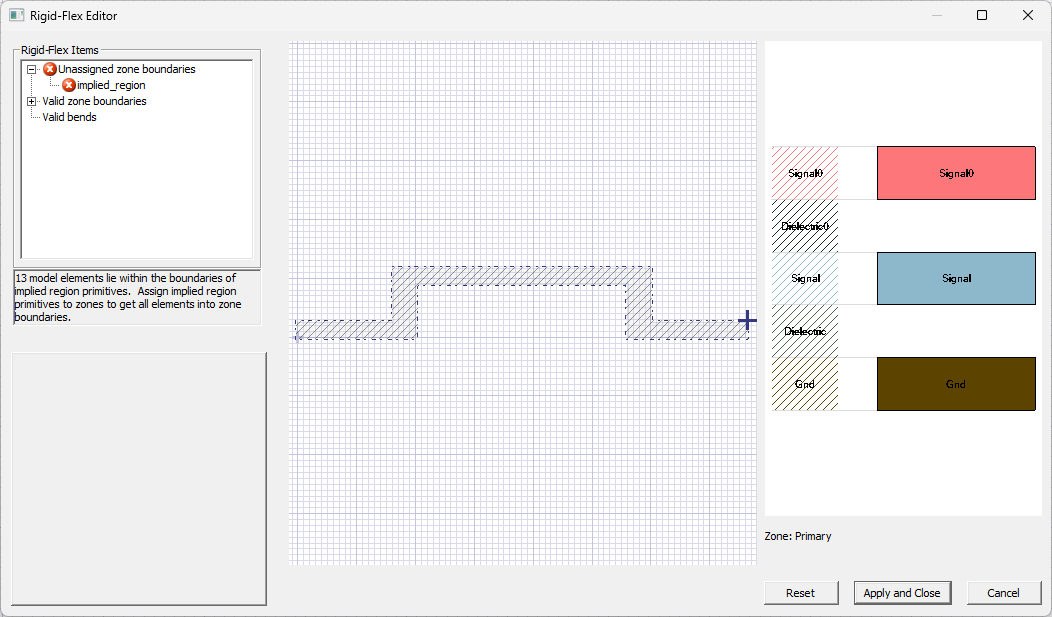
From the Layout tab, click Rigid-Flex to open the Rigid-Flex Editor window.
 Note:
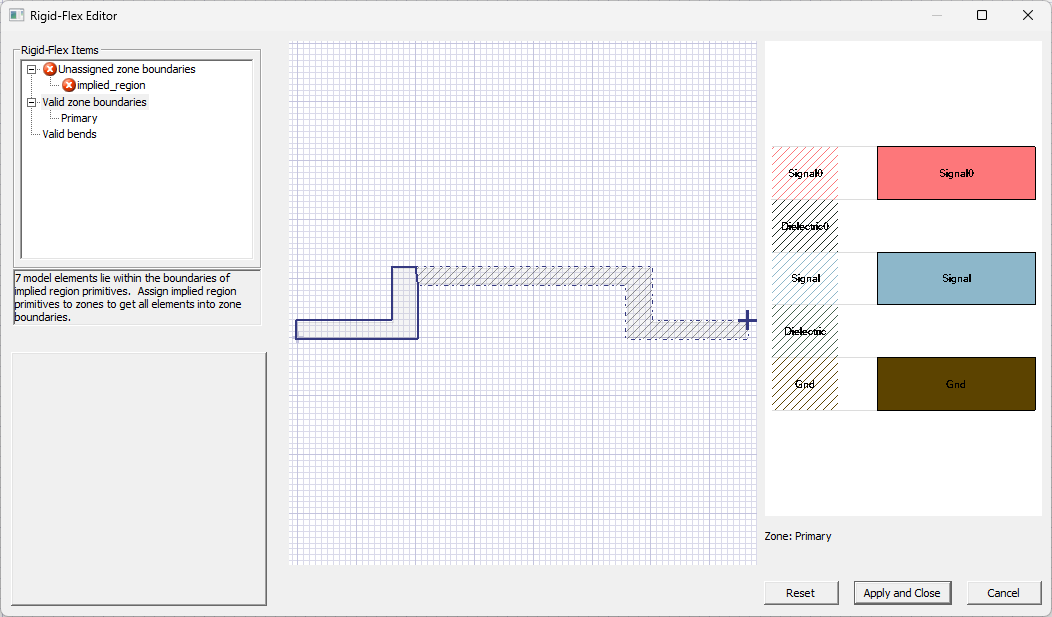
Note:As zones are created, they will appear in the Rigid-Flex Items area. Outline primitives that are not assigned to a zone will be located in the Unassigned zone boundaries section as implied region(s).
From the Rigid-Flex Editor window, define a zone by doing the following:
Right-click within the preview window and select Zones > any primitive drawing tool (e.g., Draw polygon).
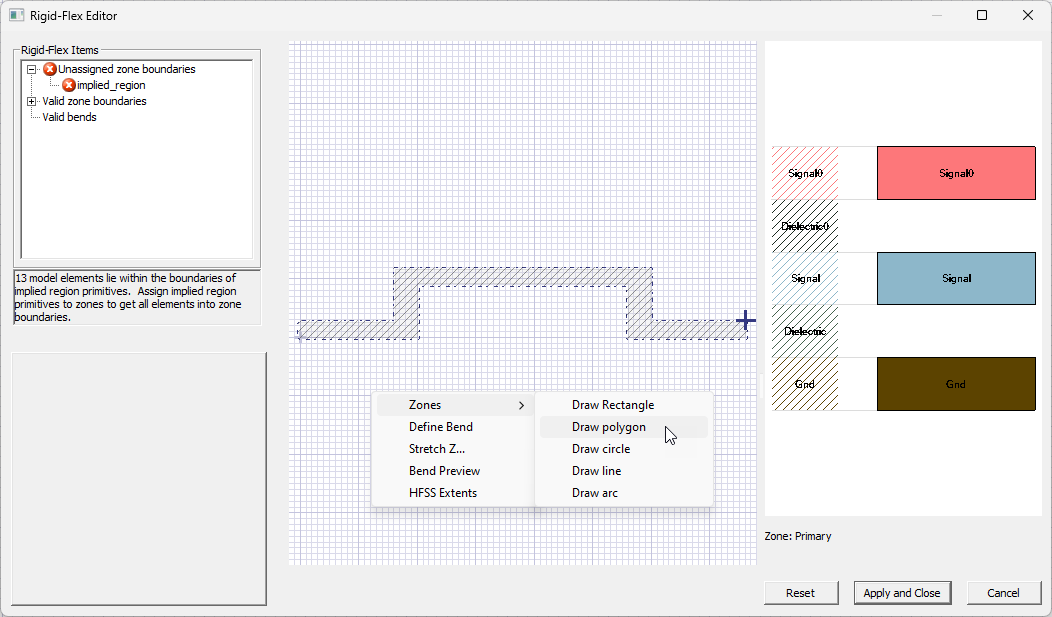
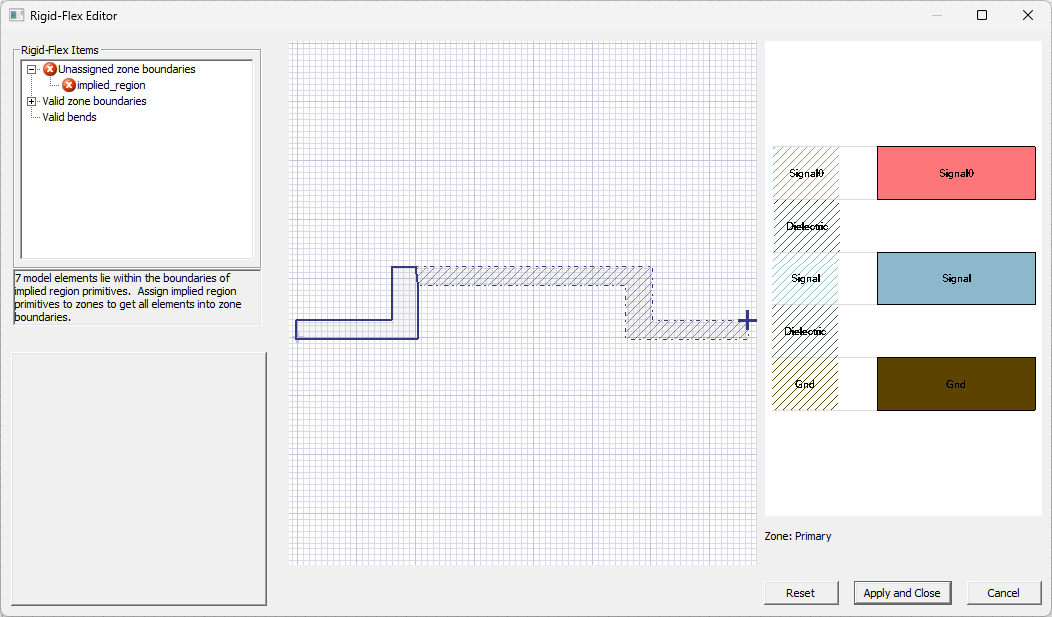
Click within the preview window to draw a zone using the same method described in the HFSS 3D Layout Getting Started Guides for drawing primitives in the Layout Editor.
 Note:
Note:Click Reset at anytime to undo any changes and begin again.
Double-click to complete the outline and open the Zone Primitive window.
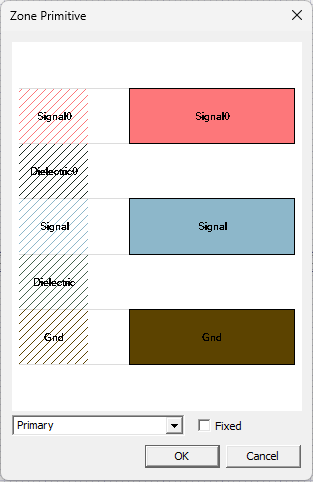
From the Zone Primitive window, select the appropriate zone designation from the drop-down menu (e.g., Primary).
Check the Fixed box, if applicable. A fixed primitive is used as reference during the bending process and contains the anchor point.
Note:The anchor point appears as a bold crossbar within the design. Its position will remain stationary during the bending process. Although a bend can be applied to the primitive that contains the anchor point, it cannot intersect the anchor point. The anchor point can be dragged to another location or even another primitive. Any primitive that contains the anchor point is Fixed. The anchor point is visible in the Layout Editor if the user is Defining Zones.

Click OK to close the Zone Primitive window.
Understanding Zone Boundaries
Although simulation includes a robust pre-processing routine to automatically clean up zone boundary definitions, starting with clean, well-defined zones greatly improves simulation reliability and performance. Rather than relying on implied regions, ensure proper behavior during simulation and meshing by verifying that zone boundaries are clearly defined on the Outline layer. Ensure the following:
Zones are explicitly defined using polygons and no implied regions remain when the design is ready for simulation.
Zone polygons are well-formed and do not contain gaps between adjacent regions.
No components cross defined zones.
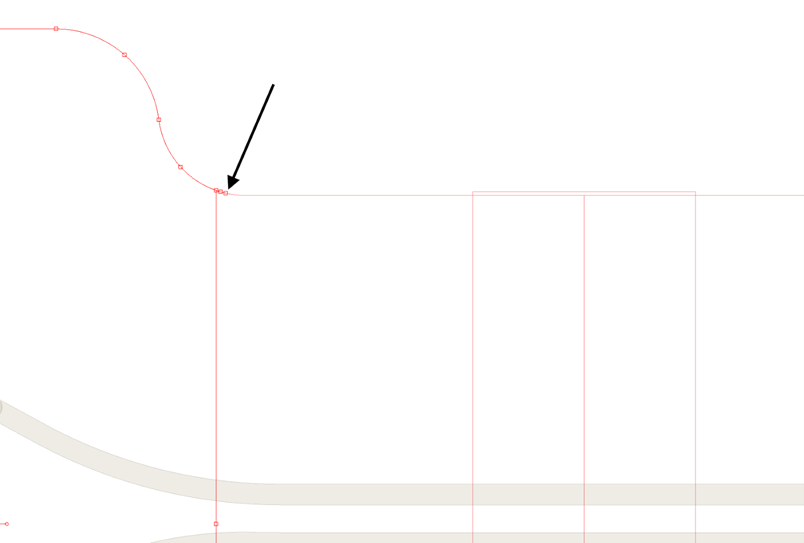
Zone boundaries do not create zero-area regions.
The following image shows a zero-area region that could potentially cause meshing errors.
Using HFSS Model Extents to Modify Zones
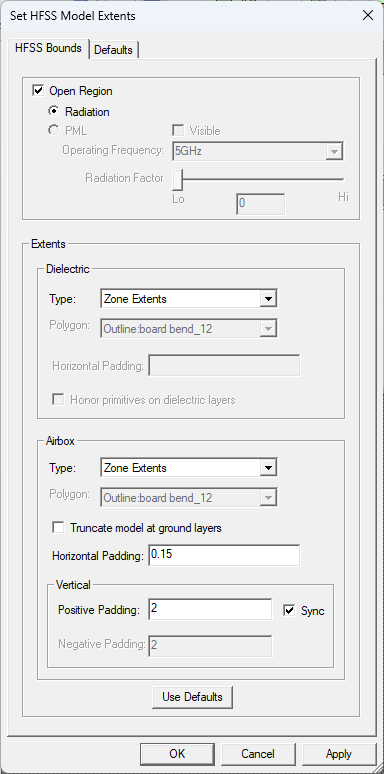
Follow these steps to use HFSS Extents to modify the dielectric and airbox extents. Refer to HFSS 3D Model Extents.
- To open the Set HFSS Model Extents window, do either of the following:
- From the Layout ribbon, click HFSS Extents.
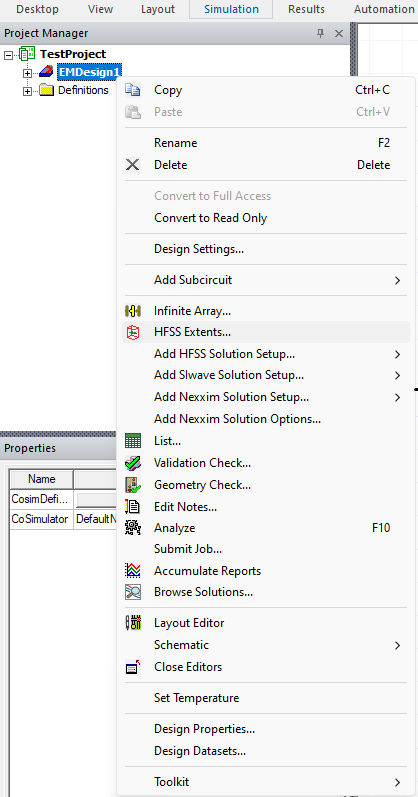
- From the Project Manager window, expand the Project Tree (e.g., TestProject). Then right-click the active design (e.g., EMDesign1) and select HFSS
Extents.
The HFSS Bounds tab displays by default.
- From the Layout ribbon, click HFSS Extents.
- From the Extents area, select Zone Extents from the Type drop-down menu to affect the following changes:
- Dielectric – the base-polygon is defined by the exact dimensions of the zone extents input by the user on the Outline layer.
- Airbox – creates a union from the zone extent polygons on the Outline layer, expanded by the user-entered value in the Horizontal Padding field, to set the airbox extents.Note:
Padding applied using Zone Extents affects only implied regions. It has no effect on zones with explicitly defined boundaries. For higher accuracy and more predictable modeling, always use explicit zone boundaries in conjunction with Zone Extents.
Using the Implied Regions to Assign Zones
The Unassigned zone boundaries section of the Rigid-Flex Items area includes all primitives that are not assigned to a zone. The primitives that can be assigned to a zone are implied_region(s).
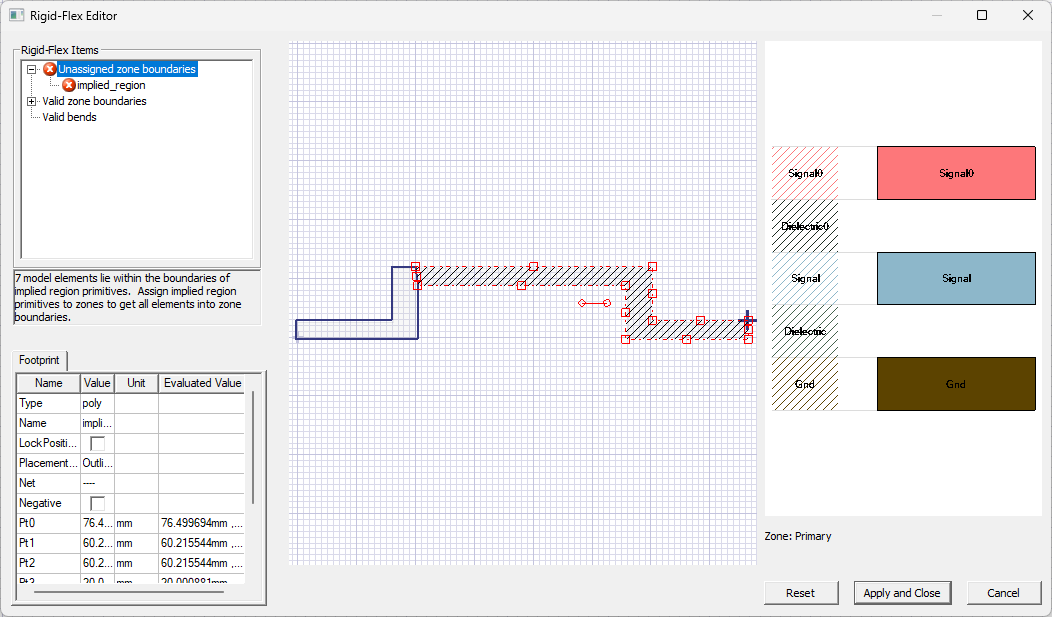
Double-click any implied_region to open the Zone Primitive window. Then assign the primitive to a zone (e.g., Zone1).
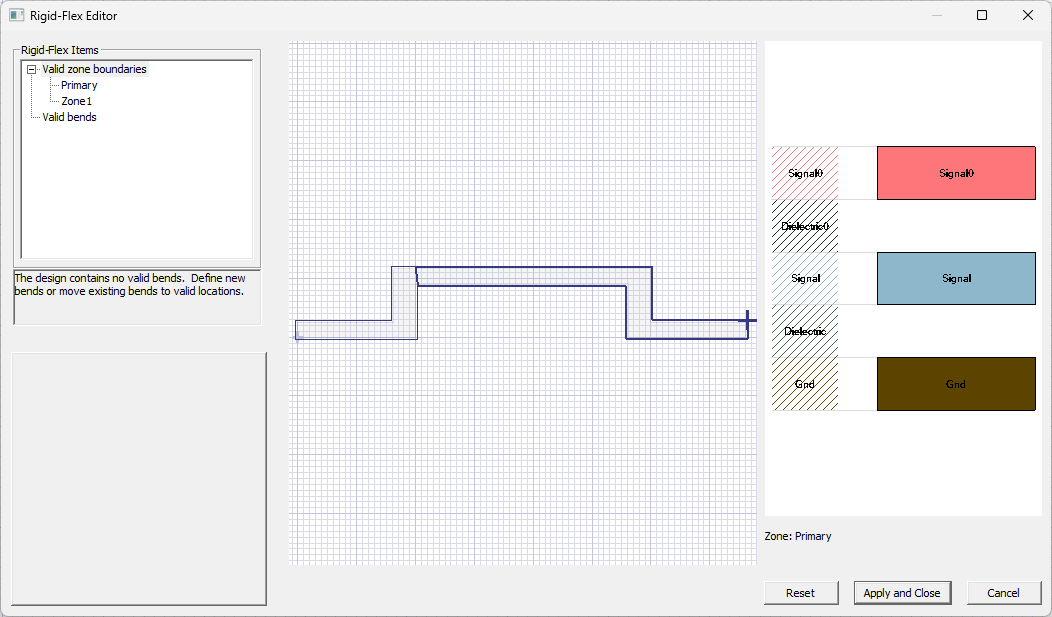
Depending on whether the unassigned primitives are connected, there could be multiple implied_regions in the Unassigned zone boundaries section.
Changing the Zone Order
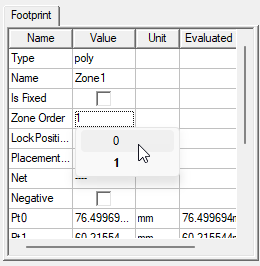
While creating a rigid-flex design, only a single zone stackup will be modeled in a location. If zones overlap, Zone Order is used to determine which zone the design will model and which zone(s) will be ignored. The zone with the most dominant position will take precedence. Follow these steps to change the Zone Order of any zone in the design.
Zone Order can an also be changed at the Layout Editor.
From the Rigid-Flex Editor window, select a zone.
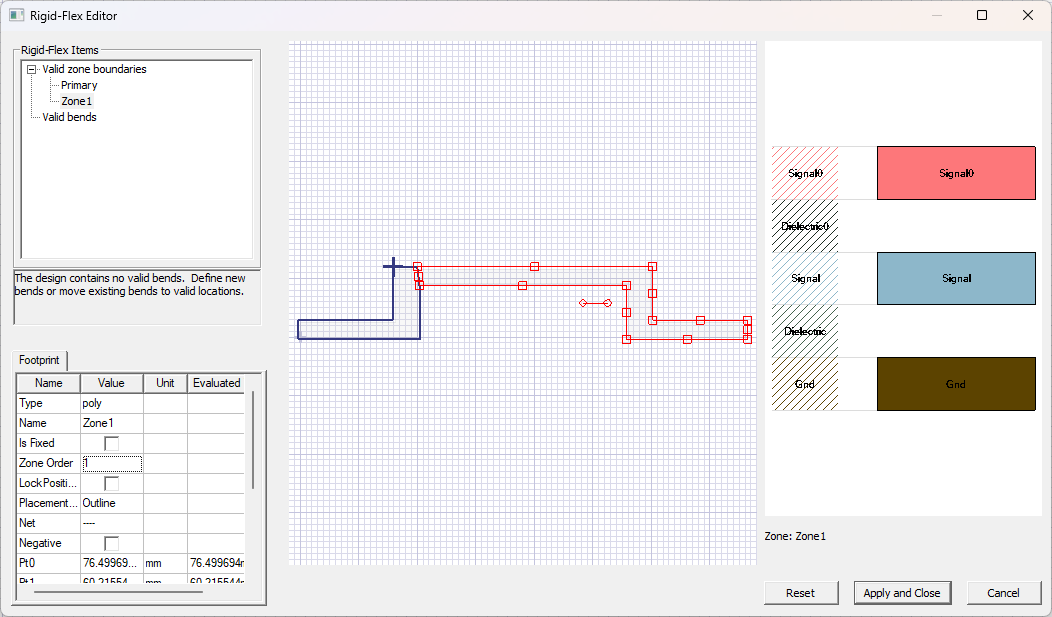
The selected zone's parameters populate the Footprint tab.
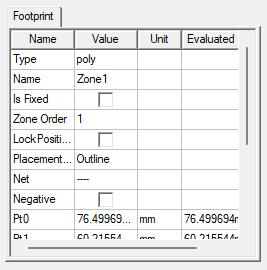
From the Footprint tab, click inside the Zone Order field to select a new position from the drop-down menu (e.g., from 0, which has the highest priority in the hierarchy, to 1, 2, et cetera).
Reorienting the Model and Stretching Z
Reorient the model in the preview window using the same method of control common to the Layout Editor.
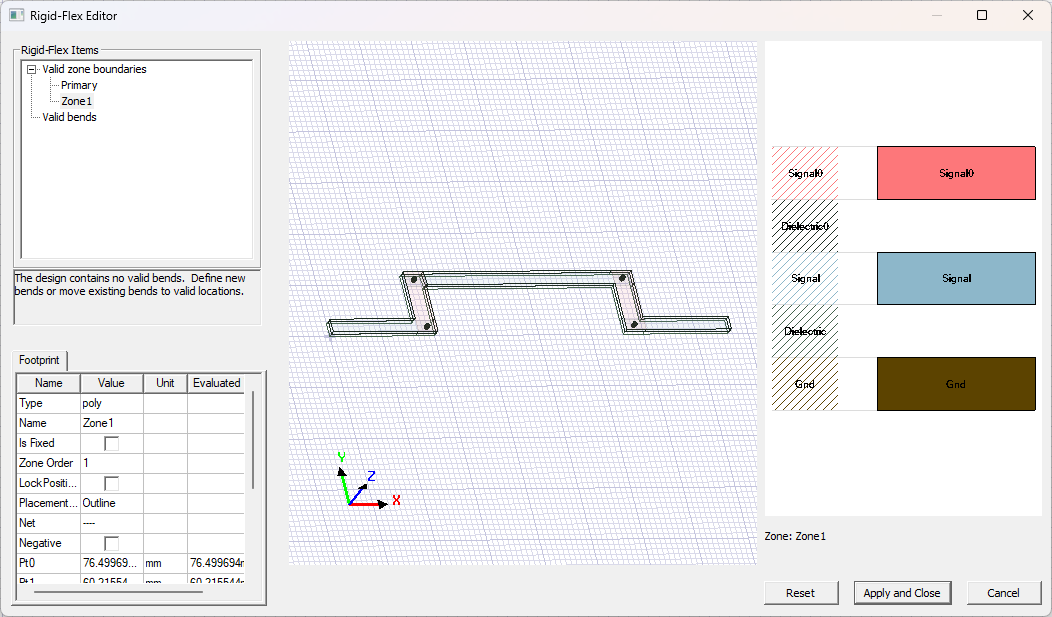
If applicable, follow these steps to artificially scale Z values, so thin models have a 3D appearance.
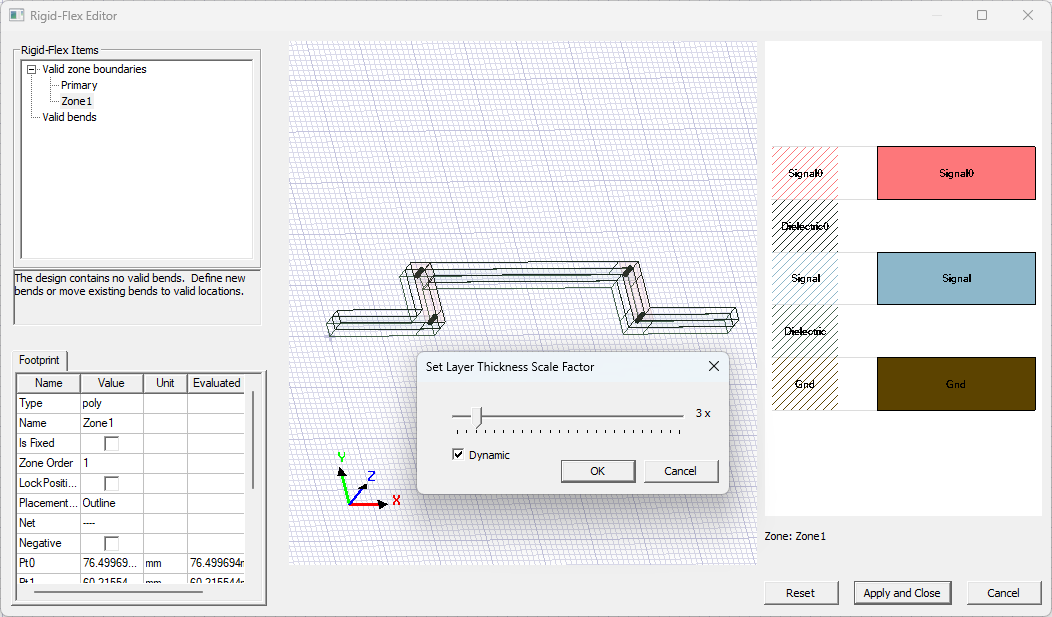
Right-click in the preview window and select Stretch Z to open the Set Layer Thickness Scale Factor window.
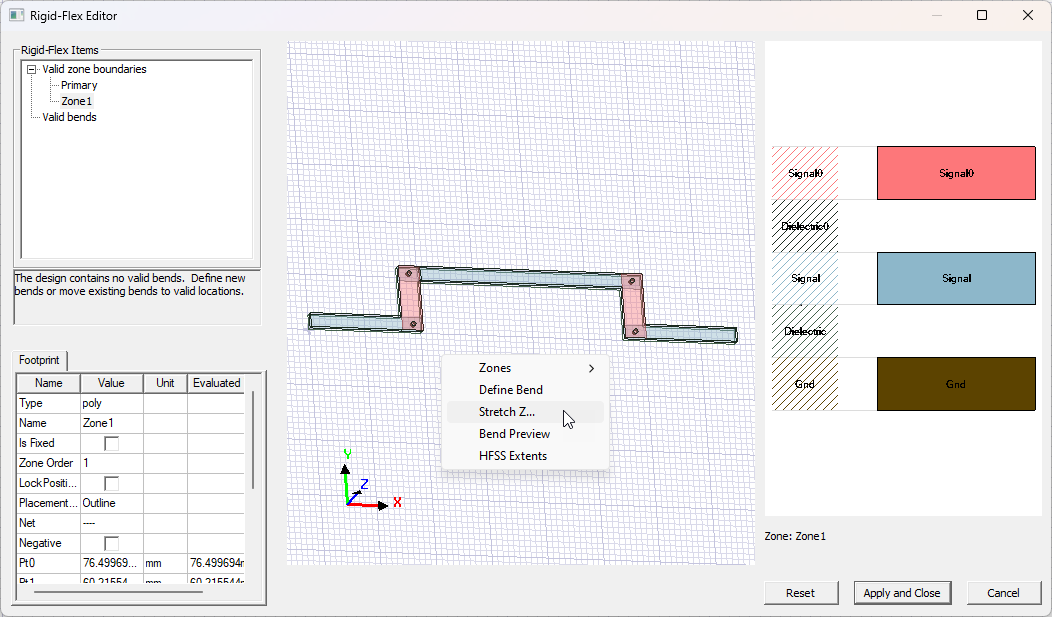
Use the slider to set the scaling factor to any discrete value between 1 and 25.
Continue to Defining Rigid-Flex Bends.
Defining Zones at the Layout Editor
Follow these steps to outline and define zones from the Layout Editor.
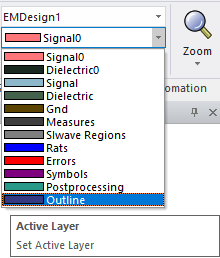
From the Layout tab, select Outline on the Set Active Layers drop-down menu.
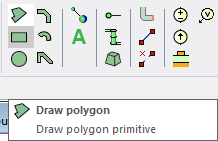
From the Layout tab, select any primitive drawing tool (e.g., Draw polygon).
Draw a zone over the design using the same method described in the HFSS 3D Layout Getting Started Guides for drawing a primitive.
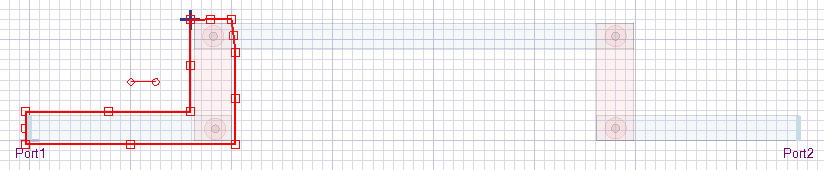
Repeat steps 2-3 for each zone. For best results, each successive zone should abut another zone.
Select a zone. From the Properties window, select the appropriate zone designation on the Name Value field's drop-down menu.
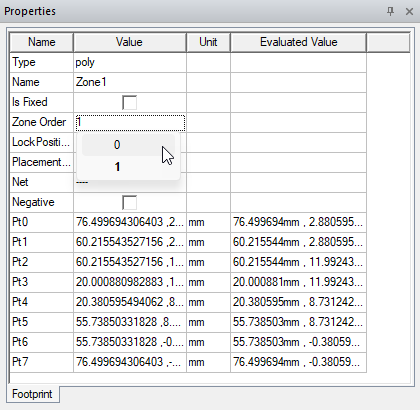
Once the primitive is assigned to a zone, the Is Fixed and Zone Order rows appear. If selected, do either or both of the following:
Check the box in the Is Fixed Value field to designate the primitive as fixed.
Assign the primitive a new Zone Order from the drop-down menu in the Zone Order Value field.
Repeat steps 5-6 for each zone.
Continue to Defining Rigid-Flex Bends.