
Defining Rigid-Flex Bends
Follow these steps to create and define one or more rigid-flex bends using the Rigid-Flex Workflow. Refer to Bend Restrictions.
Zones can an also be defined at the Layout Editor. Refer to Defining Bends at the Layout Editor.
Right-click within the preview window and select Define Bend.
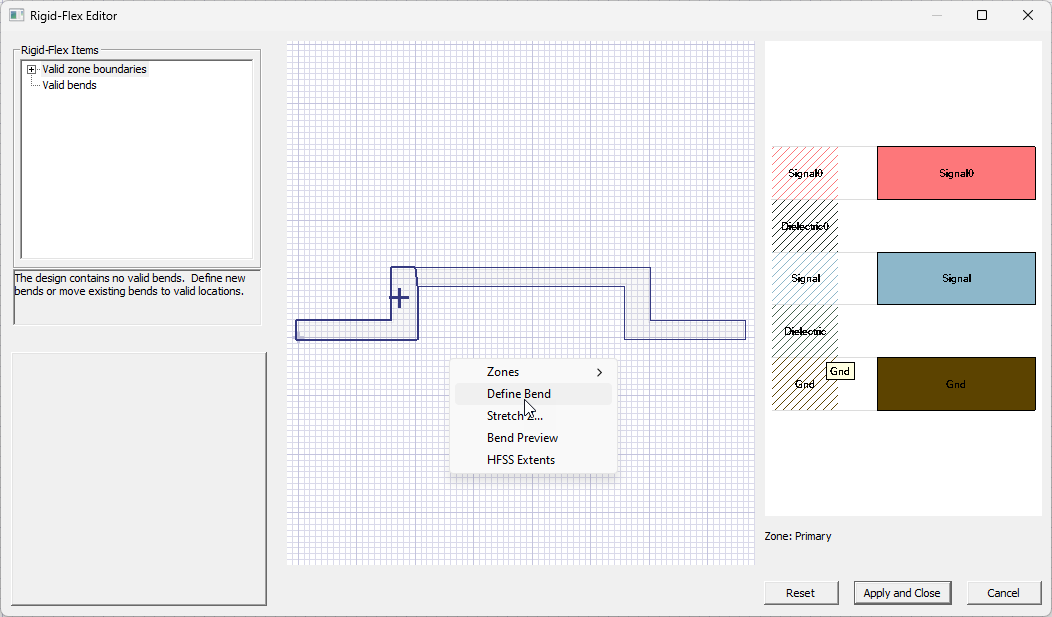
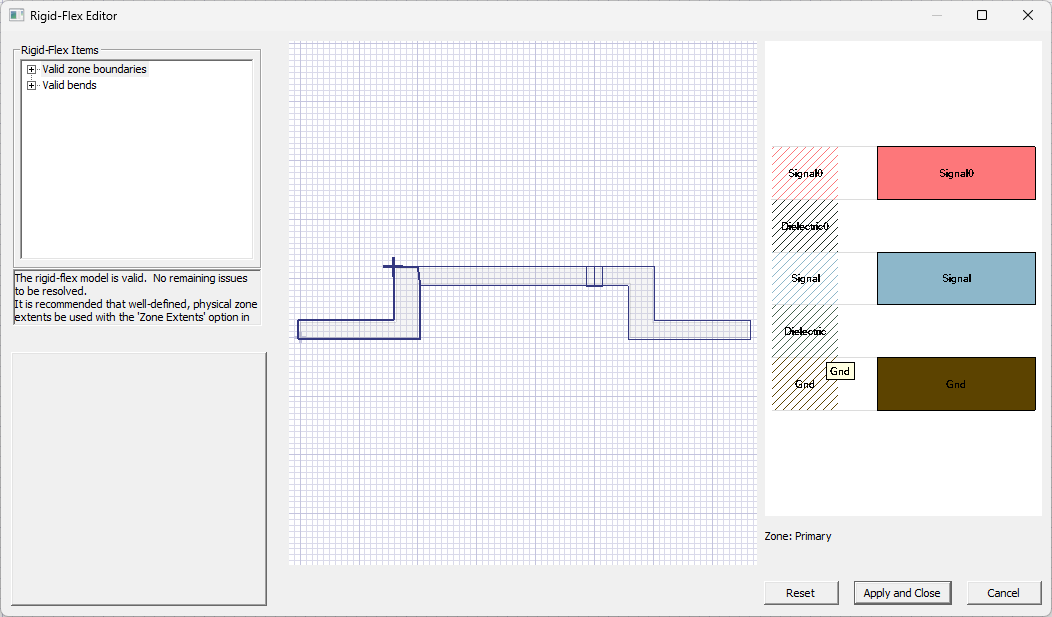
Click within any zone to begin placing a bend. Orient the bend, as appropriate, and click again to simultaneously place the bend and open the Bend Data window.
Enter the selected Radius (e.g., 3.181mm) and Angle (e.g., 90deg) in the appropriate fields.
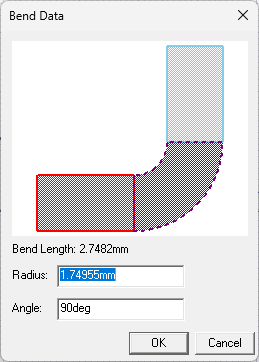
Click OK to close the Bend Data window and return to the Rigid-Flex Editor window.
Repeat steps 1-4 to create more bends, as appropriate.
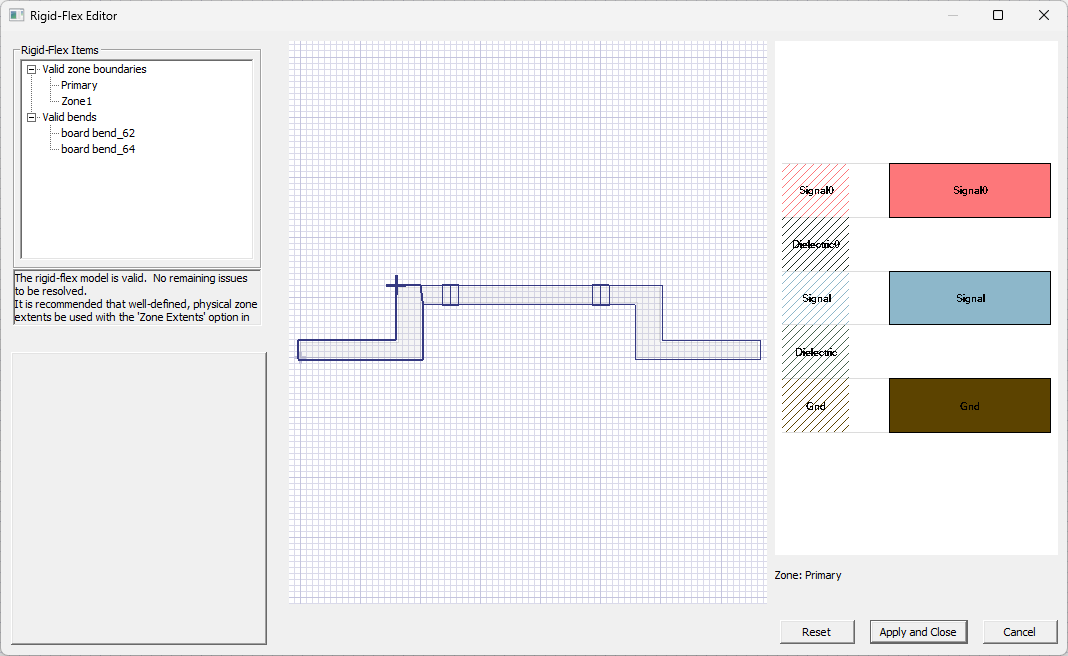
Right-click within the preview window and select Bend Preview to see the rigid-flex version of the design model.
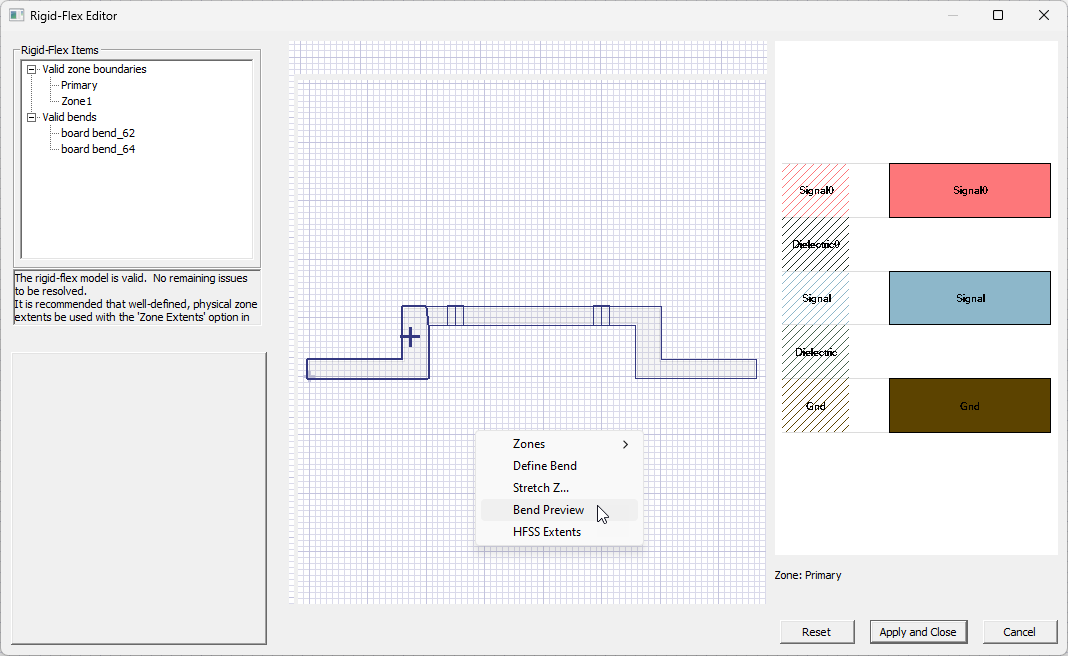
Reorient the model using the same control method as in the Layout Editor. Refer to the HFSS 3D Layout Getting Started Guides, if applicable.
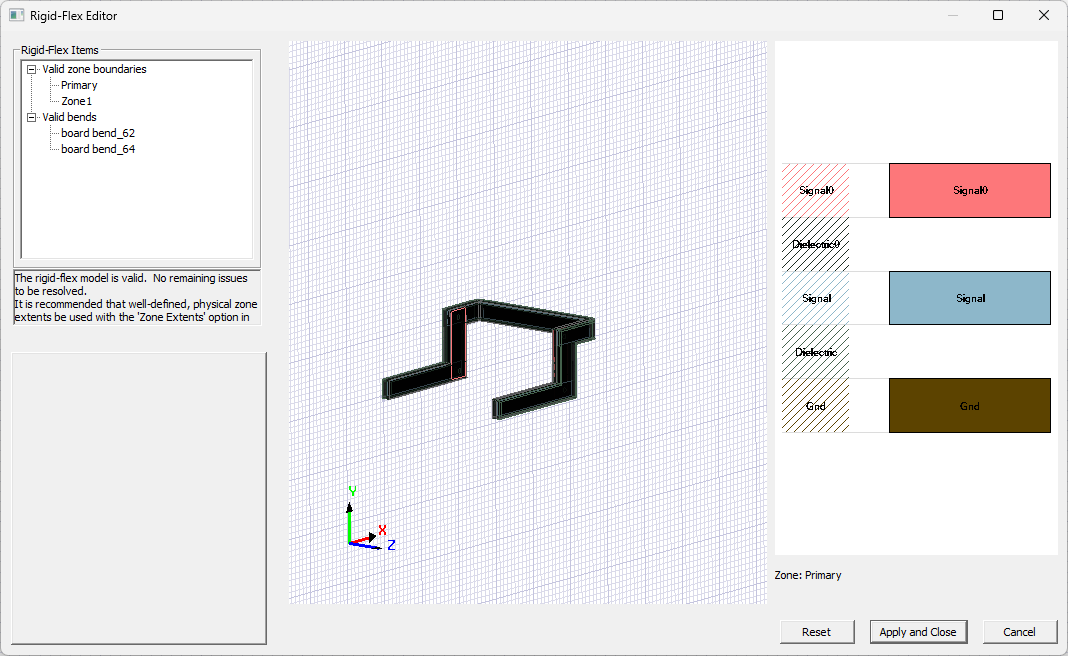 Note:
Note:If bends appear incorrect in the UI (e.g., missing geometry in the bend, the bend(s) not visually applied whatsoever, et cetera), try changing the location of the fixed region. Certain UI-related issues are purely graphical and do not affect meshing or simulation results. The bend visualization is a lightweight representation of the deformed geometry. To verify the actual geometry used in simulation, plot the mesh or display Pre-Process Geometry.
Click Apply and Close to close the Rigid-Flex Editor window. The new zones and bends appear in the Layout Editor.
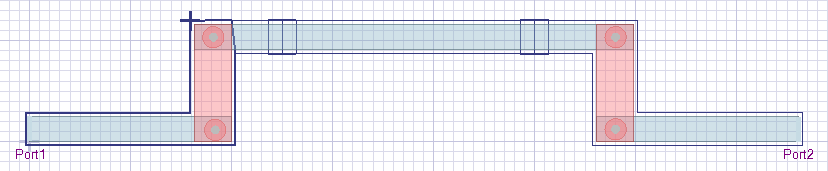
Continue to Analyzing a Design With Rigid-Flex Bends.
Bend Restrictions
Bends cannot overlap the anchor point, one another, ports or other components, or be placed across multiple zones. Bends are defined by two points in the x-y plane indicating their placement in the model, a radius value indicating the sharpness of the bend, and an angle. The magnitude of the angle indicates the extent of the wrapping while the sign of the angle indicates the bend direction (i.e., positive or negative angle implies a positive-z or negative-z bend direction respectively). When computing bent geometry, the software defines the neutral root as a point on the face where the bent region connects with the unbent region. To make the deformation consistent between positive and negative bends, the elevation of the neutral root is dictated by the sign. If the bend is positive, the neutral root is placed at the bottom of the zone stackup. If the bend is negative, the neutral root is placed at the top of the zone stackup. For geometry in bend regions at the same elevation as the neutral root, in-plane distances are preserved, but geometry is contracted at other elevations. The minimum bend radius is 1.1x the thickness of the zone on which the bend is placed. Invalid placement of bends results in error messages, which appear in the Rigid-Flex Items area.
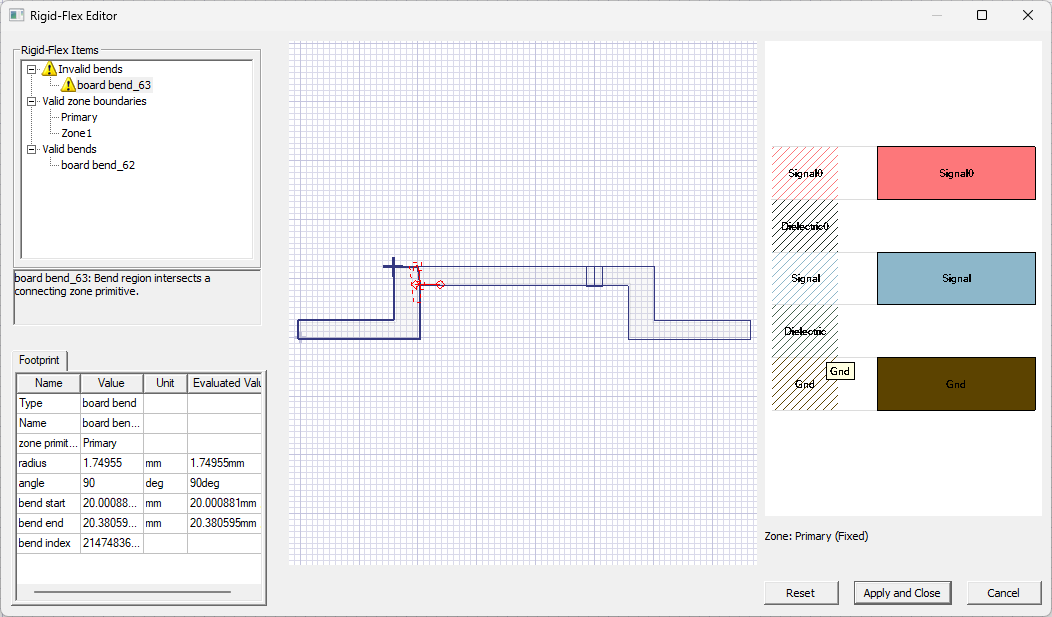
Creating a bend with a bend radius that is too small can severely deform the model. The bends shown in the software are geometric deformations only; no mechanical physics are simulated. When a bend is applied, the outer surface of the bend becomes the reference and remains undistorted, while the inner surface is distorted to accommodate the curvature.
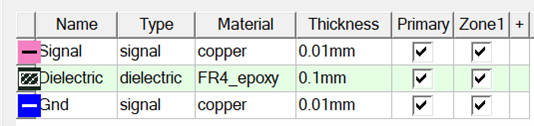
For example, consider a stack-up with a total thickness of 0.12mm.
A 180° bend with a radius of 0.14mm is applied to the stackup (red arrow).
The length of the outer surface of the bend will be: π × 0.14 mm ≈ 0.4398 mm
This outer surface remains undistorted. However, the inner radius of the bend becomes: 0.14 mm – 0.12 mm = 0.02 mm (black arrow)
This means the inner (top) signal layer must compress to a length of: π × 0.02 mm ≈ 0.0628 mm
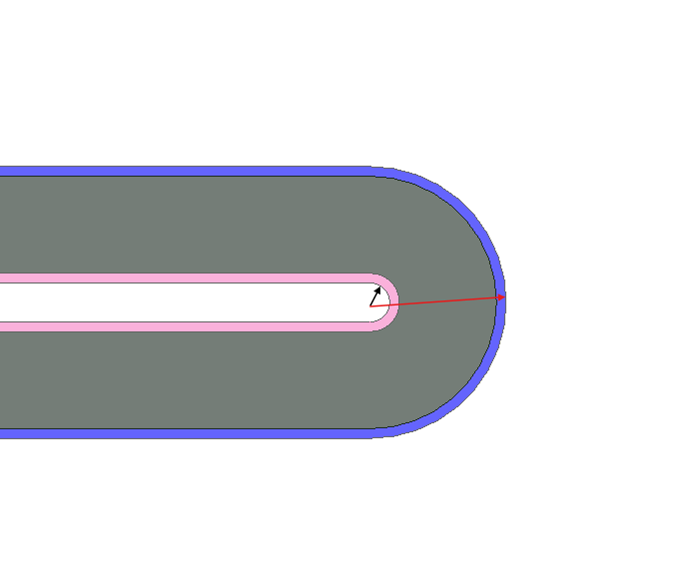
This results in more than a 7× contraction relative to the flat state, which can produce highly distorted geometry and lead to simulation issues.
Setting a Defeaturing Tolerance (HFSS > Advanced Setup Only)
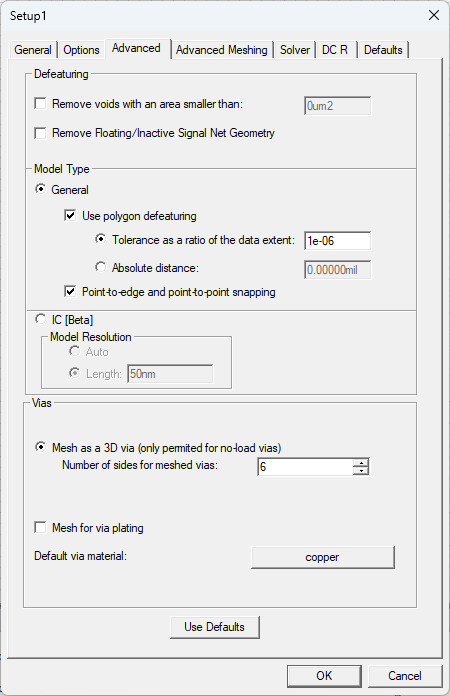
If arcs are defined with dense faceting in a design, consider applying a defeaturing tolerance to simplify the arc geometry. By enable Use polygon defeaturing and setting a Tolerance as a ratio of the data extent (available from the HFSS setup window on the Advanced tab), very close points, collinear points, and thin intrusions that do not contribute meaningfully to the geometry are removed during simulation. This is particularly useful if a design has highly faceted curves or geometry with excess detail. This can significantly reduce computational complexity and improve solver performance, especially during mesh generation.
Removing Voids (HFSS > Advanced Setup Only)
Another option is to automatically defeature or remove voids contained inside bends, particularly when there is hatched geometry in the design. From the Advanced tab, check the Remove voids with an area smaller than box and then specify a value. Users should aim for balanced void removal, as excessive internal detail can contribute to mesh failures. While not all voids need to be eliminated, applying a sensible void removal tolerance can improve meshing robustness and overall simulation success.
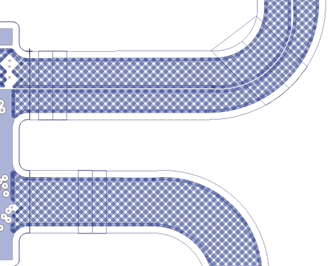
To set a defeaturing tolerance or remove voids smaller than a specified value, refer to the Advanced tab in the HFSS setup window.
Defining Bends at the Layout Editor
Follow these instructions to create and define bends within the Layout Editor.
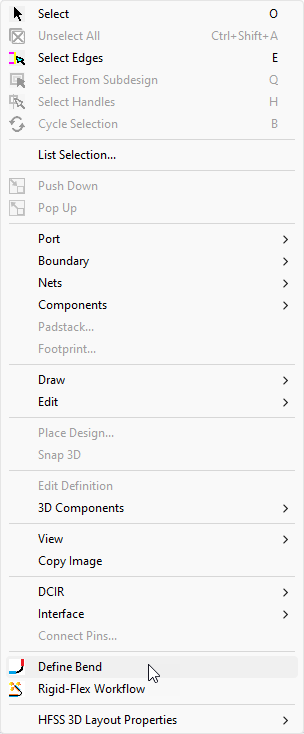
From within the Layout Editor, right-click anywhere and select Define Bend.
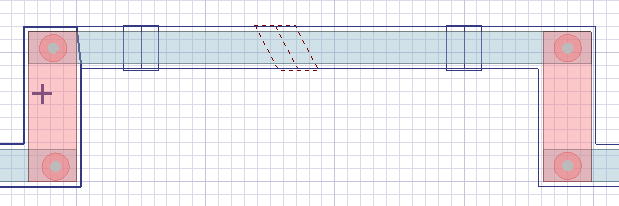
Click within any zone to begin placing a bend. Orient the bend, as appropriate, and click again to simultaneously place the bend and open the Bend Data window.
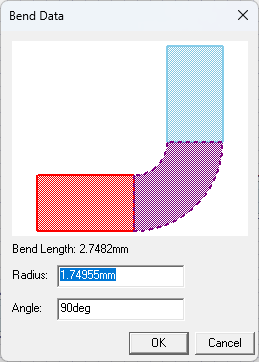
Enter the selected Radius (e.g., 1.74955mm) and Angle (e.g., 90deg) in the appropriate fields.
Repeat steps 1-3 to create more bends, as appropriate.
Rigid-Flex Bends can be animated. Refer to Animating Rigid-Flex Bends.
Continue to Analyzing a Design With Rigid-Flex Bends.