Creating Mesh Regions and Activating Parallel Refinement (IC Mode Only)
Defining mesh regions in an HFSS solution setup partitions a design into multiple domains, potentially increasing mesh robustness and performance for complex layout geometry. For larger designs, enabling mesh regions also allows users to activate parallel refinement, a process that significantly accelerates adaptive passes by refining each region individually to reach a final solution.
Follow these steps to create a mesh region and configure mesh partitions.
These instructions assume the user has already set up an Advanced HFSS Solution Setup.
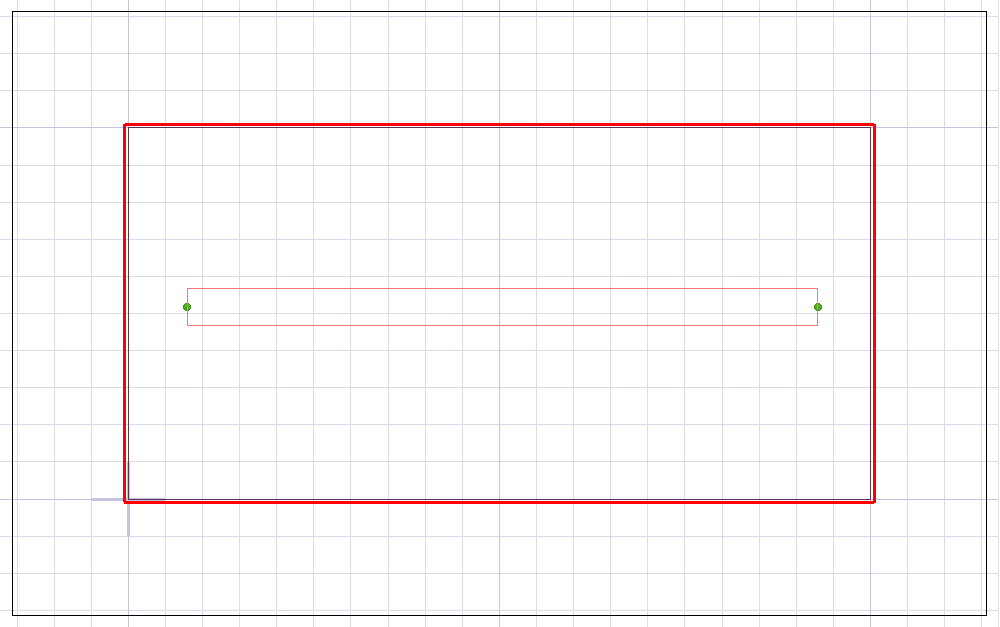
- From the Layout Editor, select a component to designate as a mesh region.
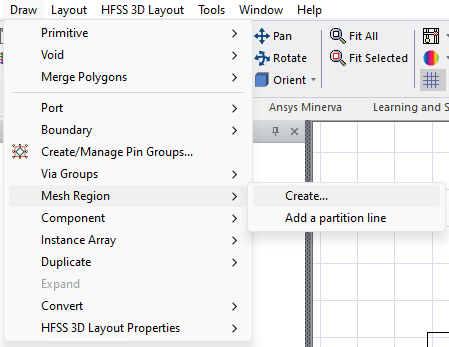
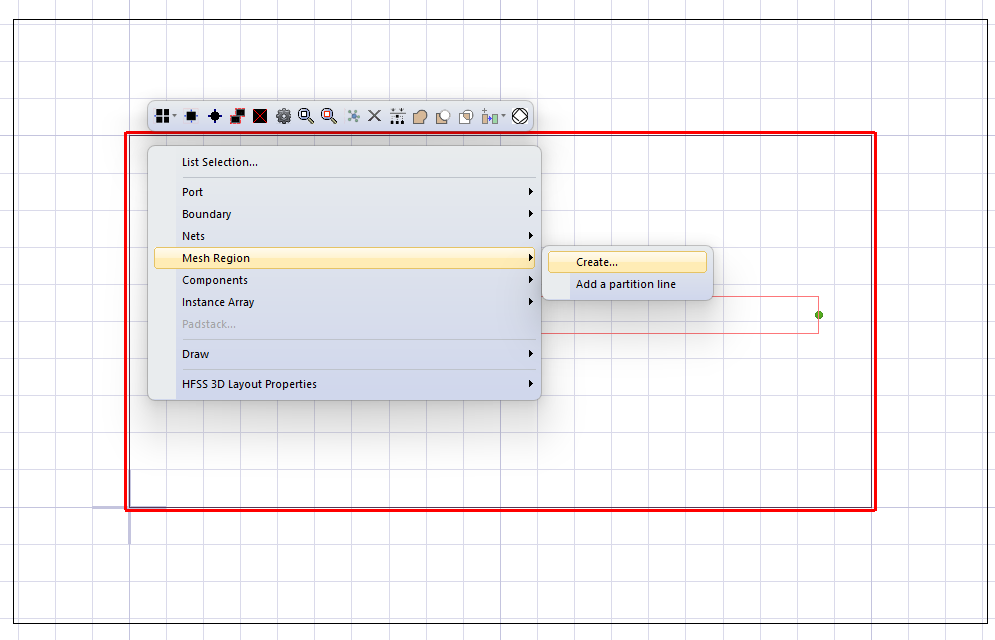
- Do either of the following to open the Mesh Region Dialog window:
-
From Draw, select Mesh Region > Create.
-
Right-click within the Layout Editor and select Mesh Region > Create.
-
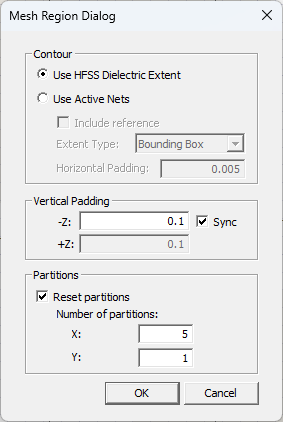
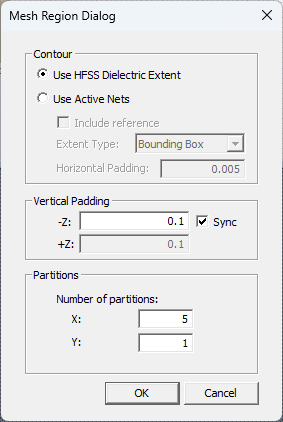
From the Mesh Region Dialog window, make any other appropriate selections and enter values in the Partitions area.
 Note:
Note:By default, mesh regions created in IC mode always extend to the airbox extent, regardless of the selection made in the Contour area of the Mesh Region Dialog window. This simplifies mesh boundaries and improves accuracy. Selections made in the Contour area only become relevant when an IC mode design is exported and later imported into General mode as a component. Once imported into General Mode, the Contour selections are respected.
Note:The default X and Y partition values depend on the length of the bounding box around the objects in the Layout Editor. If the X-axis side is longer, the Number of partitions is 5 in the X field and 1 in the Y field. If the Y-axis side is longer, the Number of partitions is 1 in the X field and 5 in the Y field.
Note:By default, both X and Y axes (i.e., 2D) partitions are editable. To use only one axis (i.e., 1D) partition, enter 0 in the superfluous field.
-
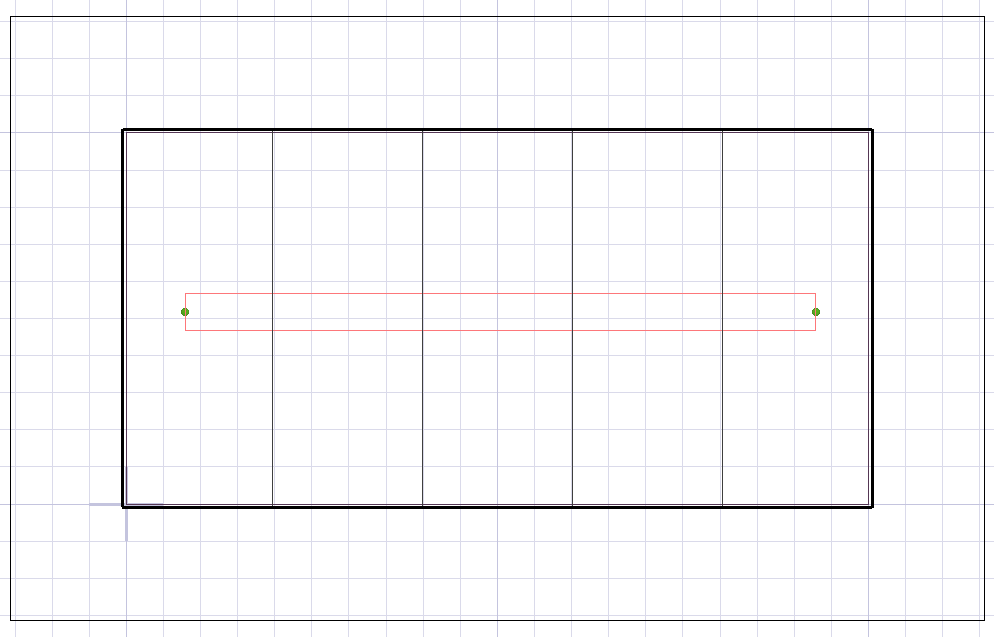
Click OK to close the Mesh Region Dialog window and the partitions will appear in the Layout Editor.
-
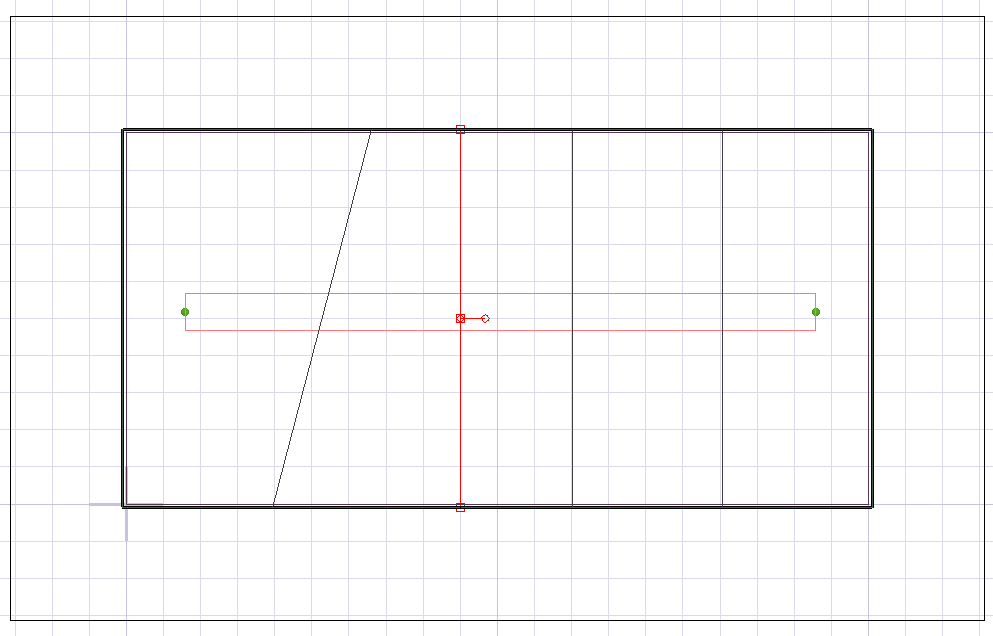
Click+drag on partition lines to drag them or select a line and use the handles that appear to transform the partition(s), as necessary.
-
If necessary, add a new partition line by doing the following:
-
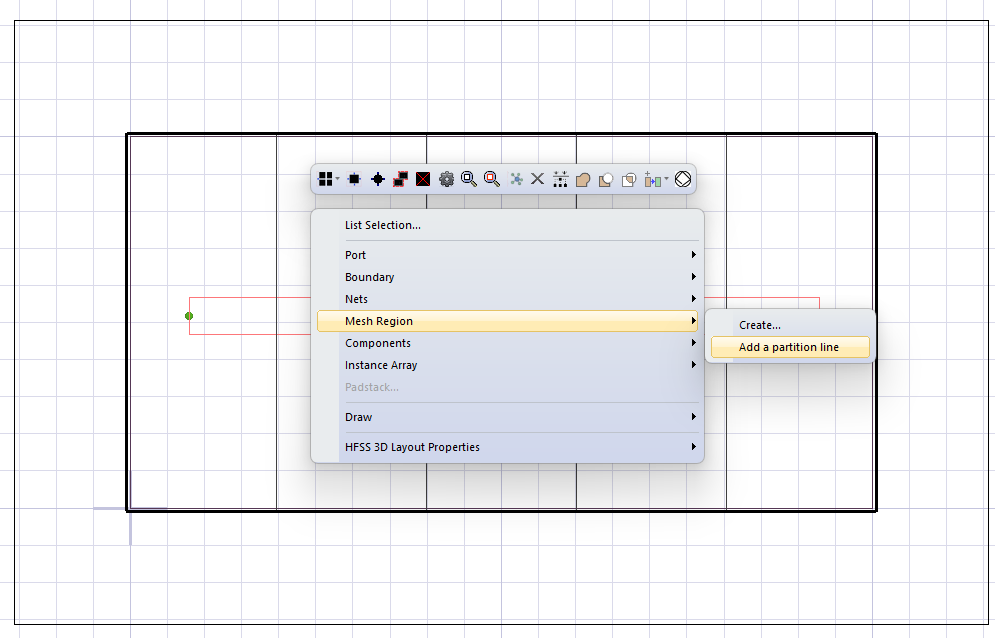
From the Layout Editor, select the mesh region. Then right-click and select Mesh Region > Add a partition line.
-
Click anywhere along the mesh region outline to start a new line.
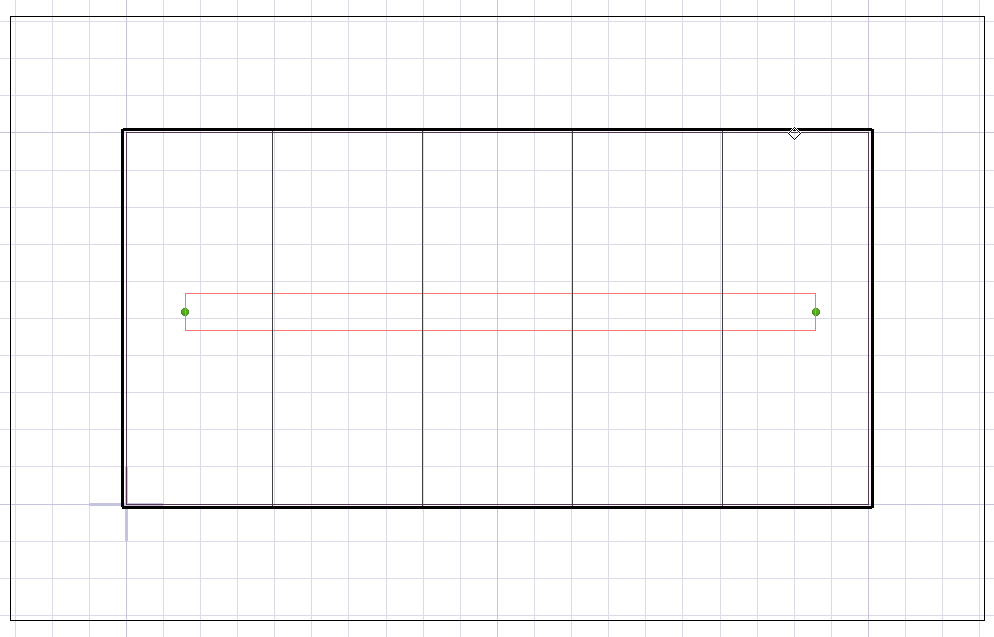
-
Drag the mouse to another side of the mesh region outline and click again to see the new line segment.
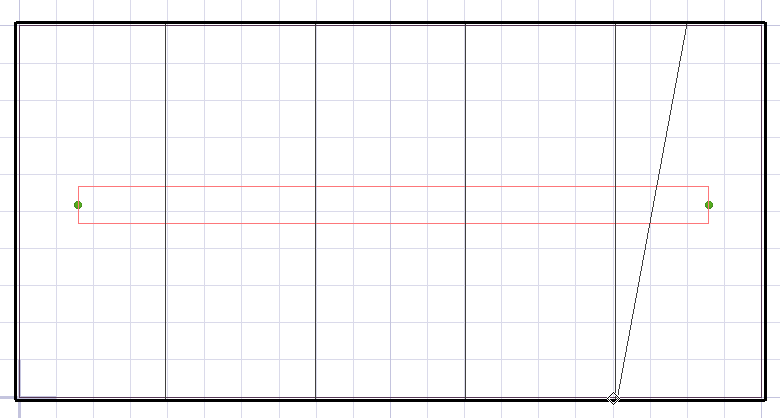
-
Repeat step c, as necessary, to create more line segments, or press Enter to create the new partition line.
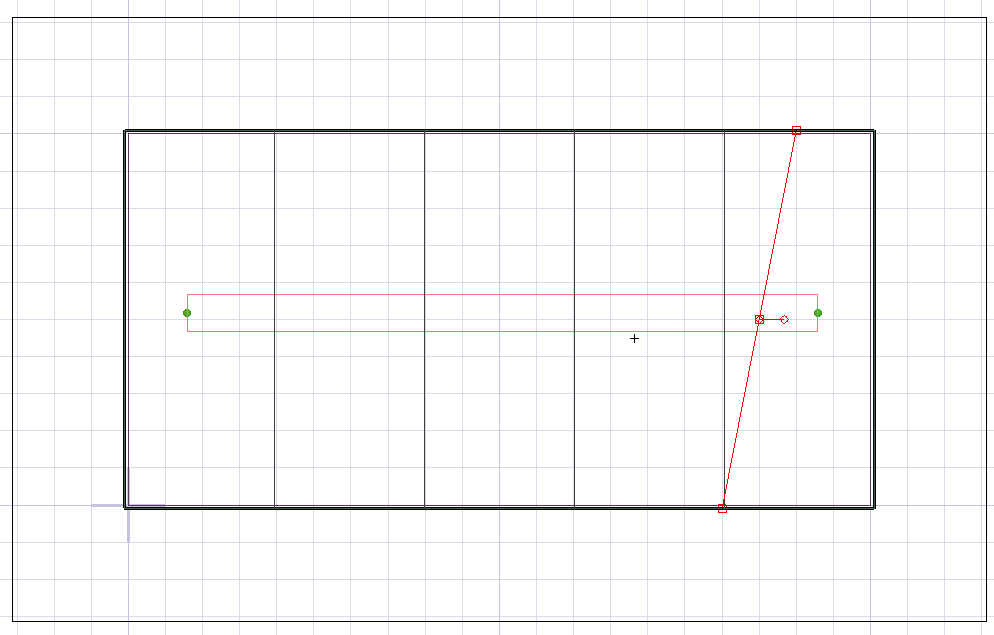
-
-
When the mesh region is complete, navigate to the Project Manager window. Expand the Project Tree > Active Design Folder (e.g., EMDesign1) > Analysis. Then right-click the Setupn and select Generate Mesh.
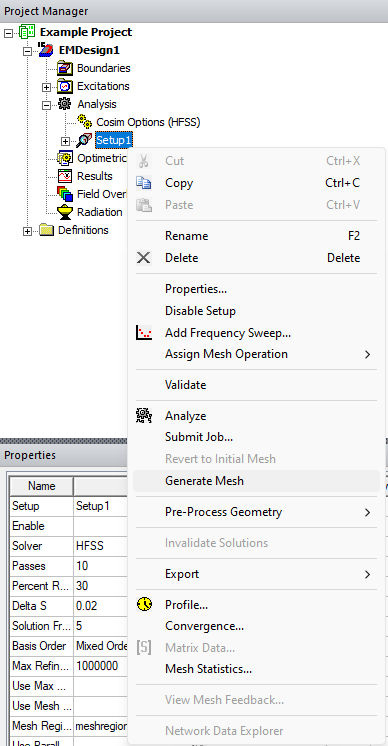
-
From the Project Manager window, right-click Setupn and select Properties.
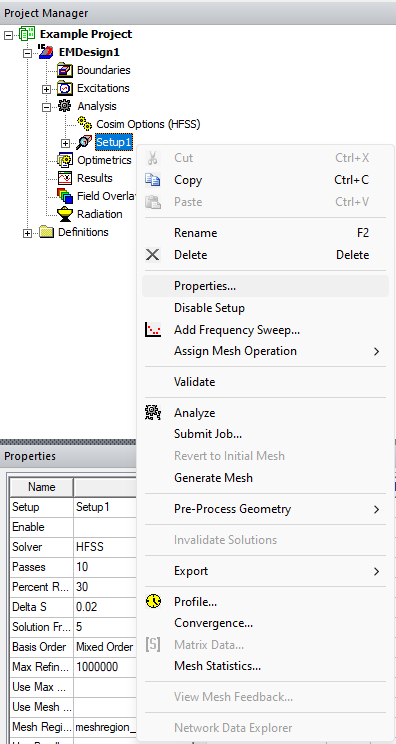
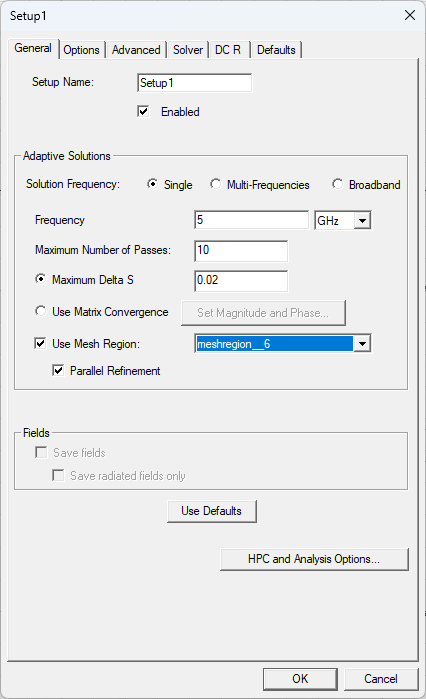
- From the Setup window, navigate to the Adaptive Solutions area and click Use Mesh Region to activate the drop-down menu and the Parallel Refinement check box.
-
Select the appropriate mesh from the drop-down menu (e.g., meshregion_6).
-
By default, mesh regions are meshed in parallel but then stitched together and adaptively refined as a single domain. Checking the Parallel Refinement box allows each partition to be refined simultaneously, significantly reducing adaptive meshing time for complex designs. This trade-off prioritizes faster simulation while maintaining overall solution quality.
The procedure is complete.
Editing the Mesh Region
Once the mesh region is created, edit the parameters or edit/reset the number of partitions from the Properties window. Follow these steps to reset the number of partitions.
-
Click on the mesh region outline to simultaneously select the mesh region and populate the Properties window with the mesh region's parameters.
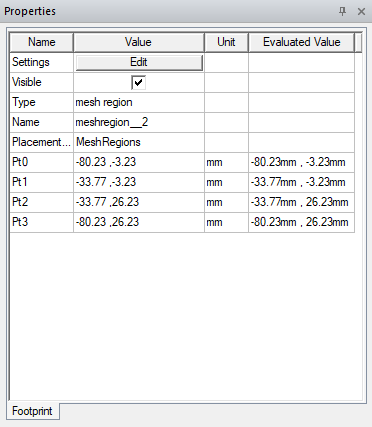
-
Click Edit to reopen the Mesh Region Dialog window.
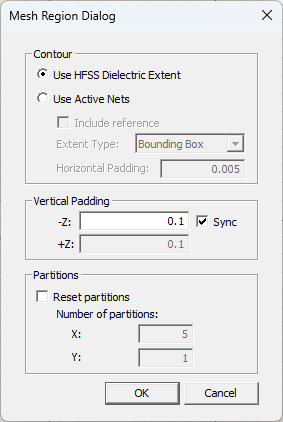
-
Check the Reset partitions box and click OK to reset the Number of partitions. The Layout Editor automatically updates.