
Adding an Advanced HFSS Solution Setup
Click Advanced to open the Setup window.
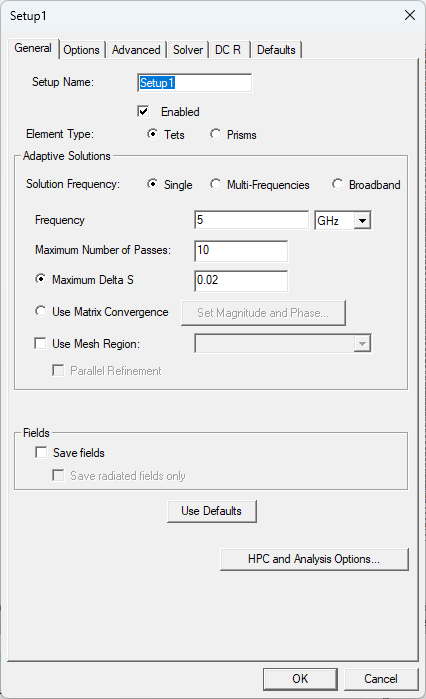
The Element Type selection is only visible in IC mode if the HFSS-Prism beta feature is activated.
The Setup window is divided into the following tabs:
|
General solution settings. |
|
|
Settings for lambda refinement, adaptive analysis and solution, the Order of Basis setting, and whether to enable the use of solver domains, if available for the solution type. |
|
|
Settings for defeaturing a mesh, which model type to use, and vias. |
|
|
(General Mode Only) Settings for curve approximations and layer alignment. |
|
|
Port settings and configurations for modeling. |
|
|
Settings for DC Resistance analysis. |
|
|
Saves the current settings as the defaults for future solution setups or revert the current settings to HFSS's standard settings. |
|
- Click the General tab.
- If applicable, clear the Enabled check box so the setup does not run automatically when Analyze All is applicable,.
- Select a Solution Frequency and configure it.
- For an adaptive analysis, enter the Maximum Number of Passes and then specify the remaining adaptive analysis parameters for HFSS.
- To select or create an analysis configuration, click HPC and Analysis options.
- To post-process or plot fields, click Save Fields.
- To only analyze the far field, click Save radiated fields only.
- Click OK to close the Setup window and open the Edit Frequency Sweep window.
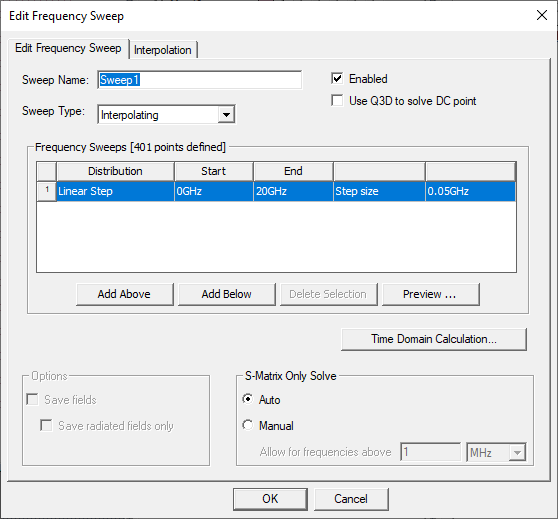
- From the Edit Frequency Sweep window, click OK to accept the sweep with its default values or change the default values. Refer to Adding a Frequency Sweep for more information.
(IC Mode Only)
-
If any technology files were imported during the initial setup of the design, follow these steps to apply a technology before simulation:
Note:If technology files were not imported during the initial setup of the design, users can add one or more files at any time before simulation. If a technology file was applied during setup, the technology's name should already appear in the Layout ribbon adjacent to the Technology drop-down menu. Users will not need to follow these steps. Refer to Adding a Technology File to a Design.
-
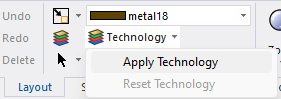
If a technology is available, navigate to the Layout ribbon and select Apply Technology from the Technology drop-down menu.
-
Once the Apply Technology window opens, select an appropriate technology from the list and click OK.
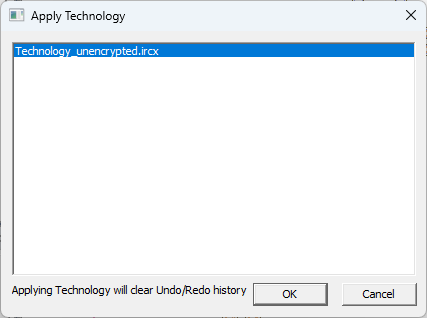
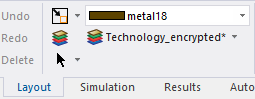
Once the technology is applied to the design, the technology's name appears adjacent to the Technology drop-down menu.
-
-
Once the simulation is prepared, run the analysis to solve the setup. Refer to Running Simulations.