
Adding an HFSS-Prism Solution Setup (IC Mode Only)
HFSS-Prism is a new simulation workflow and solver technology designed for power integrity (PI) analysis that utilizes prism-shaped meshing elements in the simulation to more efficiently handle complex on-chip and interposer designs. Users can optionally simplify stackups, vias, and other primitives into a form suitable for high-efficiency simulation. HFSS-Prism supports large-scale high-performance computing (HPC) for faster and more accurate results.
The prism solution setup is a beta feature. Beta features must be activated prior to use. Refer to Activating the HFSS-Prism Solution Setup Beta Feature for instructions.
Setting Up an HFSS-Prism Simulation
Follow these steps to add a prism solution setup to a project in IC mode.
- Open the Setup window by doing one of the following:
- From the Project Manager window, expand the Project Tree > [Active Design Folder]. Then right-click EMDesign1 and select Add HFSS Solution Setup > Advanced.
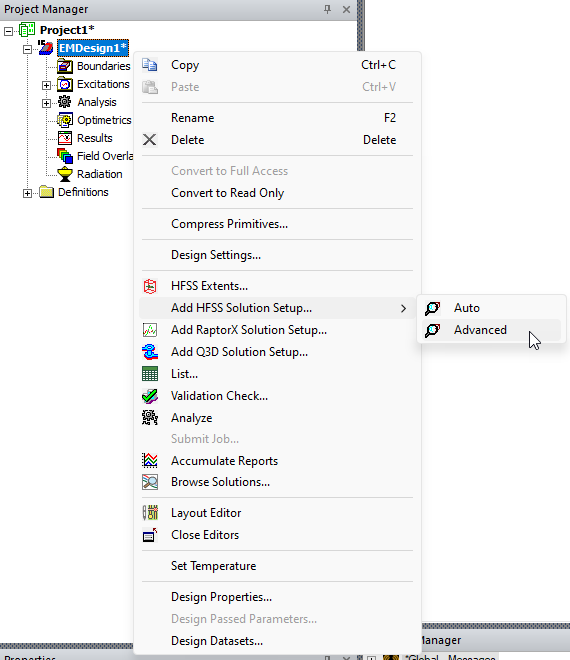
- From HFSS 3D Layout, select Solution Setup > Add HFSS Solution Setup > Advanced.
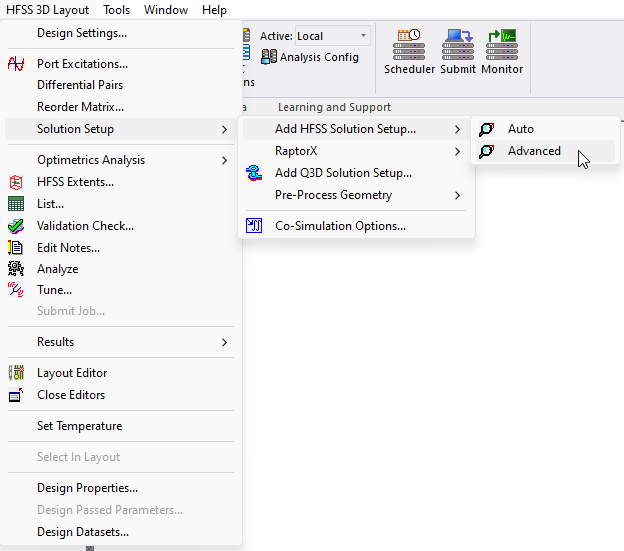
- From the Simulation tab, select HFSS > Advanced.
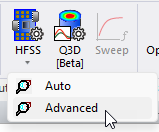
- From the Project Manager window, expand the Project Tree > [Active Design Folder]. Then right-click EMDesign1 and select Add HFSS Solution Setup > Advanced.
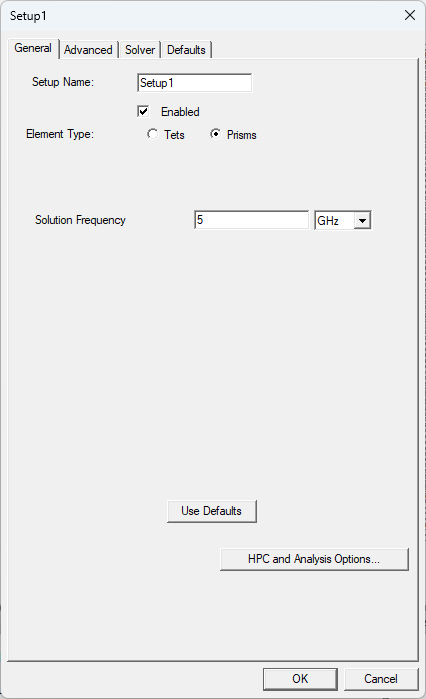
- From the Setup window, select Prisms from the Element Type options. An HFSS-Prism solution setup supports a subset of the advanced HFSS solution setup options available from the General, Advanced, Solver, and Defaults tabs. Default values shown.
- From the General tab, set the following:
- Setup Name – type a name in the field or accept the default.
- Enabled – check the box to activate the setup.
- Element Type – To add an HFSS-Prism solution setup to the design, do not change this selection. The design utilizes prism-shaped meshing elements in the simulation. Note:
Select Tets to use tetrahedron-shaped meshing elements in the simulation. This is the default meshing method. Refer to Adding an Advanced HFSS Solution Setup.
- Solution Frequency – specify the frequency and units at which to generate the solution.
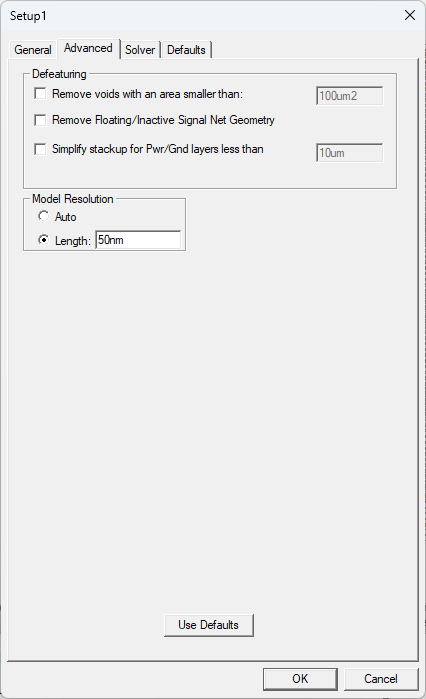
- Click the Advanced tab.
- From the Advanced tab, set the following:
- Remove voids with an area smaller than – check the box and enter a <value> to simplify meshing by removing small voids.
- Remove Floating/Inactive Signal Net Geometry – check the box to remove floating and inactive signal net geometry.
- Simplify stackup for Pwr/Gnd layers less than – check the box, enter a <value>, and metal layers with a thickness less than the specified value are set to 0 during simulation. The corresponding layer elevations are adjusted.
- Model Resolution – select Auto to automatically set the model resolution based on the design's geometry (recommended for most designs) or select Length to manually set a resolution threshold. Features smaller than the entered value may be merged with nearby geometry, snapped, or removed entirely, especially if they don’t affect the overall structure or function of the design (recommended if the design includes fine or critical details).
- Click the Solver tab.
-
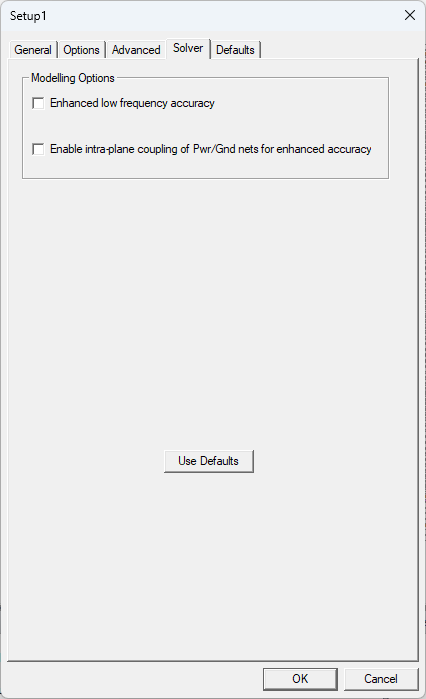
From the Solver tab, set the following:
- Enhanced low frequency accuracy – check the box to increase simulation accuracy at low frequencies.
- Enable intra-plane coupling of Pwr/Gnd nets for enhanced accuracy – check the box to increase accuracy by including interactions between power and ground planes in simulation results.
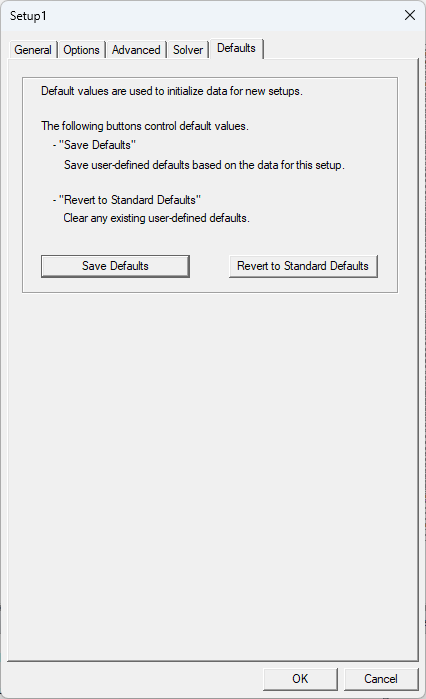
- Click the Defaults tab.
-
From the Defaults tab, set the following:
- Save Defaults – click to save user-defined defaults based on the data for this setup for all tabs.
- Revert to Standard Defaults – click to clear any existing user-defined defaults for all tabs.
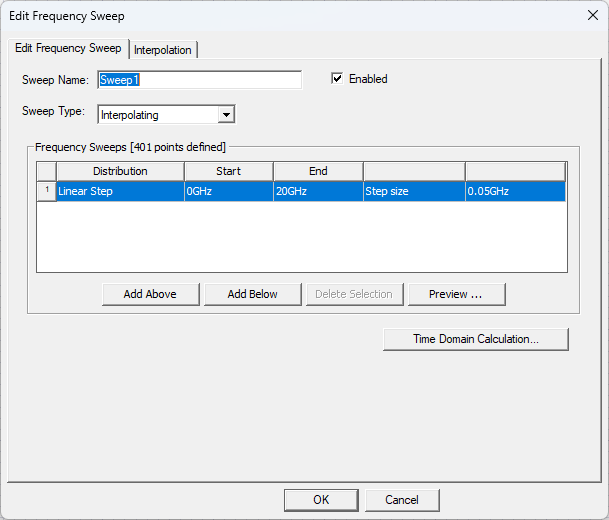
- Click OK to add the prism solution setup to the active design and simultaneously open the Edit Frequency Sweep window.
- From the Edit Frequency Sweep window, click OK to accept the sweep with its default values or change the default values before continuing. Refer to Adding a Frequency Sweep for more information.
Analyzing the Design
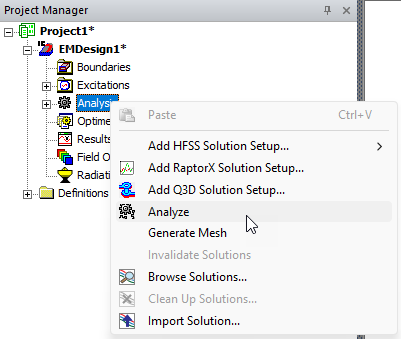
To run the new HFSS-Prism solution setup, navigate to the Project Manager window, right-click Analysis and select Analyze. Refer to Running Simulations.
Activating the HFSS-Prism Solution Setup Beta Feature
Follow these steps to enable the prism solution setup beta feature, then activate IC mode.
-
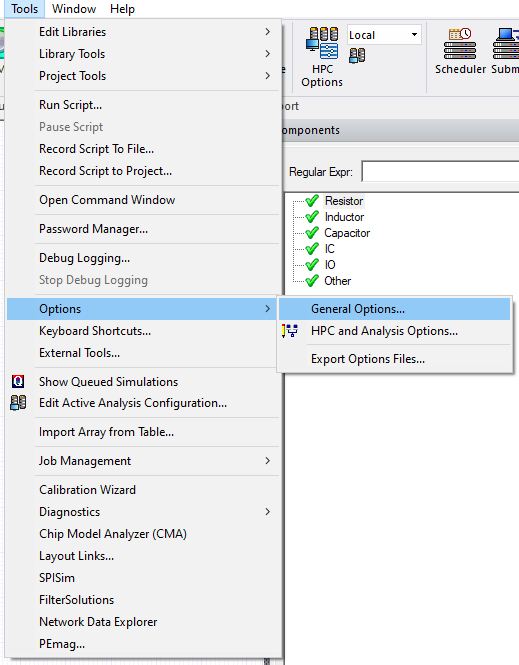
From the Tools menu, select Options > General Options to open the Options window
-
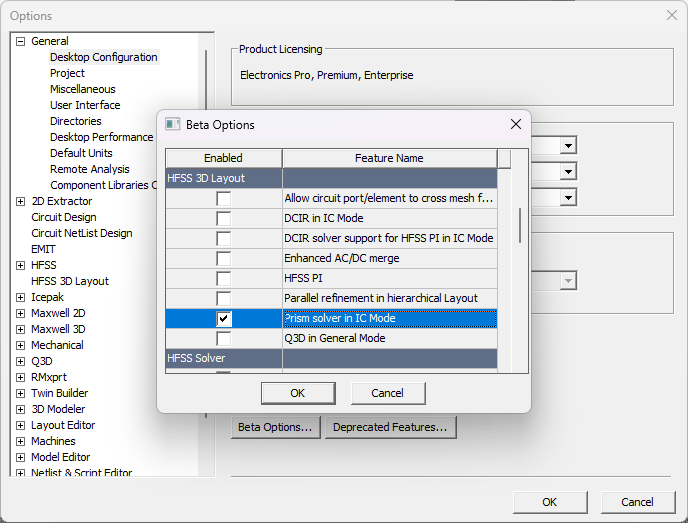
Expand General > Desktop Configuration and click Beta Options to open the Beta Options window
-
Scroll down to the HFSS 3D Layout section and check the box adjacent to Prism solver in IC Mode.
-
Click OK to close the Beta Options window.
-
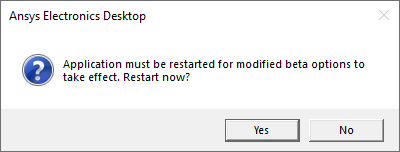
Click OK to close the Options window and open a prompt to restart the software. Users may be asked to save their work.
-
Click Yes to restart immediately.
-
After restarting the software, the prism solution setup is available from the location described in the previous section.
The procedure is complete.