
To Copy and Paste Selected Properties for Components
Follow this procedure to copy and paste selected properties from one component to one or more components.
- Select the component you want to copy from.
- Use one of the following methods to copy data:
- Select Edit > Copy Data.
- Right-click the object and select Copy Data.
- Press Ctrl+Shift+C.
- Select the components you want to paste to.
- Paste the properties by using one of the
following methods:
- Select Edit > Paste Data.
- Right-click the component and select Paste Data.
- Press Ctrl+Shift+V.
The Paste Properties Data dialog box appears.
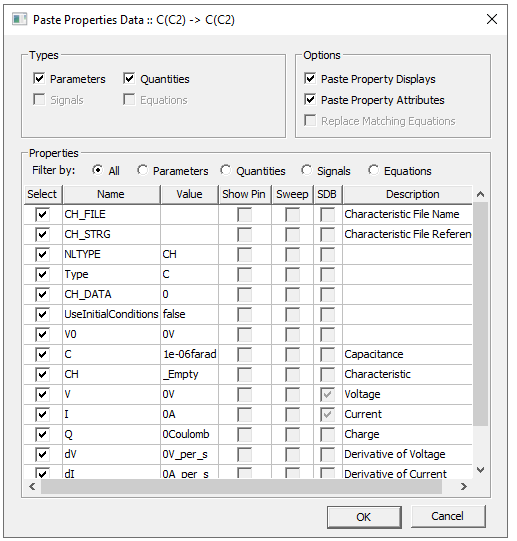
- In the Copy Data pane, select either Value and attributes or Only value. When you select Only value, the attributes columns are hidden.
- In the Options pane, select an option. The
pane is unavailable when there are no user-defined properties for the
component.
- Paste Properties Displays – Copy property display settings.
- Copy Property Attributes – Copy property attributes.
- Replace Matching Equation – Select this check box to replace all target equations with the source equations; clear the check box to add source equations to the target without deleting the existing target equations.
- Do one of the following to select the
properties to copy:
- Select one or more of the following check boxes: Parameters, Quantities, Signals, or Equations.
- Click Select in the first column to toggle between selecting all and clearing all.
- Select the Select check box for the property. If you do not want to include the property, clear the Select check box.
In the Filter by options, you can filter the view by selecting All, Parameters, Quantities, Equations, or Signals.
Select the Show Description check box to display the descriptions for each property.
- Click OK to paste the properties into the component.
Related Topics
Copying and Pasting Properties
To Copy and Paste Common Properties for Primitive Drawing Elements