
Setting Interface Port Properties
- Select the port and either double-click
the port symbol, or right-click the port symbol and select Edit
Port. you can also right-click the port icon in the Project tree
and select Edit.
The Port Properties dialog box opens.
- You can specify a Port
Name (including a bus
name), and set Terminal Attributes
by selecting from the following drop-down menus:
- Domain
- Conservative, or the following non-conservative domains, where no physical conservation laws apply to the interface: Quantity, Parametric, Signal.
- Conservative - where laws of conservation of the physical domain of interest are respected and the value can change during a single simulation.
Quantity - typically should be used for a non-conservative, real valued interface port for which the value can change during a single simulation.
Parametric - typically used in real valued ports to pass design parameters. It is non-conservative and the value remains constant during a single simulation.
- Signal - typically should be used for a non-conservative, language-specific enumerated (fixed set of values) interface port for which the value can change during a single simulation.
- Type – Conservative Domain types (or natures): Electrical, Magnetic, Fluidic, Translational, Translational_Velocity, Rotational, Rotational_Velocity, Radiant, Thermal, Compressible_Fluidic.
- Quantity or Parametric Domain type: real.
- Signal Domain types: bit, std_logic.
- Direction – Present when the Domain is Quantity, Parametric, or Signal. Choices are: In, Out, InOut. The interface port symbol contains a red-filled triangle for In, a blue-filled triangle for Out, and both red and blue-filled triangles for InOut.
- Port Value – Present when the Domain is Quantity, Parametric, or Signal. Enter a port value.
- If Unconnected – Present when the Domain is Conservative. Choices are: No action, Flag as error, Unique net, Grounded.
If the Port Name designates it as a bus port, you can also choose:
- Common Attributes – when checked, assigns the same Terminal Attributes and Port Source or Impedance to all Bus Elements.
- Bus Element - drop-down list allows unique Terminal Attributes and Port Sources or Impedances to be assigned to individual bus elements.
- Domain
- Conservative, or the following non-conservative domains, where no physical conservation laws apply to the interface: Quantity, Parametric, Signal.
- You can specify a Port
Source or Impedance for conservative ports by selecting the
appropriate radio button: None,
Source, or Impedance.
Similarly, you can specify a Port Source
for non-conservative ports by selecting the Source
radio button.
- The Source drop-down contains a list of source components appropriate to the nature (shown in the Terminal Attributes Type field) of the port.
- Similarly, the Impedance drop-down shows appropriate impedance components.
- The lists of available source and impedance components are set up in the Tools>Options>General Options>Twin Builder>Port Options. For more information, see Port Options.
- Click Properties to open the special component dialog for the selected component, allowing complete specification of the element’s properties.
The instance name of a port source has the form: <port name>_source_<comp name>. For example, if you place an interface port named Port2 and select a voltage source E as its port source, the instance name for this port source would be: Port2_source_E. Similarly, the name of an port impedance would be <port name>_impedance_<comp name>. Instance names for port sources and impedances cannot be modified, and the Output/Display tab on the special component dialog box is disabled.
Icons for defined port sources and impedances appear in the Project Manager tree under the ports with which they are associated.
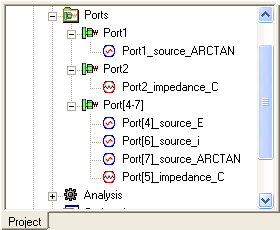
Double-click a port source or impedance icon to open the associated component dialog box for editing. You can also right-click an icon if you want to delete the instance.
- When finished setting port properties, click OK.