
Restoring Archives
Follow this procedure to restore an existing archive created with File > Archive:
- Select File > Restore
Archive.
This displays an Archive to Restore browser window that lets you navigate your file system for archive files of type .aedtz or .zip.
- Select an archive file and click View Archive to
preview the contents.
The preview dialog box shows the same warnings that were generated at archive time. These warnings can identify additional steps needed to update any files which were manually added to the archive.
- Click Open
to display a Project File Restore Location
browser and navigate to the place where you want to restore the file.
You can edit the file name, and check options to Overwrite existing files and to Open project after restoring.
- Click Save
to restore the archived file. A dialog box displays progress and results
of the restoration process.
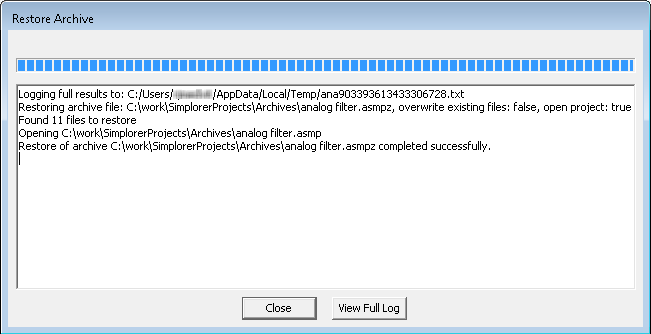
A full log file is also generated which contains detailed information about the restore process. The first line in the text window displays the location of the full log file. After the restore has been completed, click View Full Log to display a detailed log of the restoration.