
Printing
Use the printing functionality to print the contents of the active window in the design area.
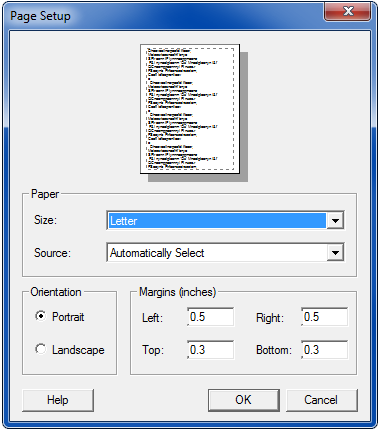
- Select File > Page
Setup to set up formatting to print the active window in
the Design Area. The Page Setup dialog box includes formatting options such
as paper size, orientation, print margins, borders, and labels that are
specific to the editor (Schematic, Netlist, and so on) in the active
window. The following example shows the Page
Setup dialog box for all Twin Builder text editors (Netlist,
SML,
SPICE,
VHDL-AMS,
Script,
Package,
C-Model,
Modelica).
See Printing a Schematic for additional information on Page Setup for the Schematic Editor.
- When using Sheetscan, click File > Printer Setup to open a standard Windows Print Setup dialog box set up the printer to print the active SheetScan document.
- Click File > Print Preview to display a preview of the print job.
- Click File > Print to print the active window in the Design Area. The dialog box may include formatting options such as borders and labels that are specific to the editor (Schematic, Symbol, Netlist, and so on) in the active window.
See Printing a Schematic for additional information on printing from the Schematic Editor.