
Listing Design Elements
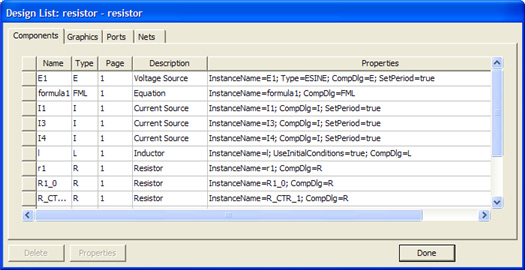
Twin Builder provides a convenient way to list the components, graphics, ports and nets of a schematic, namely the Design List dialog box. A Design List dialog box is also used in the symbol editor to list a symbol’s graphics elements.
- To access the Design
List dialog box in the schematic editor, select Schematic > List from the Twin Builder
top menu bar:
- To access the Design
List dialog box in the symbol editor, select Symbol > List
from the Twin Builder top menu bar.
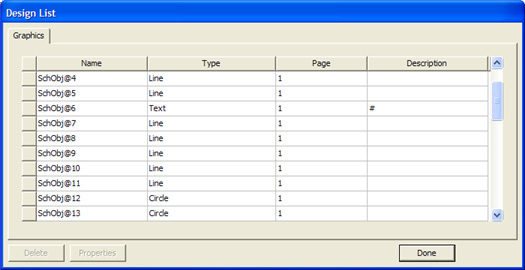
Note that the Design List dialog for the schematic editor contains four tabs: Components, Graphics, Ports, and Nets. For the symbol editor, only the Graphics tab is present.
- Each tab contains a grid that shows the objects that are present in the schematic or symbol editor.
- Each row in the grid contains one item, and each column displays an aspect of that item.
- Click a column header to sort it. Click multiple times to reverse the order of the sort.
- Selecting a row zooms to that item in the editor and selects it.
- Multiple items can be selected at once using the shift or control keys, which will zoom/pan the display so that all selected items are visible.
- The Delete and Properties buttons apply to the objects in the selected rows.
- To manipulate an object’s properties, select the desired object and click Properties to open its properties dialog box for editing.
- To delete objects, select them and click Delete.
- You can undo property changes and deletions.
Components Tab
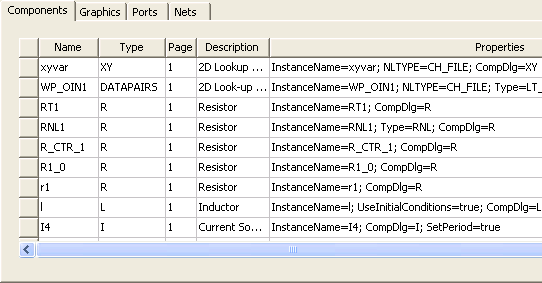
- Name – Shows the ID of the schematic component.
- Type – Shows the component name from the library.
- Page – Shows the page number on which that component is located.
- Description – Shows the component description.
- Properties – Shows the overridden properties of that component.
Graphics Tab
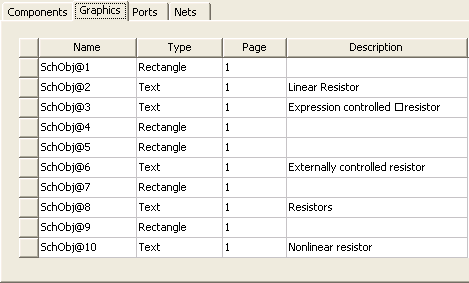
- Name – Shows the ID of the graphic.
- Type – Shows the graphic type (Circle, Rectangle, Arc, Text, Pin, and so on).
- Page – Shows the page number on which that graphic is located.
- Description – Shows the descriptive text for text and pin graphic types; and is blank for non-textual graphics.
Ports Tab
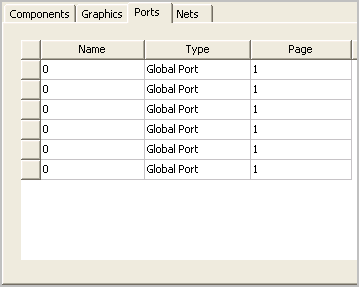
- Name – Shows the name of the port.
- Type – Shows the port type (Interface, Page, or Global).
- Page – Shows the page number on which that port is located.
Nets Tab
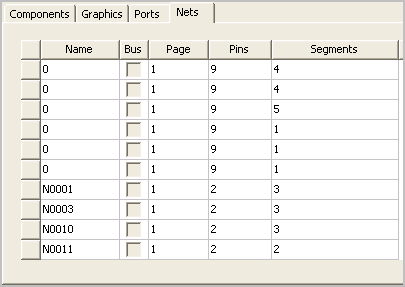
- Name – Shows the name of the net.
- Bus – Selected if the item is a bus, and is cleared for normal wires.
- Page – Shows the page number on which that net is located.
Note that a net may appear more than once if it spans multiple pages.
- Pins – Number of pins connected to that net.
- Segments – Number of individual line segments that comprise that net.