
Creating a New Component Dialog Box Using the Component Dialog Wizard
To create a new component dialog box, it is first necessary to start the Component Dialog Wizard.
- Open the Edit Component dialog box. Right-click a component on a schematic and select Edit Component.
You can also right-click a component listed on the Component Libraries window Components tab and select Edit Component, or you can right-click a component definition in the Project ManagerProject tree and select Edit Component.
- In the Edit Component dialog box, select General > Setup Dialog. The Component Dialog Wizard appears. The Wizard Builder dialog box may also appear.
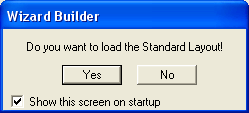
- If you select Yes in this dialog box, the Component Dialog Wizard loads the standard layout, which is a partially completed component dialog box. The standard layout is useful for many component dialog boxes because it creates the basic structure of the dialog box, decreasing your work and saving you time.
- If you select No
in the Wizard Builder dialog box,
the Component Dialog Wizard loads
a blank component dialog box.
Hint
If the Wizard Builder dialog box does not appear upon starting the Component Dialog Wizard, the wizard loads a blank component dialog box. You can still add the standard layout to the blank dialog box; select Layout > Create Standard Layout on the wizard's menu bar.