Component Dialog Wizard Size Controls
The size controls facilitate the sizing of component dialog box elements so that they are the same size as a selected reference element.
To use the size controls:
- Select the element or elements to be sized to the reference element. Draw a rectangle around the desired elements, or press Shift and click each element individually.
- Select the reference element. Press Shift
while the other elements are selected and click the reference
element.
Note:
The reference element must be selected last.
- Select Layout > Size Controlsto choose a size control. You can also click the appropriate size control on the Layout toolbar.
There are three size controls available:
- Size Height – The selected elements will have the same height as the reference element.
- Size Width – The selected elements will have the same width as the reference element.
- Size Both – The selected elements will have the same height and width as the reference element.
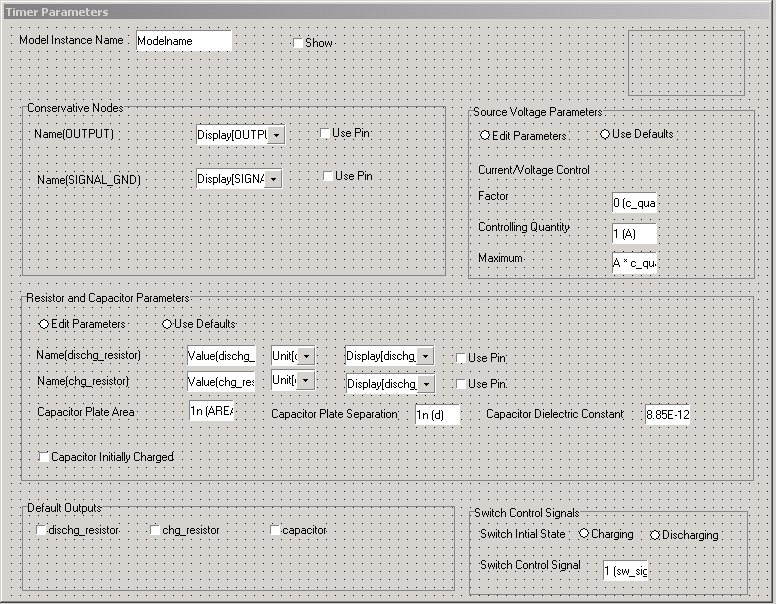
The first illustration in the following example shows the group Conservative Nodes selected to be sized to the height of the group Source Voltage Parameters. Select Size Height from the size control menu to accomplish the size change.
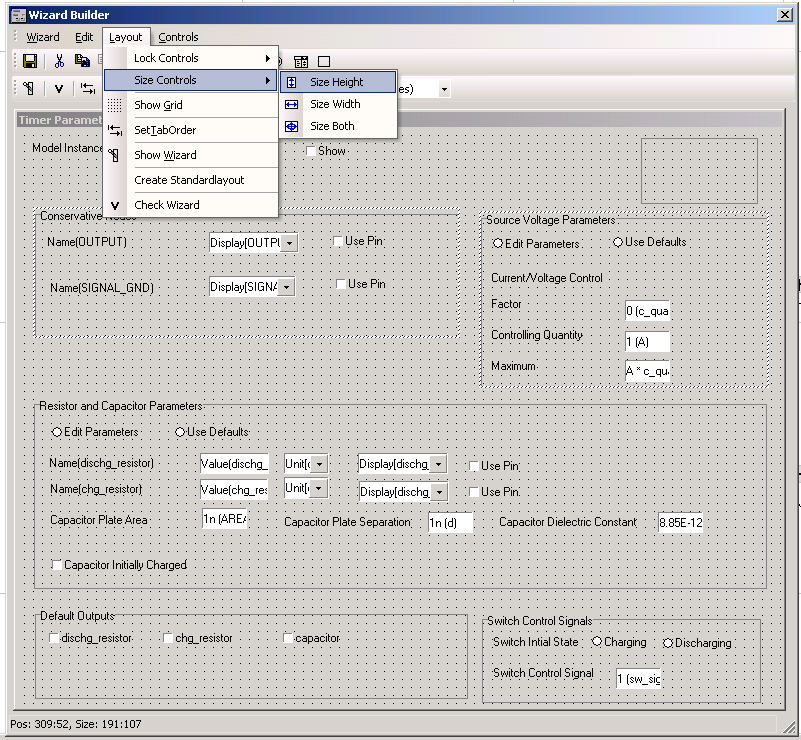
The second illustration shows the two groups with equal height after the sizing has occurred.