Component Dialog Box Lock Controls
Lock controls help you align one or more component dialog box elements along a single guide element. You can align elements with the top, bottom, left, or right of the guide element.
Follow this procedure to use the lock controls:
- Select the element or elements to be aligned with the single selected element. To do this, use the mouse to draw a rectangle around the desired elements, or press Shift and click each element individually.
- Select the guide element. To do this, press Shift while the other elements are selected and click the guide element. The guide element must be selected last.
- Choose a lock control by selecting Layout > Lock Controls, or click the appropriate lock control on the Layout toolbar.
- Four lock controls are available:
- Left – The left edges of the selected elements become aligned with the left edge of the guide element
- Right – The right edges of the selected elements become aligned with the right edge of the guide element.
- Top – The tops of the selected elements become aligned with the top of the guide element.
- Bottom – The bottoms of the selected elements become aligned with the bottom of the guide element.
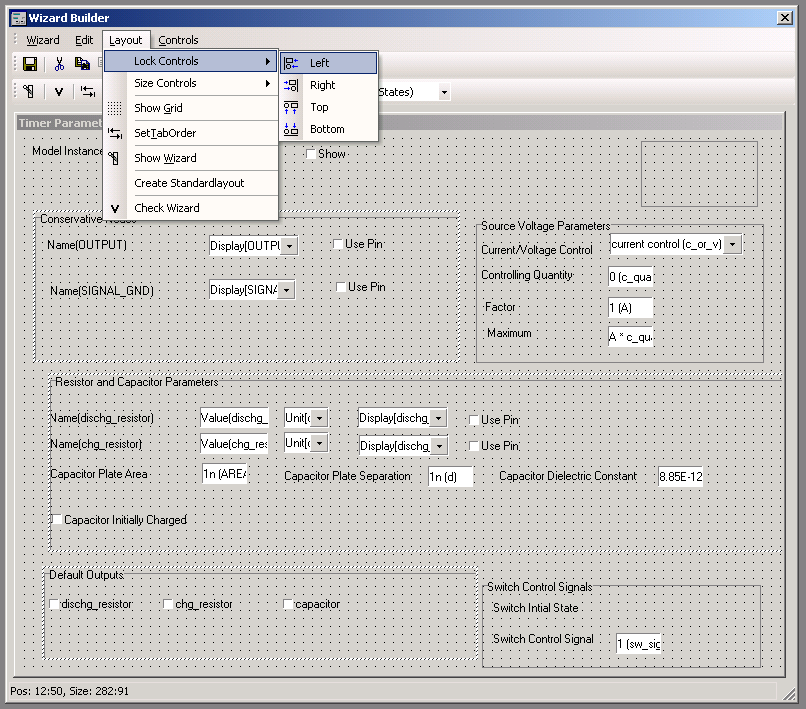
The first illustration in the following example shows the groups Resistor and Capacitor Parameters and Default Outputs selected to be aligned with the left edge of the group Conservative Nodes. The Left lock control is selected from the lock control menu to perform the alignment.
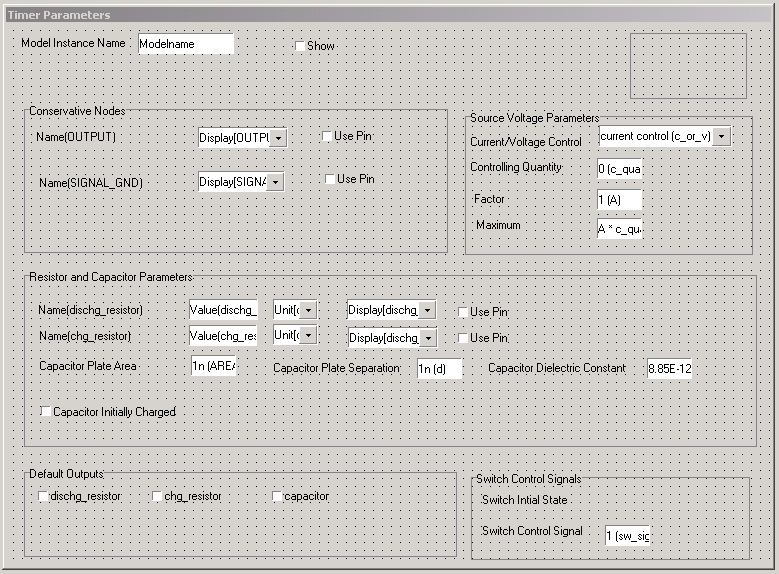
The second illustration shows the three groups in left alignment after the lock to the left has occurred.